Menu
Microbots
0
  • Learn
    • Getting Started
    • Maker Builds
    • Education
  • Shop
    • Modules & Parts
    • Tools & Gears
    • Robots & Displays
  • About
    • Our Story
    • Reach Out
    • FAQs
  • Sign in
  • English
  • Your Cart is Empty
Microbots
  • Learn
    • Getting Started
    • Maker Builds
    • Education
  • Shop
    • Modules & Parts
    • Tools & Gears
    • Robots & Displays
  • About
    • Our Story
    • Reach Out
    • FAQs
  • Language

  • 0 0

CodeCell: Connecting with BLE

Bluetooth Low Energy (BLE) is a popular way to communicate wirelessly between electronic devices. It is an energy-efficient version of Bluetooth that allows devices to exchange small amounts of data with low power consumption. Here are it's key concepts:

  • BLE Server → CodeCell acts as a server, advertising itself to other devices.
  • BLE Client → A phone, tablet, or another microcontroller that connects to CodeCell.
  • BLE Service → A collection of characteristics that define the data being sent.
  • BLE Characteristic → A specific data point (e.g., button presses, sensor readings).

Viewing BLE Data on a Smartphone

Before we start testing, your need to download an app to send BLE data on your  smartphone. So start by downloading a BLE scanner app:

  • Android → nRF Connect or "BLE Scanner"
  • iOS → nRF Connect

Setting Up BLE on CodeCell

To make CodeCell advertise itself as a BLE device, we need to initialize BLE, create a service and characteristic, and start advertising.

This code creates a BLE server, advertises a service, and sets up a characteristic that can be read and written by a connected device. The CodeCell will receive the button characteristic and control its onboard RGB LED:

  • If the button value is 1, the LED turns red.
  • If the button value is 0, the LED turns green.
#include <BLEDevice.h>
#include <BLEUtils.h>
#include <BLEServer.h>
#include <BLE2902.h>

#include <CodeCell.h>
CodeCell myCodeCell;

BLECharacteristic *pButtonCharacteristic = NULL;
#define BUTTON_UUID "abcd1234-abcd-1234-abcd-123456789012"

class MyServerCallbacks : public BLEServerCallbacks {
  void onConnect(BLEServer *pServer) override {
    Serial.println("BLE Connected");
    delay(1000);
  }

  void onDisconnect(BLEServer *pServer) override {
    Serial.println("BLE Disconnected");
    delay(500);
    BLEDevice::startAdvertising(); // Restart advertising
  }
};

// Callback class for handling button writes
class ButtonCallback : public BLECharacteristicCallbacks {
  void onWrite(BLECharacteristic *pCharacteristic) override {
   String value = pCharacteristic->getValue();
    
    if (value.length() > 0) {
      int buttonState = value[0]; 

      Serial.print("Button State: ");
      Serial.println(buttonState);

      if (buttonState == 1) {
        myCodeCell.LED(255, 0, 0); // Red LED when button is 1
      } else {
        myCodeCell.LED(0, 255, 0); // Green LED when button is not 1
      }
    }
  }
};

void setup() {
    Serial.begin(115200);
    myCodeCell.Init(LIGHT); // Initializes the light sensor

    BLEDevice::init("CodeCell_BLE"); // Set BLE device name
    BLEServer *bleServer = BLEDevice::createServer();
    bleServer->setCallbacks(new MyServerCallbacks());

    BLEService *bleService = bleServer->createService(BLEUUID("12345678-1234-5678-1234-56789abcdef0"));

    // Create BLE characteristic for button state
    pButtonCharacteristic = bleService->createCharacteristic(
        BUTTON_UUID,
        BLECharacteristic::PROPERTY_READ | BLECharacteristic::PROPERTY_WRITE
    );
    pButtonCharacteristic->addDescriptor(new BLE2902());
    pButtonCharacteristic->setCallbacks(new ButtonCallback());

    bleService->start();

    BLEAdvertising *pAdvertising = BLEDevice::getAdvertising();
    pAdvertising->addServiceUUID("12345678-1234-5678-1234-56789abcdef0");
    BLEDevice::startAdvertising();
}

void loop() {
    // No need to continuously check, LED updates only on BLE write
}

How This Code Works

  • BLE Initialization → CodeCell advertises itself as a BLE device called "CodeCell_BLE".
  • BLE Service & Characteristic → A service with a button characteristic is created.
  • BLE Callbacks → The server prints "BLE Connected" when a client connects and "BLE Disconnected" when it disconnects.
  • Advertising Restart → When disconnected, BLE automatically starts advertising again so new devices can connect.

Testing the LED Control  

  • Connect to "CodeCell_BLE" in the BLE Scanner app.
  • Select the service you created - typically displayed as Unknown Service
  • Find the button characteristic (BUTTON_UUID) and send the value:
    • Write 1 → LED turns red 🔴
    • Write 0 → LED turns green 🟢

Sending Sensor Data

Next we'll define a new BLE characteristic that allows CodeCell to send sensor values to a connected device.

#include <BLEDevice.h>
#include <BLEUtils.h>
#include <BLEServer.h>
#include <BLE2902.h>

#include <CodeCell.h>
CodeCell myCodeCell;

BLECharacteristic *pSensorCharacteristic = NULL;
#define SENSOR_UUID "abcd5678-abcd-5678-abcd-56789abcdef0"

class MyServerCallbacks : public BLEServerCallbacks {
  void onConnect(BLEServer *pServer) override {
    Serial.println("BLE Connected");
    delay(1000);
  }

  void onDisconnect(BLEServer *pServer) override {
    Serial.println("BLE Disconnected");
    delay(500);
    BLEDevice::startAdvertising(); // Restart advertising
  }
};

void setup() {
    Serial.begin(115200);
    myCodeCell.Init(LIGHT); // Initialize light and proximity sensor

    BLEDevice::init("CodeCell_BLE"); // Name the BLE device
    BLEServer *bleServer = BLEDevice::createServer();
    bleServer->setCallbacks(new MyServerCallbacks());

    BLEService *bleService = bleServer->createService(BLEUUID("12345678-1234-5678-1234-56789abcdef0"));

    // Create BLE characteristic for sensor data
    pSensorCharacteristic = bleService->createCharacteristic(
        SENSOR_UUID,
        BLECharacteristic::PROPERTY_READ | BLECharacteristic::PROPERTY_NOTIFY
    );
    pSensorCharacteristic->addDescriptor(new BLE2902());

    bleService->start();

    BLEAdvertising *pAdvertising = BLEDevice::getAdvertising();
    pAdvertising->addServiceUUID("12345678-1234-5678-1234-56789abcdef0");
    BLEDevice::startAdvertising();
}

void loop() {
    if (myCodeCell.Run(10)) { // Read every 100ms (10Hz)
        uint16_t proximity = myCodeCell.Light_ProximityRead();
        Serial.print("Proximity: ");
        Serial.println(proximity);

        // Convert proximity value to string and send over BLE
        String proximityStr = String(proximity);
        pSensorCharacteristic->setValue(proximityStr.c_str());
        pSensorCharacteristic->notify(); // Notify connected device
    }
}

How it works?

  • This code sets up a new characteristic (SENSOR_UUID) that clients can read and get real-time updates:
    • PROPERTY_READ → Allows the client to read the value manually.
    • PROPERTY_NOTIFY → Automatically sends updates when new data is available.
  • The Light_ProximityRead() function gets a value from the onboard light sensor that detects nearby objects. We convert the number to a string and send it to the BLE client.

Try it out

Now that CodeCell is sending proximity sensor data over BLE, you can view it on a phone.

  • Open a BLE app like nRF Connect (Android/iOS)
  • Scan for "CodeCell_BLE" and connect
  • Find the sensor characteristic (SENSOR_UUID)
  • Enable notifications and watch the proximity data update in real-time!
  • Your Serial Monitor data should match the data sent to your phone

Move an object near the sensor and see how values change!


  • Share:

Follow

Github

  • About
  • Software
  • Education
  • Contact
  • FAQs
  • Terms
  • Refund Policy
  • Privacy Policy

Join our Community ~ Be the first to know about new products and get exciting deals!

© 2026 Microbots.

★ Reviews

Let customers speak for us

49 reviews
Write a review
84%
(41)
4%
(2)
2%
(1)
4%
(2)
6%
(3)
21
45
G
MotorCell
Gerald Kendrick

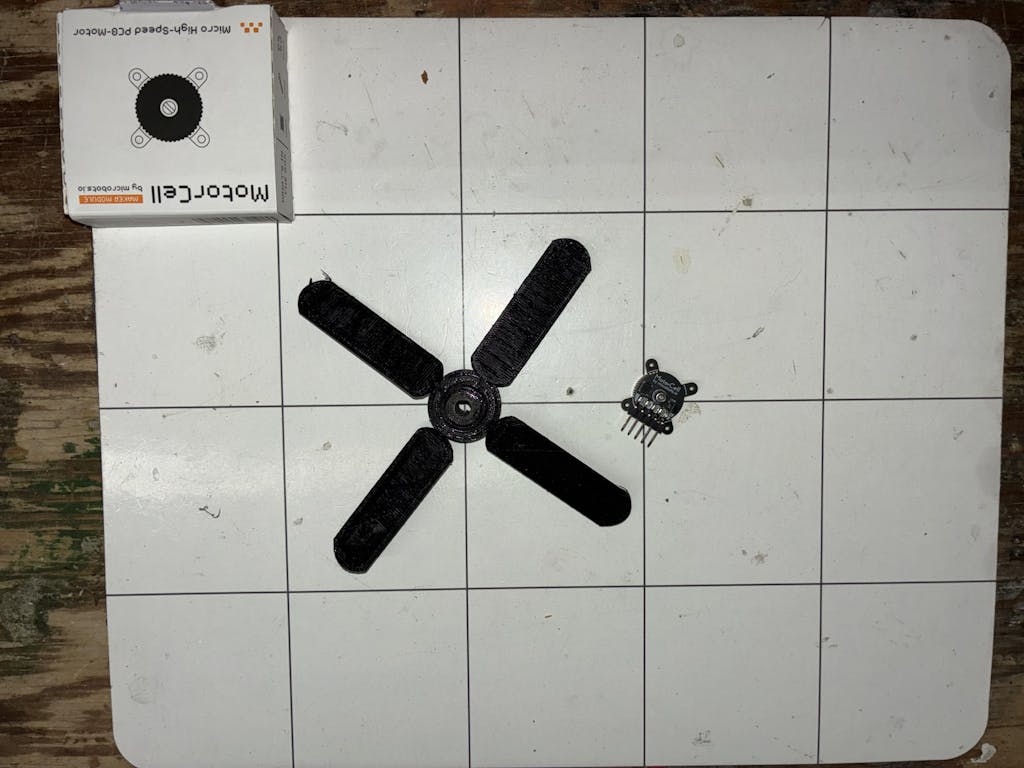
Very happy with my MotorCell. I'm incorporating it into a prototype project that will hopefully result in me needing a few more!
User picture
A
CodeCell C6 Drive
Anonymous

Great product! Having the IMU, motor driver, and battery management directly on the board is incredibly handy for quick prototyping. Love it!

Improvement ideas:
- using an ESP32 other than the C6 to get more cores. On a single-core chip, WiFi tasks often interfere with real-time applications.
- adding two more motor drivers (with a slightly higher current rating) would be awesome for drone projects!
- I know the compactness of the board is a huge selling point and really optimised, but exposing a few more pins would be great. With the motor drivers already occupying 4 pins, having only 4 GPIOs left can be tight for complex projects (though I’m nitpicking, I’m really pushing this board to its limits!).

A
CodeCell C6
Anonymous

I use CodeCell C6, like all the Features, and compactness. The remote Link to the iPhone with some Controls for 2 Motors is just perfect for the job.

O
CodeCell C6 Drive
Odd_Jayy

This is one of my Favorite finds, this board has everything you need to make a quick and small robot, easy to set up and install. Perfect for beginners or a person who needs to save room in their build.
User picture
a
DriveCell
arnaubp

Great products!
Well attention to the detail.
They are so so so small :D

123