

These microcomputers are considered as very powerful and versatile devicesTherefore, you will be able to perform a large number of tasks on them.
Therefore, if you are one of the users who likes constantly watching streaming content and using platforms like Netflixthen you can start using tu Raspberry Pi to see all your favorite shows.
It should be noted that currently There are several methods to play content from this platform or similar ones on Raspberry PiThat's how we'll show you how. Watch Netflix 100% legally and easily.
Is it legal to watch Netflix on a Raspberry Pi?
Many users are wondering Is it legal to watch Netflix on a Raspberry Pi?Although this is not possible at first, since this platform is not compatible with the board, it can be carried out different tricks that will allow you to play all your content from these microcomputerswhich has become an excellent opportunity to spend entertaining time on these mini PCs.
Therefore, it should be mentioned that Is it legal to watch Netflix? or any other streaming platform from Raspberry Pi, This process will be legal as long as he uThe user must have an official account. and has been acquired directly from the Netflix official platform. In other words, there should be no contract for a pirated account to watch this type of programming, considering that many of them are currently available.
In this way, if you have a Raspberry Pi and an original Netflix accountThen, carefully follow each of the methods you can use to start watching all your favorite programs from these mini PCs in an easy, fast, and secure way.
Learn step by step how to watch your favorite Netflix series and movies from Raspberry Pi
Previously able play streaming content It wasn't possible to run any platform on one of these microcomputers, but nowadays there are different methods to do it. However, before explaining each of the corresponding procedures, it's important that you know the list of materials and accessories that you must have so that the Raspberry Pi It should work correctly, not only on your LCD monitor, but also on your TV or any other device you own.
Therefore, you will need the following requirements:
- An 32GB micro SD card or more than class 10.
- Un keyboard wireless.
- Mouse wireless.
- Cable Micro USB and charger.
- A plate Raspberry Pi 3 or Pi 4.
- HDMI Cable (S-Video failing that).
- An internet connectionIf it's a wired connection, you'll need an Ethernet cable; otherwise, you can't. connect via WiFi.
- La Raspbian ISO image.
Once you have all these requirements, then you can begin to Watch your favorite Netflix series and movies on your microcomputer.
To do this, you just need to follow each of the methods that we will teach you below:
In Chromium

Keep in mind that Chrome and Chromium They are part of the same project, but despite this they are not the same, which is why many users prefer to watch platforms like Netflix on Chrome and not on Chromiumjust like many other browsers available today.
It's important to keep in mind that the main problem of Chromium It's in the browser library and the use of elements with DRM. However, there is a way to solve this problem. The first thing you need to do is Download the latest version of Chromium for Raspbian.
To do this, you need to add the following command lines:
wget https://github.com/kusti8/chromium-build/releases/download/netflix-1.0.0/chromium-browser_56.0.2924.84-0ubuntu0.14.04.1.1011.debsudo dpkg -i chromium-browser_56.0.2924.84-0ubuntu0.14.04.1.1011.deb
Once you have installed the updated version of ChromiumThe next step is to add a very important tool for platforms like Raspberry Pi: the customizer. Browser agentsThis is an add-on that allows you to change the information and data that your web browser sends to websites and applications. To download it, follow this link.

Once you have it, you need to modify the agent or create a new one where you will add all the following data:
New user-agent name: Netflix New user-agent string: Mozilla/5.0 (X11; CrOS armv7l 6946.63.0) AppleWebKit/537.36 (KHTML, like Gecko) Chrome/47.0.2526.106 Safari/537.36 Group: Chrome Append? Replace Indicator flag: IE
Finally, select the Agent and then Load the Netflix page. Here the service will work for you and you'll be able to play your favorite movies or series from the platform without any problems.
In Firefox

For users who like to use this browser, you should know that the new Mozilla Firefox version It allows the use of web applications such as the one Netflix or similar.
Therefore, you only need to install it on Raspbian using the following command:
sudo apt-get install Firefox
Thanks to this command, you will have the opportunity to install the latest available version of the browser, so you will be able to use Netflix on your Raspberry Pi. It's worth mentioning that this is the easiest and simplest method of all for watching your favorite series and movies. Keep in mind that If you're a Chrome fan, then you might not be too keen on the idea of using Firefox.because they are quite different browsers.
Another option for installing the latest version of Mozilla Firefox is from the official Mozilla repositories. To do this, you need to access the terminal and add the following lines:
sudo add-apt-repository ppa:ubuntu-mozilla-security/ppasudo apt-get updatesudo apt-get upgrade
From Kodi

On this occasion, a Kodi add-onThe requirements mentioned at the beginning asked for the Raspbian ISO image which was used in the previous cases to install on the Micro SD cardHowever, this time this can be changed to the latest version of Kodi for Raspberry Pi.
Keep in mind that Kodi is a program that is compatible with the Raspberry Pi and that allows you to turn it into a media center, a multimedia center that you can use to listen music, watch videos, watch television making your television into a Smart TV. It should also be mentioned that Netflix It is not compatible with KodiThis is because this streaming platform is a web application and requires registration and a password to access it.
However, the community has created a Kodi add-on which allows you to use the Netflix platform on your microcomputer. To do this, you just need to download the add-on from the github repository https://github.com/asciidisco/plugin.video.netflix and install it on Kodi Just like any other add-on. Once installed, you'll see a shortcut to the streaming platform, and from there you can access your favorite content.
From LibreELEC
Another form of power Watching Netflix content on the Raspberry Pi is done through LibreELEC, It should be mentioned that this time it is a slightly longer process, but it will allow you to see all the content you want on this platform; to do so you must follow each of these steps.
Install LibreELEC on Raspberry Pi
- This time we will also be working with Kodi, which will be used as the system interface. Therefore, to carry out LibreELEC download You'll have to go to their official website and select your operating system, whether it's “Windows, Linux or Mac”, To do this, access
https://libreelec.tv/downloads_new/.

- Now you'll have to run the installer and then select the your motherboard model and LibreELEC version If you wish to install it, it is best to install the latest version. To continue, you must insert the Micro SD card on your computer and have previously formatted it so that no problem occurs when burning the system image.
- Once the download is complete, then select your micro SD card and press the option “Write”, In this way the program will load all the LibreELEC files that will be run on the microcomputer.

- After this you must Remove the micro SD card and insert it into your Raspberry Pi and turn it on. Everything will begin loading while the system image is being extracted. Once this is complete, you will need to configure the language and connect to the internet. Keep in mind that LibreELEC will provide a wizard to help you with all of this.

Install the trial versions of LibreELEC
- The first thing you'll need to do is log in to
https://forum.kodi.tv/showthread.php?tid=298461And once there you'll download the latest test-build available on the list in the RPI2 link.

- Once the download is complete, then you will copy your file to the folder of “Update” de FreeELEC. It's important that the motherboard is connected to the same network as the computer in order to do all of this. This way you'll be able to access it via SAMBA to LibreELEC, The connection will be displayed within Windows; if you use Mac or Linux, the process is different.
Next, open the "Windows File Explorer" and then enter the Raspberry Pi's IP address in the address bar using the following format:
\\dirección-ip-raspberry\
Next, you will use the following credentials to log in:
Username: libreelecPassword: libreelec
Here you will be able to see the following available LibreELEC folders; in them you will have to locate “Update” and copy your file into it.

Now you'll need to go to your motherboard and restart it. You'll see an update message; wait a few minutes and the system will start normally. After this your Raspberry It will be ready to install the addon de Netflix.
Install Netflix on LibreELEC
When you reach this point you will need to Download the Netflix add-on through https://github.com/CastagnaIT/plugin.video.netflix/releases, Then select the latest version. Here you will need to copy the downloaded file to a pen drive and you explore it within What.


After doing all this you can Start NetflixTo do this, you need to enter your login credentialsHere you will see a message indicating that some auxiliary files need to be downloaded. Once the download is complete, you will be able to view the entire catalog in the microcomputer and play them within KodiThe best course of action in this case is to access the streaming platform's settings and select as 720p playback quality.
From TeamViewer

There is another valid way to watch Netflix On your microcomputer, this time it's about using the Raspberry Pi client system. This will allow you to play your favorite series and movies from this platform, either from the web or an application from a server, and view them through the Raspberry Pi remotelyTo do this, it will be necessary to use the program TeamViewer, one of the most recommended for this type of activity.
Therefore, TeamViewer It consists of a program that will allow you to connect to any other computer that has this same application, so no complicated configurations or anything similar will be needed. network administrator.
To do this, you need to connect to a computer that has the windows operating system, and how Google Chrome or Microsoft Edge browser and of course teamviewer. Next, you will remotely control the desktop on your microcomputer. Keep in mind that this motherboard typically has low processing power, so you may experience some playback issues.
From the Vivaldi web browser
You can also start watching all the content on this platform on your mini PC through VivaldiThat's why we're going to show you how. configure the raspberry pi optimally and install the Vivaldi browser So you can start playing all your favorite content. To do this, follow each of the steps we'll outline below.
Setting up the Raspberry Pi

To begin this procedure, the first thing you'll do is increase the size of the paging file; this will allow you to have more virtual memory and power run demanding programs smoothly.
To do this, you will need to edit the configuration file with the following command in the terminal:
sudo nano /etc/dphys-swapfile
With this line you will be able to open the nano text editor and edit the line where you place CONF_SWAPSIZE Changing the value from 100 to 2048. After this, you will close the editor by pressing the keys “Ctrl +x” and pressing S to save changes and the key "Enter" to confirm that the file where you are going to save it is the configuration file.
Next, you will need to add the following commands to the terminal to restart the paging file service:
sudo /etc/init.d/dphys-swapfile stopsudo /etc/init.d/dphys-swapfile start
Once you have done this, the following screen should appear:

- Here you'll need to start increasing the graphics card's RAM. To do this, go to the Start menu, located on the left side of your screen. Once there, go to the section for... "Preference" already "Raspberry Pi Setup”.
- Now, in the window that appears, you must go to the tab of "Performance" and there change the GPU memory value from 64 to 128. Click on "To accept" and restart your computer to apply all the changes.

Install Vivaldi and the libraries for Netflix
- Once the operating system is configured, the next step is to have a web browser that is capable of using the DRM libraries To view Netflix content, you will need to use Vivaldi version 1.13because the latest version of the browser has a bug that prevents these libraries from loading properly.
- Therefore, you should go to the Vivaldi website and download the file. vivaldi-stable_1.13.1008.44-1_armhf.deb. Once it's downloaded, go to the folder where it was downloaded, right-click on the file, and select the option to “Install package”. Here the computer will ask you what you want to do with the package, click on "Install" Enter your password, and Vivaldi will be installed in a few minutes.

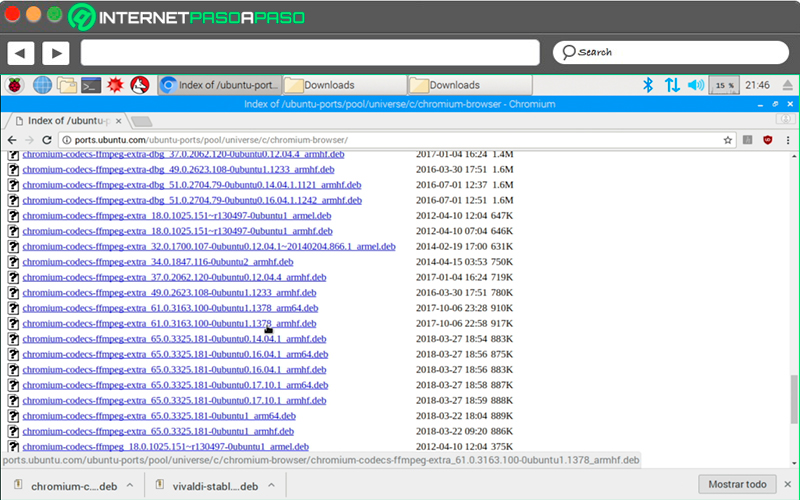
- It will also be necessary Libraries for decoding videos in VivaldiIt's important to keep in mind that the browser has a library but it's not compatible with the codec that Netflix uses, Therefore, you need to download and install the Chrome plugins. You can find them in the Ubuntu repositories for Raspberry Pi by accessing this link.
http://ports.ubuntu.com/ubuntu-ports/pool/universe/c/chromium-browser/. - Being inside the folder of Chromium browser You will need to download the file chromium-codecs-ffmpeg-extra_61.0.3163.100-0ubuntu1.1378_armhf.deb, which is the one that includes the library, so you will have to install it as you did with the browser.
- Finally, it will be necessary DRM libraries which are the ones that encrypt the content of Netflix so that it cannot be pirated. They can be obtained from Chrome OS with a somewhat lengthy process and where many commands will be needed.
Copying the libraries so that the web browser can use them
Once have all the files ready, the following will be put them in their place.
Here it is necessary to create some system folders, so the file explorer will be opened as a superuser by applying the following command:
sudo pcmanfm

- Now you'll have to copy the files libwidevinecdm.so and libpepflashplayer.so and then go to the folder /opt. There you're going to create a folder called Google, and inside that folder, another one called Chrome. Inside the Chrome folder, you're going to paste the libwidevinecdm.so file, where you'll create a folder called pepperflashIt's important that you write both uppercase and lowercase letters. And inside the folder pepperflash You're going to paste the file libpepflashplayer.so.

- To finish copying all the files, you must go to the directory
/usr/lib/chromium-browserand copy the file there libffmpeg.so to stick it on/opt/vivaldi/libHere you will be prompted to overwrite the existing file; click on "Yes" and close the file explorer.

Set up Vivaldi to watch Netflix
Once all the libraries have been placed in their correct positions, then you can begin to use some of the favorite streaming servicesIn order to use Netflix You need to do a few other things before you can enjoy all of its content. This is because with Netflix A problem arises, which is that it says the browser being used is not compatible with its platform, so it clearly won't allow anything to be played.
To solve this You have to trick the site into thinking you're using a different browserThe procedure for this is very simple; you just need to use the add-on. User Agent Switcher for Chrome. Note that Vivaldi It is a Chrome-based browser and is 100% compatible with all its add-ons.

To download it, you will need to access the add-ons page and select "Add to Chrome" to install it. Once installed, right-click on its icon and then go to "Options".
There you will find a form where you will have to enter the following information:
New User-agent name: Netflix New User-Agent String: Mozilla/5.0 (X11; CrOS armv7l 9901.77.0) AppleWebKit/537.36 (KHTML, like Gecko) Chrome/62.0.3202.97 Safari/537.36 Group: Chrome Append?: Replace Indicator Flag: NFX

- Once you've selected the add button, you'll need to press the left button on the plugin icon, and then... Chrome menu You're going to press where they are placed NetflixThey will appear there the letters NFX above the add-on icon. So now you just need to go to Netflix and start watching your favorite shows.

List of the best Netflix alternatives for watching series and movies on your Raspberry Pi without problems
You might not like it watch Netflix Or maybe you're just tired of the programming that appears there and want to try some others. new alternativesLuckily, there are other streaming platforms very similar to Netflix which you will also be able to play on your Raspberry Pi. As mentioned earlier in the post, any of the procedures already mentioned will allow you to view content on any platform. streaming platform from your microcomputer.
Therefore, here are the best alternatives to Netflix for watching movies and series from your Raspberry Pi:
Disney Plus

We can say that Disney Plus It's one of the most attractive alternatives you can find; there you'll be able to enjoy a huge amount of content and a truly amazing catalog, where you'll find all the Marvel movies, Star Wars, National Geographic, Pixar And all the classic Disney animated films. Plus, you'll find new series and movies created exclusively for this platform.
You should keep in mind that here you will find children's and youth contentThis means that if you like this type of programming Disney Plus It's a very good alternative for you. It's also worth mentioning that it's one of the newest platforms in the streaming world, so it has... much more affordable rates than Netflix.
It also offers a trial period of only 7 daysSo you can use it to see what kind of programming they offer and then decide if you want to subscribe. The number of registered devices is unlimited, but it only allows content downloads for [specific devices/platforms]. View offline on a maximum of 10 devices and simultaneous playback on 4 devices.
HBO Go

Without a doubt HBO Go It's another great alternative you can start using today, as it has been considered the main rival of NetflixAs for how it works, it's basically the same; users will have to make a monthly payment to access all the programming, where they'll find a large amount of... series and films which they can enjoy on any type of device they have Internet connection.
HBO Spain It also offers a wealth of original content for its userswhere you will find not only the latest movies and series, but also a wide range of programming from documentaries, series and filmsHowever, it should be mentioned that it has a lower number of programs than Netflix and it will also not be possible to create profiles so that the account can be used by different users.
But you will have the opportunity to enjoy its content, whether from your mobile device or from the webIt has a two-week trial period so users can test its content and also allows what is simultaneous playback on two devicesas well as the possibility of downloading your favorite programs so you can enjoy them offline.
Amazon Prime Video

Finally, we present to you Amazon Prime Video, another of the great alternatives to Netflix which you can currently find. This streaming platform has become one of the most popular in recent times, and Amazon has thus given access to a catalog of content available to all those who subscribe to Amazon Prime. This is how this video platform is included in Amazon Prime along with other services such as Twitch Prime, Prime Music, Prime Reading, among others.
All these services will cost 36 euros per yearLike all the platforms already mentioned, it has series and films Original content, as well as current programming. Here you can find iconic series and films, cartoons, children's content, action movies, and more. All of this This has led it to become one of the best alternatives to Netflix..
In addition, you will be able to access this platform from the television, computer, or Android or iOS mobile device, as well as from Fire devices. Among its main features is the ability to download programming for Watch it offlineIt offers content in different qualities, such as HD, SD or 4K, with or without subtitlesIt also has a 30-day trial period, allowing you to test its programming before making any payments on the platform.


