<?xml version="1.0" encoding="utf-8"?><feed xmlns="http://www.w3.org/2005/Atom" ><generator uri="https://jekyllrb.com/" version="3.10.0">Jekyll</generator><link href="https://grnch.xyz/feed.xml" rel="self" type="application/atom+xml" /><link href="https://grnch.xyz/" rel="alternate" type="text/html" /><updated>2026-04-28T04:29:58+00:00</updated><id>https://grnch.xyz/feed.xml</id><title type="html">GRNCH</title><subtitle>GRNCH Audio/Visual Artist Portfolio</subtitle><author><name>Woody Poulard</name></author><entry><title type="html">TD Tools</title><link href="https://grnch.xyz/td-tools" rel="alternate" type="text/html" title="TD Tools" /><published>2025-10-27T00:00:00+00:00</published><updated>2025-10-27T00:00:00+00:00</updated><id>https://grnch.xyz/td-tools</id><content type="html" xml:base="https://grnch.xyz/td-tools"><![CDATA[<h2 id="grnch-touchdesigner-tools">GRNCH TouchDesigner tools</h2>

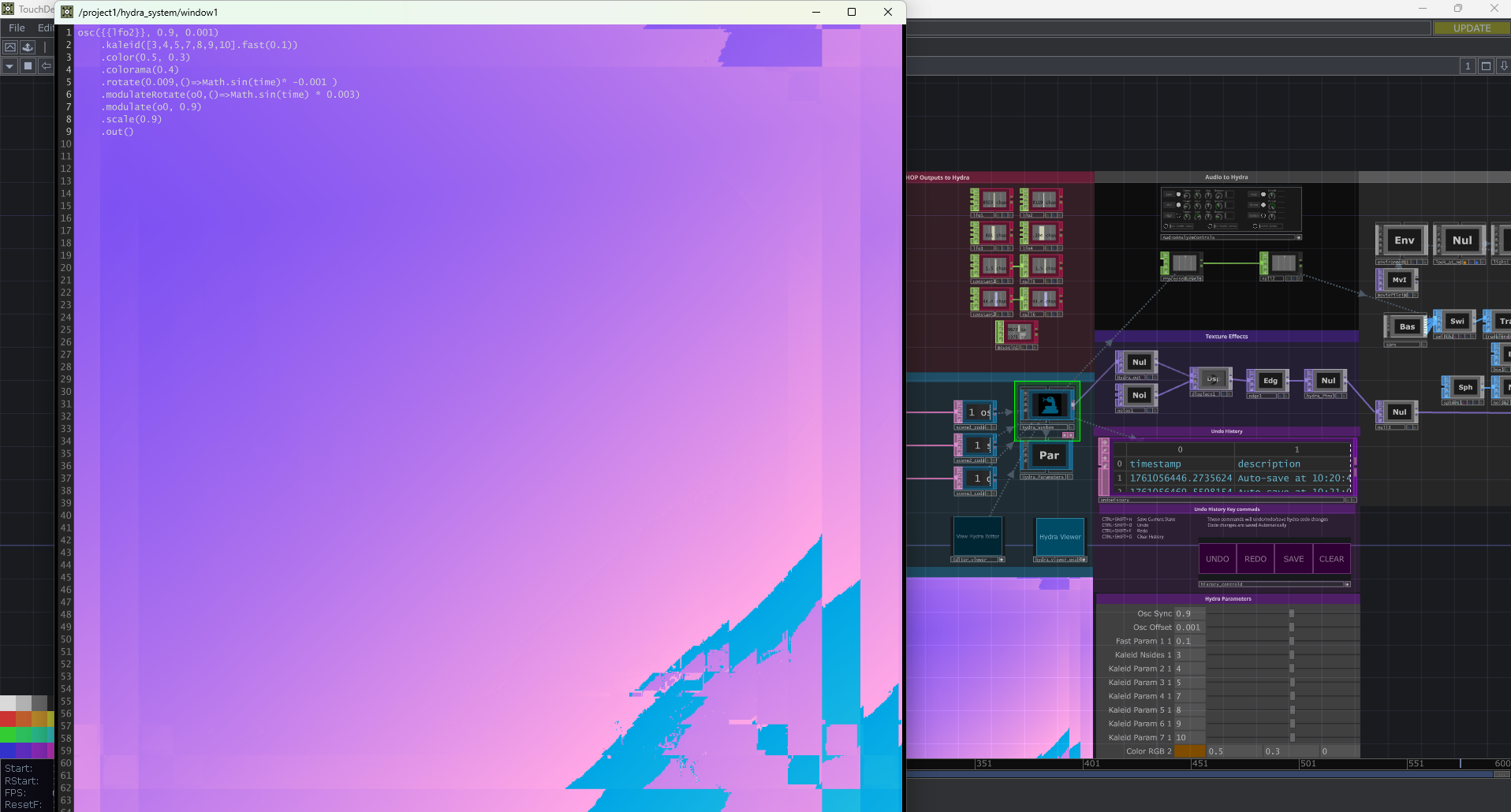
<h4 id="hydra-2-td">Hydra 2 TD</h4>

<p><img src="https://raw.githubusercontent.com/grinchdubs/grnch.xyz_photos/refs/heads/main/TD_Tools/Screenshot%202025-10-27%20112332.png" alt="" /></p>

<p>A complete system for running the Hydra live coding environment inside TouchDesigner with full bidirectional data flow, enabling new generative art workflows.</p>

<p>Find it on <a href="https://github.com/grinchdubs/Hydra2TD-1.0">Github</a></p>

<p><a href="https://github.com/grinchdubs/Hydra2TD-1.0/tree/main/documentation">Documentation</a> can be found here</p>

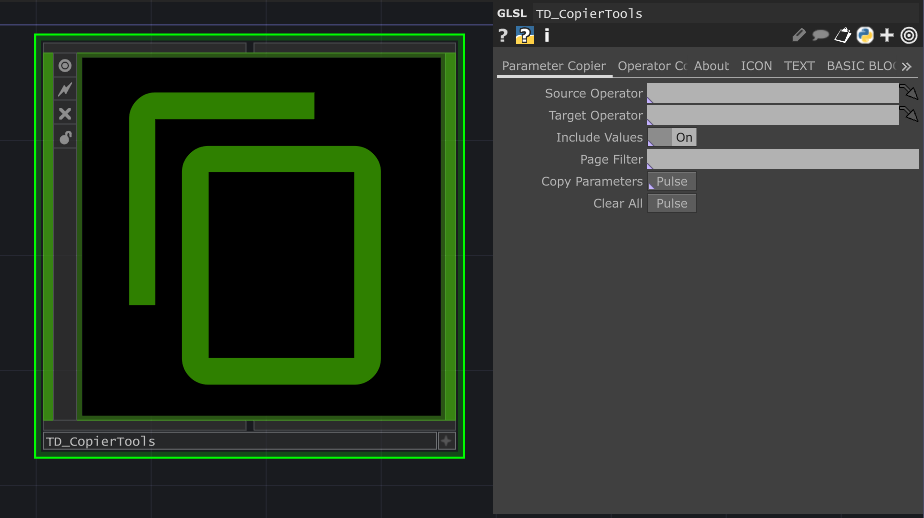
<h4 id="td-copier-tools">TD Copier Tools</h4>

<p><img src="https://raw.githubusercontent.com/grinchdubs/grnch.xyz_photos/refs/heads/main/TD_Tools/Screenshot%202025-10-29%20005020.png" alt="" /></p>

<p>Two powerful utilities for copying parameters and operators in TouchDesigner.</p>

<p>Find it on <a href="https://github.com/grinchdubs/TD_Copier_Tools">Github</a></p>

<p><a href="https://github.com/grinchdubs/TD_Copier_Tools/blob/main/README.md">Documentation</a> can be found here</p>

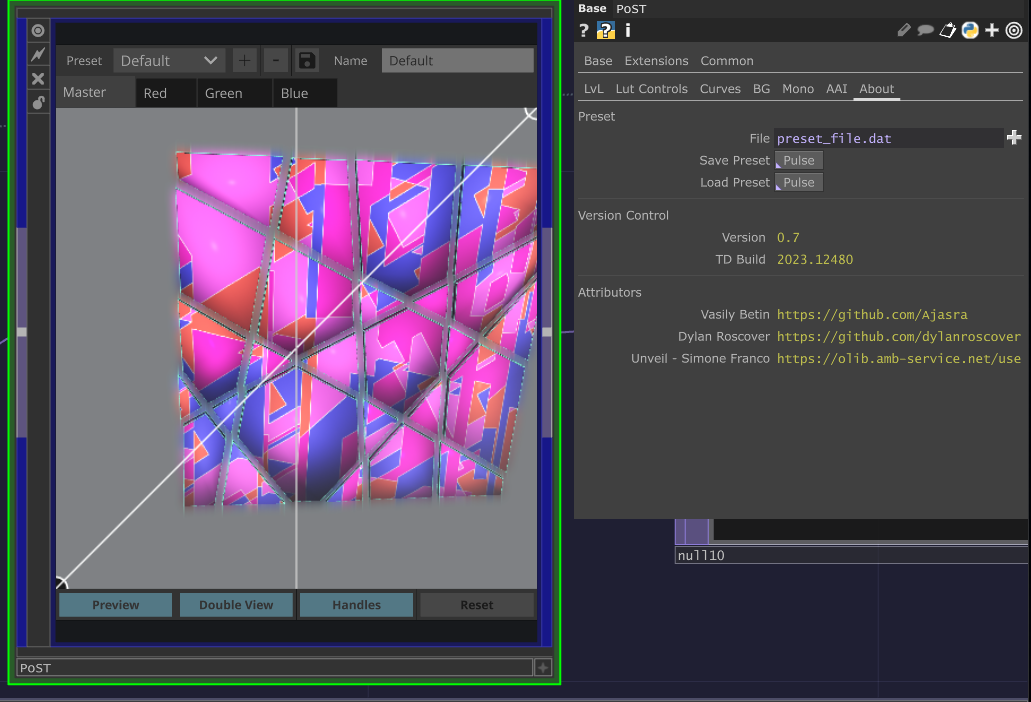
<h4 id="post">PoST</h4>

<p><img src="https://raw.githubusercontent.com/grinchdubs/grnch.xyz_photos/refs/heads/main/TD_Tools/Screenshot%202025-10-27%20133548.png" alt="" /></p>

<p>A comprehensive end-of-chain post-processing solution that eliminates the need for external video editing software. This all-in-one component provides professional-grade color grading and finishing tools directly within your TouchDesigner workflow.</p>

<p>Find it on <a href="https://github.com/grinchdubs/PoST">Github</a></p>

<p><a href="https://github.com/grinchdubs/PoST/blob/main/README.md">Documentation</a> can be found here</p>]]></content><author><name>Woody Poulard</name></author><summary type="html"><![CDATA[GRNCH TouchDesigner tools]]></summary></entry><entry><title type="html">41 Linux Commands</title><link href="https://grnch.xyz/41-linux-commands" rel="alternate" type="text/html" title="41 Linux Commands" /><published>2025-07-15T00:00:00+00:00</published><updated>2025-07-15T00:00:00+00:00</updated><id>https://grnch.xyz/41-linux-commands</id><content type="html" xml:base="https://grnch.xyz/41-linux-commands"><![CDATA[<p>Here are 41 even more modern, powerful and lesser-known Linux terminal commands, designed to boost productivity, system monitoring, troubleshooting, and development for linux cli. Most of them replace command you already know. Use aliases to use the old command so it doesn’t get annoying. I use these on Nix, Debian and Arch based distros but these should also work with others. These were found from <a href="https://www.youtube.com/watch?v=6P-vjgPx9ww">this</a> video by NetworkChuck.</p>

<h4 id="apps-that-were-on-the-prior-list">🔧Apps that were on the prior list:</h4>
<p>fd – Better alternative to find, with smart defaults.</p>

<p>fzf – FuzzyFinder for interactive command filtering.</p>

<p>zoxide (Z) – Smarter, context-aware cd.</p>

<p>exa – Enhanced ls with colors, tree view, icons.</p>

<p>glances – Real-time system monitoring dashboard.</p>

<h4 id="new-apps-from-the-video">🔧New Apps from the video:</h4>
<p>NCDU – Interactive disk usage analyzer.</p>

<p>duf – Prettier version of df.</p>

<p>ripGrep (rg) – Fast, powerful search tool.</p>

<p>mosh – SSH alternative with roaming support.</p>

<p>lshw – View detailed hardware info.</p>

<p>MTR – Combines ping and traceroute, real-time network diagnostics.</p>

<p>ranger – Terminal-based file manager. - Crashing in nix womp );</p>

<p>iotop – Disk I/O monitoring.</p>

<p>stat – Detailed file info.</p>

<p>dstat – Combines vmstat, iostat, netstat, etc.</p>

<p>watch – Re-run commands at intervals.</p>

<p>progress – Monitor progress of running commands (like scp).</p>

<p>dog – Colorful, modern alternative to dig for DNS.</p>

<p>termshark – TUI for packet capture analysis.</p>

<p>lsof -i – See which process uses which port.</p>

<p>ipcalc – Subnet calculator.</p>

<p>wormhole – Secure, peer-to-peer file transfer.</p>

<p>systemd-analyze – Diagnose slow boot times.</p>

<p>procs – Modern alternative to ps.</p>

<p>lazyDocker – TUI for Docker management.</p>

<p>rsync – Smart file syncing.</p>

<p>shred – Secure file deletion.</p>

<p>moreutils – Misc. small useful tools (ts, vidir, vip, etc.).</p>

<p>unp – Automatically unpacks any archive.</p>

<p>jq – Query and manipulate JSON in CLI.</p>

<p>taskWarrior – CLI-based task manager.</p>

<p>asciinema – Record and share terminal sessions.</p>

<p>asciinema-agg – Turn terminal recordings into GIFs.</p>

<p>Fabric – Use AI from CLI to analyze and generate commands.</p>

<p>Olama – Local LLM for command suggestions.</p>

<p>VIP – Edit command pipeline output in a text editor.</p>

<p>Error handling tools – Like errno, ifdata.</p>

<h4 id="-ai-integration-in-the-terminal">🧠 AI Integration in the Terminal:</h4>
<p>Tools like Fabric and Olama integrate AI into the CLI for generating, summarizing, or explaining commands.
Example: Ask AI to analyze logs or summarize most-used commands.</p>

<h4 id="-overall-takeaway">💡 Overall Takeaway:</h4>
<p>The video emphasizes turning your Linux terminal into a superpowered productivity hub through visual tools, AI integration, better replacements for classic commands, and advanced system monitoring. Perfect for devs, sysadmins, and power users.
Final Note: The creator encourages viewers to comment their favorite commands and “ethically hack” the YouTube algorithm by liking, subscribing, and engaging.</p>]]></content><author><name>Woody Poulard</name></author><summary type="html"><![CDATA[Here are 41 even more modern, powerful and lesser-known Linux terminal commands, designed to boost productivity, system monitoring, troubleshooting, and development for linux cli. Most of them replace command you already know. Use aliases to use the old command so it doesn’t get annoying. I use these on Nix, Debian and Arch based distros but these should also work with others. These were found from this video by NetworkChuck.]]></summary></entry><entry><title type="html">APRS bots</title><link href="https://grnch.xyz/aprs-bots" rel="alternate" type="text/html" title="APRS bots" /><published>2025-06-10T00:00:00+00:00</published><updated>2025-06-10T00:00:00+00:00</updated><id>https://grnch.xyz/aprs-bots</id><content type="html" xml:base="https://grnch.xyz/aprs-bots"><![CDATA[<h1 id="aprs-bots">APRS Bots</h1>

<p>A comprehensive guide to using various APRS bots for amateur radio communication, spotting, weather information, and more.</p>

<h2 id="mail">MAIL</h2>

<h3 id="welcome-to-the-mail-aprs-bot-guide">Welcome to the MAIL APRS Bot Guide</h3>

<p>Welcome to the MAIL APRS bot! Below you’ll find simple instructions on how to use the bot for messaging, group management, and other helpful features.</p>

<h3 id="send-a-message-to-a-user">Send a Message to a User</h3>

<p>To send a message directly to another user, type:</p>

<div class="language-plaintext highlighter-rouge"><div class="highlight"><pre class="highlight"><code>@CALLSIGN followed by your message
</code></pre></div></div>

<p><strong>Example:</strong> <code class="language-plaintext highlighter-rouge">@N0CALL Hey there! How's it going?</code></p>

<h3 id="check-your-messages">Check Your Messages</h3>

<p>To check your incoming messages, simply type:</p>

<div class="language-plaintext highlighter-rouge"><div class="highlight"><pre class="highlight"><code>APRSM
</code></pre></div></div>

<p>The bot will fetch your latest messages.</p>

<h3 id="delete-your-messages">Delete Your Messages</h3>

<p>To delete messages that you haven’t ack’d, simply type:</p>

<div class="language-plaintext highlighter-rouge"><div class="highlight"><pre class="highlight"><code>del
</code></pre></div></div>

<p>The bot will delete your unacknowledged messages.</p>

<h3 id="automatically-retrieve-messages">Automatically Retrieve Messages</h3>

<p>If you’re actively using APRS and want to automatically retrieve messages while on the air, include one of the following in your comment beacon:</p>

<ul>
  <li><code class="language-plaintext highlighter-rouge">APMAIL</code></li>
  <li><code class="language-plaintext highlighter-rouge">ALLMSG</code></li>
</ul>

<p>The bot will monitor your beacons and send your messages as they come in.</p>

<h3 id="join-a-group">Join a Group</h3>

<p>To join a group, use the following command:</p>

<div class="language-plaintext highlighter-rouge"><div class="highlight"><pre class="highlight"><code>join group_name
</code></pre></div></div>

<p><strong>Example:</strong> <code class="language-plaintext highlighter-rouge">join bigfoot</code></p>

<p>This will add you to the specified group.</p>

<h3 id="leave-a-group">Leave a Group</h3>

<p>If you want to leave a group, simply type:</p>

<div class="language-plaintext highlighter-rouge"><div class="highlight"><pre class="highlight"><code>unjoin group_name
</code></pre></div></div>

<p><strong>Example:</strong> <code class="language-plaintext highlighter-rouge">unjoin bigfoot</code></p>

<h3 id="send-a-message-to-a-group">Send a Message to a Group</h3>

<p>To send a message to all users in a group, type:</p>

<div class="language-plaintext highlighter-rouge"><div class="highlight"><pre class="highlight"><code>#group_name followed by your message
</code></pre></div></div>

<p><strong>Example:</strong> <code class="language-plaintext highlighter-rouge">#bigfoot Let's organize the next meetup!</code></p>

<p>This will send your message to everyone in the “bigfoot” group.</p>

<h3 id="additional-tips">Additional Tips</h3>

<ul>
  <li>Group messages are only visible to members of that group</li>
  <li>Group messages are valid for 3 days</li>
  <li>You will automatically leave a group after 1 day</li>
  <li>Individual messages are deleted after 7 days</li>
</ul>

<p>Feel free to reach out if you have any questions or need more help. Enjoy using the MAIL bot!</p>

<h2 id="apspot">APSPOT</h2>

<h3 id="getting-started">Getting Started</h3>

<p>APSPOT supports a number of commands, and depending on what command is sent will depend on how APSPOT responds. To get started with APSPOT, simply send a message “usage” to APSPOT on APRS and as long as you have gone in via a Tx-Enabled APRS IGate (Or you were heard by a Tx-Enabled APRS IGate) the system will reply with a number of messages on how to use the system.</p>

<h3 id="the-commands">The Commands</h3>

<p><strong>“usage”</strong>
Replies with the list of usage types of the system.</p>

<p><strong>“usage &lt;type&gt;“</strong>
Replies with basic usage information for each type within the system. Valid types are “aprs”, “sms” and “winlink”</p>

<p>Examples: <code class="language-plaintext highlighter-rouge">usage aprs</code>, <code class="language-plaintext highlighter-rouge">usage sms</code>, <code class="language-plaintext highlighter-rouge">usage winlink</code></p>

<p><strong>“usage &lt;type&gt; &lt;activity&gt;“</strong>
Replies with an example message for your activity.</p>

<p>Example: <code class="language-plaintext highlighter-rouge">usage aprs sota</code> replies with: <code class="language-plaintext highlighter-rouge">EXAMPLE: "! SOTA VK3/VN-030 7.090 CQCQ"</code></p>

<h3 id="getting-current-spots">Getting Current SPOTs</h3>

<p><strong>“spots &lt;activity&gt;“</strong>
Replies with the 3 (SMS/APRS) or 10 (Winlink) most recent SPOTS under the activity you provide. Currently the system supports POTA (from pota.app), SOTA (from parksnpeaks.org) and WWFF (from parksnpeaks.org).</p>

<p>Example: <code class="language-plaintext highlighter-rouge">spots POTA</code> would return 3 messages via APRS:</p>
<div class="language-plaintext highlighter-rouge"><div class="highlight"><pre class="highlight"><code>K0DME | K-1210 | 14057.0 | CW
N9FAL | K-2234 | 14287 | SSB
B3WAV | K-7724 | 14294 | SSB
</code></pre></div></div>

<h3 id="spots-filter-options">“spots” Filter Options</h3>

<p>The “spots” command has a couple of filtering options:</p>

<p><strong>Filter by mode:</strong> Add the desired mode onto the end of the command</p>
<ul>
  <li><code class="language-plaintext highlighter-rouge">spots pota cw</code> – will return CW POTA spots</li>
  <li><code class="language-plaintext highlighter-rouge">spots wwff ssb</code> – will return SSB WWFF spots</li>
</ul>

<p><strong>Request more spots:</strong> Add a number onto the end of the command</p>
<ul>
  <li><code class="language-plaintext highlighter-rouge">spots wwff 5</code> – will return a maximum of 5 WWFF spots via SMS and APRS</li>
</ul>

<p><strong>Combine filters:</strong> The mode filter must be specified first</p>
<ul>
  <li><code class="language-plaintext highlighter-rouge">spots wwff ssb 5</code> – will return up to 5 SSB WWFF spots</li>
</ul>

<p>Note: If less than the requested amount of spots are available for the given request – only the available spots will be returned.</p>

<h3 id="posting-a-spot">Posting a SPOT</h3>

<p><strong>APRS Format:</strong></p>
<div class="language-plaintext highlighter-rouge"><div class="highlight"><pre class="highlight"><code>! &lt;Activity&gt; &lt;Ref&gt; &lt;Frequency In MHz&gt; &lt;Mode&gt; &lt;Comment(Optional)&gt;
</code></pre></div></div>

<p><strong>Winlink Format (Place in Subject of message):</strong></p>
<div class="language-plaintext highlighter-rouge"><div class="highlight"><pre class="highlight"><code>! &lt;Activity&gt; &lt;Ref&gt; &lt;Frequency In MHz&gt; &lt;Mode&gt; &lt;Comment(Optional)&gt;
</code></pre></div></div>

<p><strong>SMS Format:</strong></p>
<div class="language-plaintext highlighter-rouge"><div class="highlight"><pre class="highlight"><code>!&lt;Callsign&gt; &lt;Activity&gt; &lt;Ref&gt; &lt;Frequency In MHz&gt; &lt;Mode&gt; &lt;Comment(Optional)&gt;
</code></pre></div></div>

<p><strong>Note:</strong> For SMS Spotting, please append your callsign immediately after the “!” WITHOUT a space.</p>

<h4 id="format-breakdown">Format Breakdown</h4>

<ul>
  <li><strong>”!”</strong> – Tells the system that you’re submitting a SPOT</li>
  <li><strong>”&lt;Activity&gt;“</strong> – Currently supported: WWFF, SOTA, POTA, SIOTA</li>
  <li><strong>”&lt;Ref&gt;“</strong> – Reference of the Park/Summit/Silo (e.g., WWFF-1929, VK3/VN-008, VK-3024)</li>
  <li><strong>”&lt;Frequency in MHz&gt;“</strong> – Frequency in MHz (e.g., 7.144, 14.310)</li>
  <li><strong>”&lt;Mode&gt;“</strong> – Supported modes: SSB, CW, FM, AM, DATA (plus FT8 for POTA)</li>
  <li><strong>”&lt;Comment&gt;“</strong> – Optional comment (include “test” to prevent actual posting)</li>
</ul>

<h4 id="example-messages">Example Messages</h4>

<p><strong>APRS &amp; Winlink:</strong>
For APRS send the message to “APSPOT” in the callsign field
For Winlink send the message to “apspot@apspot.radio” and place the command in the <strong>SUBJECT</strong> line.</p>

<p>Examples:</p>
<ul>
  <li><code class="language-plaintext highlighter-rouge">! WWFF VKFF-1929 7.144 SSB CQCQ</code></li>
  <li><code class="language-plaintext highlighter-rouge">! POTA VK-3024 7.195 SSB CQCQ</code></li>
</ul>

<h2 id="wxbot">WXBOT</h2>

<p>WXBOT provides current weather conditions and forecasts for locations worldwide.</p>

<h3 id="usage">Usage</h3>

<p>Send a message to <strong>WXBOT</strong> with a location to get current weather conditions:</p>

<div class="language-plaintext highlighter-rouge"><div class="highlight"><pre class="highlight"><code>WXBOT &lt;location&gt;
</code></pre></div></div>

<p><strong>Examples:</strong></p>
<ul>
  <li><code class="language-plaintext highlighter-rouge">WXBOT New York</code></li>
  <li><code class="language-plaintext highlighter-rouge">WXBOT London, UK</code></li>
  <li><code class="language-plaintext highlighter-rouge">WXBOT 90210</code> (ZIP code)</li>
  <li><code class="language-plaintext highlighter-rouge">WXBOT EM12</code> (Grid square)</li>
</ul>

<h3 id="features">Features</h3>

<ul>
  <li>Current weather conditions</li>
  <li>Temperature, humidity, wind speed and direction</li>
  <li>Barometric pressure</li>
  <li>Visibility conditions</li>
  <li>Weather descriptions</li>
</ul>

<p>The bot will respond with formatted weather information for your requested location.</p>

<h2 id="time">TIME</h2>

<p>The TIME bot provides current time information for various locations and time zones.</p>

<h3 id="usage-1">Usage</h3>

<p>Send a message to <strong>TIME</strong> with a location or time zone:</p>

<div class="language-plaintext highlighter-rouge"><div class="highlight"><pre class="highlight"><code>TIME &lt;location&gt;
</code></pre></div></div>

<p><strong>Examples:</strong></p>
<ul>
  <li><code class="language-plaintext highlighter-rouge">TIME New York</code></li>
  <li><code class="language-plaintext highlighter-rouge">TIME London</code></li>
  <li><code class="language-plaintext highlighter-rouge">TIME UTC</code></li>
  <li><code class="language-plaintext highlighter-rouge">TIME PST</code></li>
</ul>

<p>The bot will respond with the current local time for the requested location.</p>

<h2 id="ping">PING</h2>

<p>PING is a simple connectivity test bot that responds to confirm your APRS messaging is working properly.</p>

<h3 id="usage-2">Usage</h3>

<p>Send any message to <strong>PING</strong> and it will respond back, confirming your APRS path is functioning:</p>

<div class="language-plaintext highlighter-rouge"><div class="highlight"><pre class="highlight"><code>PING test
</code></pre></div></div>

<p>This is useful for testing your APRS setup and verifying message delivery.</p>

<h2 id="repeat">REPEAT</h2>

<p>The REPEAT bot is a handy tool for finding information about amateur radio repeaters. Simply provide a location or grid square, and REPEAT will return details like frequencies, tones, and offsets for nearby repeaters.</p>

<h3 id="usage-3">Usage</h3>

<p>Send a message to <strong>REPEAT</strong> with your location or grid square:</p>

<div class="language-plaintext highlighter-rouge"><div class="highlight"><pre class="highlight"><code>REPEAT &lt;location&gt;
</code></pre></div></div>

<p><strong>Example:</strong> <code class="language-plaintext highlighter-rouge">REPEAT EM12</code></p>

<h2 id="iss">ISS</h2>

<p>If you’re interested in satellite communication or just want to know where the International Space Station (ISS) is, the ISS bot has you covered. It provides the current location of the ISS, including its latitude, longitude, and altitude.</p>

<h3 id="usage-4">Usage</h3>

<p>Send a message to <strong>ISS</strong> to get the latest position:</p>

<div class="language-plaintext highlighter-rouge"><div class="highlight"><pre class="highlight"><code>ISS
</code></pre></div></div>

<h2 id="cqsrvr">CQSRVR</h2>

<p>CQSRVR is an APRS server designed to facilitate initial contact between amateur radio APRS stations (hams) worldwide with similar interests. It is not a messaging server, BBS, or any other type of interactive forum. It is a global service and requires unique callsign-SSIDs to be used.</p>

<h3 id="basic-usage">Basic Usage</h3>

<p>To use CQSRVR, send an APRS numbered message to CQSRVR that looks like:</p>

<div class="language-plaintext highlighter-rouge"><div class="highlight"><pre class="highlight"><code>CQ groupname your message here
</code></pre></div></div>

<p>“CQ” and “groupname” are each one word separated by a space, and may be any mix of upper and lower case. “your message here” is the message text you want to be sent to other registered members of “groupname”.</p>

<h3 id="example">Example</h3>

<div class="language-plaintext highlighter-rouge"><div class="highlight"><pre class="highlight"><code>AE5PL-10&gt;APRS::CQSRVR   :CQ MYTEST Listening for APRS contacts{01
CQSRVR&gt;APJIC1,TCPIP*::AE5PL-10 :ack01
CQSRVR&gt;APJIC1,TCPIP*::AE5PL-10 :Message has been sent to MYTEST{00
AE5PL-10&gt;APJIC1,qAO,CQSRVR::W5EJL-1  :CQ MYTEST Listening for APRS contacts
</code></pre></div></div>

<h3 id="registration-and-limits">Registration and Limits</h3>

<p>Every time you send a CQ groupname message to CQSRVR, it “registers” you with that group. You may only send one CQ groupname message per 30 minutes to keep activity manageable.</p>

<h3 id="unregistering-from-a-group">Unregistering from a Group</h3>

<p>To unregister from a group, send a numbered APRS message to CQSRVR with:</p>

<div class="language-plaintext highlighter-rouge"><div class="highlight"><pre class="highlight"><code>U groupname
</code></pre></div></div>

<p><strong>Example:</strong> <code class="language-plaintext highlighter-rouge">U MYTEST</code></p>

<p>If the group is inactive for 12 hours or you are inactive for 12 hours, you will be unregistered automatically.</p>

<h3 id="other-commands">Other Commands</h3>

<ul>
  <li><code class="language-plaintext highlighter-rouge">?</code> - List all active groups</li>
  <li><code class="language-plaintext highlighter-rouge">? GROUPNAME</code> - Reply with how many are in the group</li>
  <li><code class="language-plaintext highlighter-rouge">L</code> - List all groups I am a member of</li>
</ul>

<p>These commands are sent just like the CQ and U commands (the text portion of an APRS message to CQSRVR).</p>

<h2 id="email">EMAIL</h2>

<h3 id="email-server-email">EMAIL Server (EMAIL)</h3>

<p>The easiest way to send email is to send a message to EMAIL with the recipient’s email address as the first “word” of the message. You may only send one line messages (67 total characters maximum).</p>

<div class="language-plaintext highlighter-rouge"><div class="highlight"><pre class="highlight"><code>Send APRS message "email@address message text" to EMAIL.
APRS Format: URCALL-10&gt;APRS::EMAIL    :urname@urdomain.bogus This is a test.
</code></pre></div></div>

<p><strong>Note:</strong> Keith Sproul WU2Z retired the EMAIL server in 2019. It has been replaced with a javAPRSSrvr Email Gateway (EMAIL-2).</p>

<h3 id="javaprssrvr-email-gateway-email-2">javAPRSSrvr Email Gateway (EMAIL-2)</h3>

<p>javAPRSSrvr supports email via EmailGate. This server supports the EMAIL method of sending email and supports some new features. EmailGate now properly supports <strong>UTF-8</strong> in both APRS messages and emails.</p>

<p>Currently, EMAIL and EMAIL-2 are the callsigns for the general email servers. Both support delayed delivery of APRS messages and messaging to/from Winlink.</p>

<h4 id="creating-shortcuts">Creating Shortcuts</h4>

<p>To create a shortcut:</p>

<div class="language-plaintext highlighter-rouge"><div class="highlight"><pre class="highlight"><code>Send APRS message "shortcut email@address" to EMAIL-2
APRS Format: URCALL-10&gt;APRS::EMAIL-2  :me urname@urdomain.bogus
</code></pre></div></div>

<h4 id="using-shortcuts">Using Shortcuts</h4>

<p>To use the “me” shortcut from any of your stations:</p>

<div class="language-plaintext highlighter-rouge"><div class="highlight"><pre class="highlight"><code>Send APRS message "shortcut message text" to EMAIL-2
APRS Format: URCALL-7&gt;APRS::EMAIL-2  :me This is a test.
</code></pre></div></div>

<h4 id="managing-shortcuts">Managing Shortcuts</h4>

<p><strong>List all shortcuts:</strong></p>
<div class="language-plaintext highlighter-rouge"><div class="highlight"><pre class="highlight"><code>Send APRS message "shortcut L" to EMAIL-2
</code></pre></div></div>

<p><strong>Remove a shortcut:</strong></p>
<div class="language-plaintext highlighter-rouge"><div class="highlight"><pre class="highlight"><code>Send APRS message "shortcut R" to EMAIL-2
</code></pre></div></div>

<p><strong>Note:</strong> Shortcuts are associated with the callsign so each amateur can have their own shortcuts. They can only include alpha and numeric ASCII characters (no punctuation, white space, or Unicode characters).</p>

<h3 id="email-to-aprs-support">Email to APRS Support</h3>

<p>Shortcuts may be used by persons on the Internet to send an APRS message to a station via email. The email must meet these requirements:</p>

<ol>
  <li><strong>Must be from</strong> the email address specified in the shortcut</li>
  <li><strong>Subject must start</strong> with the station callsign-SSID (all upper case) followed by a colon and message text</li>
  <li><strong>Body must contain</strong> the text “<strong>userid:shortcut:</strong>” where “shortcut” is the assigned shortcut</li>
</ol>

<h4 id="example-email-to-aprs">Example Email to APRS</h4>

<div class="language-plaintext highlighter-rouge"><div class="highlight"><pre class="highlight"><code>From: urname@urdomain.bogus
To: EMAIL-2 email address
Subject: URCALL-10:Testing email to APRS.
Body:
This is a test userid:me: of APRS email gateway.
Your Name URCALL
</code></pre></div></div>

<h3 id="undelivered-message-caching">Undelivered Message Caching</h3>

<p>Some javAPRSSrvr email gateways support unacknowledged message caching. If a valid email goes unacknowledged after 4 tries, you may retrieve cached messages by sending:</p>

<div class="language-plaintext highlighter-rouge"><div class="highlight"><pre class="highlight"><code>Send APRS message "get" to EMAIL-2
APRS Format: URCALL-10&gt;APRS::EMAIL-2  :get
</code></pre></div></div>

<p>The <code class="language-plaintext highlighter-rouge">?APRSM</code> query is equivalent to the get command.</p>

<p>EMAIL-2 supports caching for up to 24 hours and supports both the get command and ?APRSM query.</p>

<hr />

<p><em>This guide covers the major APRS bots available for amateur radio operators. Each bot provides unique functionality to enhance your APRS experience. Happy operating!</em></p>]]></content><author><name>Woody Poulard</name></author><summary type="html"><![CDATA[APRS Bots]]></summary></entry><entry><title type="html">Most Used Linux Apps</title><link href="https://grnch.xyz/most-used-linux-apps" rel="alternate" type="text/html" title="Most Used Linux Apps" /><published>2025-03-19T00:00:00+00:00</published><updated>2025-03-19T00:00:00+00:00</updated><id>https://grnch.xyz/most-used-linux-apps</id><content type="html" xml:base="https://grnch.xyz/most-used-linux-apps"><![CDATA[<p>Here are some more modern tools for linux cli. Most of them replace command you already know. Use aliases to use the old command so it doesn’t get annoying. I use these on Debian and Arch based distros but these should also work with others.</p>

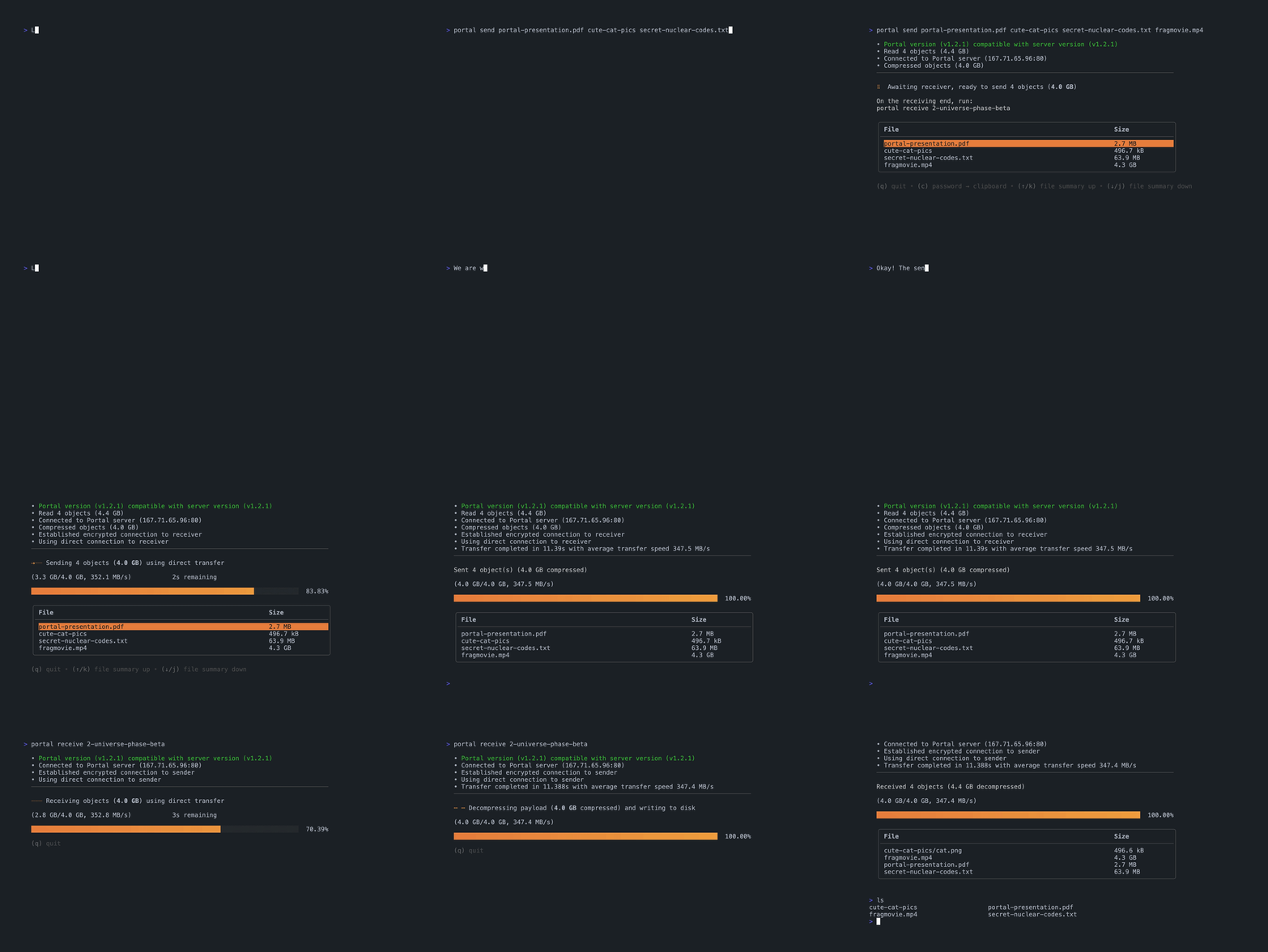
<h4 id="portal-cli-file-transfer">Portal, CLI file transfer</h4>
<p>Commands needed for setup:
<img src="https://raw.githubusercontent.com/SpatiumPortae/portal/refs/heads/master/assets/demo.gif" alt="" /></p>

<p><code class="language-plaintext highlighter-rouge">curl -sL portal.spatiumportae.com | sudo bash</code></p>

<p>Install on linux with the command above. <a href="https://github.com/SpatiumPortae/portal">Documentation</a></p>

<h4 id="sshs-ssh-manager">SSHS, ssh manager</h4>
<p>Commands needed for setup:
<a href="https://asciinema.org/a/642202"><img src="https://asciinema.org/a/642202.svg" alt="asciicast" /></a></p>

<p><code class="language-plaintext highlighter-rouge">cargo install --git https://github.com/quantumsheep/sshs</code></p>

<p>Install on linux with the command above.  You will need to setup a .ssh/config file for this to work. <a href="https://github.com/quantumsheep/sshs?tab=readme-ov-file">Documentation</a></p>

<h4 id="yazi-cli-file-explorer">Yazi, CLI file explorer</h4>
<p>Commands needed for setup:</p>

<p><code class="language-plaintext highlighter-rouge">cargo install --locked yazi-fm yazi-cli</code></p>

<p>Install on linux with the command above. <a href="https://yazi-rs.github.io/docs/installation">Documentation </a></p>

<h4 id="zoxide-for-a-better-cd">Zoxide for a better cd</h4>
<p>For faster and fuzzy cd usage:
<img src="https://img.notionusercontent.com/s3/prod-files-secure%2F63319eb7-a808-4f94-8661-5626ea6a3328%2Ff494a4c0-0e4b-4462-8309-60af76c77fd0%2F20240624_00h39m20s_grim.png/size/w=1360?exp=1742616105&amp;sig=GnzZiFei3AQbFvQYFaD6d3W_NraeaOzanQSgW_kzNxg" alt="" /></p>

<p><code class="language-plaintext highlighter-rouge">curl -sSfL https://raw.githubusercontent.com/ajeetdsouza/zoxide/main/install.sh | sh</code></p>

<p>Install on linux with the command above. You then need to add it to your shell config which you can find on the <a href="https://github.com/ajeetdsouza/zoxide">github</a> page.</p>

<h4 id="atuin-for-better-command-history">Atuin for better command history</h4>
<p>Super helpful command history with timestamps and search:
<img src="https://img.notionusercontent.com/s3/prod-files-secure%2F63319eb7-a808-4f94-8661-5626ea6a3328%2F3022c4c1-e4ca-4258-84d0-49f67c9bbde5%2F20240624_00h38m12s_grim.png/size/w=1350?exp=1742616201&amp;sig=nboNQybJnF2I2BABE9pleuUpSUtNnoelYVHCSwzAlNQ" alt="" /></p>

<p><code class="language-plaintext highlighter-rouge">curl --proto '=https' --tlsv1.2 -LsSf https://setup.atuin.sh | sh</code></p>

<p>Install with the command above and add to your shell similar to how we did with zoxide. Details <a href="https://docs.atuin.sh/guide/installation/">here</a></p>

<h4 id="eza-for-a-better-ls">Eza for a better ls</h4>
<p>This ls tool gives outputs that are a bit more useful:
<img src="https://img.notionusercontent.com/s3/prod-files-secure%2F63319eb7-a808-4f94-8661-5626ea6a3328%2Ff55f3270-e63c-4599-b66e-8f8ae9f01a31%2F20240701_18h36m41s_grim.png/size/w=1350?exp=1742616205&amp;sig=EzUy1MgWksheu1mMRM4wYG_sZq9bFl5Wwrs28n33RIc" alt="" /></p>

<p>To install/setup follow this <a href="https://github.com/eza-community/eza/blob/main/INSTALL.md">link</a> to the install instructions. It can be installed in a variety of ways.</p>

<h4 id="tldr-better-man-pages">Tl:dr better man pages</h4>
<p>This tool is if you want to get the main info from a man page without reading the whole thing:
<img src="https://img.notionusercontent.com/s3/prod-files-secure%2F63319eb7-a808-4f94-8661-5626ea6a3328%2F6c470896-da97-49be-bc2d-8d6e47758183%2F20240624_00h39m37s_grim.png/size/w=1350?exp=1742616216&amp;sig=o-2XRkIGr6E1YwRG28wVeBXdf9tUzmyAwJ29zQ14xDo" alt="" /></p>

<p><code class="language-plaintext highlighter-rouge">pip3 install tldr</code></p>

<p>To install/setup follow this <a href="https://github.com/eza-community/eza/blob/main/INSTALL.md">link</a> to the install instructions. It can be installed in a variety of ways.</p>

<h4 id="fzfzi-for-better-findsearch">Fzf/zi for better find/search</h4>
<p>Super powerful fuzzy search tool:
<img src="https://img.notionusercontent.com/s3/prod-files-secure%2F63319eb7-a808-4f94-8661-5626ea6a3328%2Fd1321568-96ce-4a4c-8923-cdf16d470571%2F20240624_00h30m22s_grim(1).png/size/w=1350?exp=1742616236&amp;sig=nOgC6sCZDSKrH_h4Y7HTiBSrMXxixi2VtK8pKEXdw98" alt="" /></p>

<p>To install/setup follow this <a href="https://github.com/junegunn/fzf?tab=readme-ov-file#installation">link</a> to the install instructions. It can be installed on a bunch of different OSes.</p>

<div class="language-plaintext highlighter-rouge"><div class="highlight"><pre class="highlight"><code>sudo pacman -S fzf #For Arch based systems
sudo apt install fzf #for debian based systems
</code></pre></div></div>

<h4 id="fzffish-fzf-for-fish">Fzf.fish fzf for fish</h4>
<p>Name says it all:
<img src="https://img.notionusercontent.com/s3/prod-files-secure%2F63319eb7-a808-4f94-8661-5626ea6a3328%2Fd1321568-96ce-4a4c-8923-cdf16d470571%2F20240624_00h30m22s_grim(1).png/size/w=1350?exp=1742616236&amp;sig=nOgC6sCZDSKrH_h4Y7HTiBSrMXxixi2VtK8pKEXdw98" alt="" /></p>

<p>Install docs are <a href="https://github.com/PatrickF1/fzf.fish/tree/main">here</a>.
Some quick Keycommands:</p>
<div class="language-plaintext highlighter-rouge"><div class="highlight"><pre class="highlight"><code>Search Directory - Ctrl+Alt+f (F for file)
Search Git Status - Ctrl+Alt+s (S for status)
Search Git Log - Ctrl+Alt+l (L for Log)
Search History -  Ctrl+r (R for reverse-i-search)
Search Processes - Ctrl+Alt+p (P for process)
Search Variables - Ctrl+Alt+v (V for Variable)
</code></pre></div></div>

<h4 id="bat-for-a-better-cat-command">Bat for a better cat command</h4>
<p>More useful output than the normal cat command:
<img src="https://img.notionusercontent.com/s3/prod-files-secure%2F63319eb7-a808-4f94-8661-5626ea6a3328%2F45e04a32-443c-420b-be90-fc0e89d07ca3%2F20240624_00h38m43s_grim(1).png/size/w=1350?exp=1742616242&amp;sig=lxrV5PfTGQNicMNk6sY8TssfZi-NI3NdnbOGu3ZOCnc" alt="" /></p>

<div class="language-plaintext highlighter-rouge"><div class="highlight"><pre class="highlight"><code>sudo apt install bat #For debian based systems
or
pacman -S bat #For Arch based systems
</code></pre></div></div>

<h4 id="bat-preview">Bat preview</h4>
<p>This works along side fzf.fish to give you a preview of files while you search for the correct one
<img src="https://img.notionusercontent.com/s3/prod-files-secure%2F63319eb7-a808-4f94-8661-5626ea6a3328%2F9e8060df-77bc-4f0f-b8af-9efe21af2d99%2F20240624_00h30m22s_grim(1).png/size/w=1350?exp=1742616242&amp;sig=FWrZC6r167kk6chEyfeYgsMUf5NUa-fXWyrMpPlL1Ao" alt="" /></p>

<p>Follow the fzf.fish install above</p>

<h4 id="screen-for-more-terminal-sessions">Screen for more terminal sessions</h4>
<p>Allows for multiple sessions in 1 terminal window:
<img src="https://img.notionusercontent.com/s3/prod-files-secure%2F63319eb7-a808-4f94-8661-5626ea6a3328%2F2072b876-5018-4c8c-b8c8-7f159a2a0335%2F20240702_10h51m33s_grim.png/size/w=1350?exp=1742616241&amp;sig=PaC-90OodSQhGfc-dsCmZK5NIn_VhV0UdEg6INPniKw" alt="" /></p>

<div class="language-plaintext highlighter-rouge"><div class="highlight"><pre class="highlight"><code>sudo apt install screen
or
sudo pacman -S screen
</code></pre></div></div>

<p><a href="https://gist.github.com/joaopizani/2718397">Here</a> is my script for installing most of this stuff on a Debian based distro…I used this on Kali Linux</p>

<h4 id="localsend-for-local-file-sharing">Localsend for local file sharing</h4>
<p>Very similar to airdrop but available on all OSes:
<img src="https://img.notionusercontent.com/s3/prod-files-secure%2F63319eb7-a808-4f94-8661-5626ea6a3328%2F5b029718-dbc2-46ee-bdc7-be0bca7546e8%2F20240701_19h07m29s_grim.png/size/w=1350?exp=1742616241&amp;sig=HN39tB56GKRffYKUhrwimrfSKlizmpDffi-6lGHy41I" alt="" /></p>

<div class="language-plaintext highlighter-rouge"><div class="highlight"><pre class="highlight"><code>flatpak install flathub org.localsend.localsend_app #For flatpak package manager
or
sudo snap install localsend #For snap package manager
or
yay -S localsend-bin #For Arch based systems
</code></pre></div></div>
<h4 id="fish-my-favorite-shell">Fish, my favorite shell</h4>
<p>Commands needed for setup:</p>

<p><code class="language-plaintext highlighter-rouge">echo /usr/local/bin/fish | sudo tee -a /etc/shells</code></p>

<div class="language-plaintext highlighter-rouge"><div class="highlight"><pre class="highlight"><code>chsh -s /usr/local/bin/fish
</code></pre></div></div>

<h4 id="firacode-nerd-font-mono-for-nice-terminal-icons">Firacode Nerd font Mono for nice terminal icons</h4>
<p><img src="https://img.notionusercontent.com/s3/prod-files-secure%2F63319eb7-a808-4f94-8661-5626ea6a3328%2F25b57304-90e9-4961-84c7-8eca31c5af47%2FScreenshot_2024-07-03_at_11.59.57_AM.png/size/w=970?exp=1742616240&amp;sig=k57rdVGLGoo-s2itbi2uCbTnL5NBwj1Z3za7TNl8598" alt="" />
This <a href="https://github.com/ryanoasis/nerd-fonts/releases/download/v3.2.1/FiraMono.zip">font</a> has a bunch of symbols that are nice to have.</p>

<h4 id="chezmoi-dotfile-backup-to-github">Chezmoi .dotfile backup to github</h4>
<p>A cli app for keep track of your .dotfiles changes and uploading to github.
<img src="https://img.notionusercontent.com/s3/prod-files-secure%2F63319eb7-a808-4f94-8661-5626ea6a3328%2F93a1828e-7097-47fa-bcf5-7b77253be955%2F20240624_00h27m14s_grim.png/size/w=1360?exp=1742691479&amp;sig=3OZPdNiINcs4urUeP3I9M_MJ2MuRgfooqopyR5ZejYA" alt="" />
The install for this can be very involved and requires a bit of git knowledge. Install docs are here.</p>

<p><a href="https://github.com/grinchdubs/scripts/blob/main/base_installs.sh">Here</a> is my script for installing most of this stuff on a Debian based distro…I used this on Kali Linux</p>]]></content><author><name>Woody Poulard</name></author><summary type="html"><![CDATA[Here are some more modern tools for linux cli. Most of them replace command you already know. Use aliases to use the old command so it doesn’t get annoying. I use these on Debian and Arch based distros but these should also work with others.]]></summary></entry></feed>