This example shows how to implement a Fullstack Next.js app with GraphQL with the following stack:
This example shows how to implement a **fullstack app in TypeScript with :
- Next.js: A React framework
- Apollo Client (frontend),
- GraphQL Yoga: GraphQL server
- Pothos: Code-first GraphQL schema definition library
- Prisma Client: Databases access (ORM)
- Prisma Migrate: Database migrations
- Prisma Postgres: A serverless PostgreSQL database built on unikernels.
Download this example:
npx try-prisma@latest --template orm/nextjs-graphql --install npm --name nextjs-graphql
Then, navigate into the project directory:
cd nextjs-graphql
Alternative: Clone the entire repo
Clone this repository:
git clone git@github.com:prisma/prisma-examples.git --depth=1
Install npm dependencies:
cd prisma-examples/orm/nextjs-graphql
npm install
Create a new Prisma Postgres database by executing:
npx prisma init --db
If you don't have a Prisma Data Platform account yet, or if you are not logged in, the command will prompt you to log in using one of the available authentication providers. A browser window will open so you can log in or create an account. Return to the CLI after you have completed this step.
Once logged in (or if you were already logged in), the CLI will prompt you to:
- Select a region (e.g.
us-east-1) - Enter a project name
After successful creation, you will see output similar to the following:
CLI output
Let's set up your Prisma Postgres database!
? Select your region: ap-northeast-1 - Asia Pacific (Tokyo)
? Enter a project name: testing-migration
✔ Success! Your Prisma Postgres database is ready ✅

We found an existing schema.prisma file in your current project directory.

--- Database URL ---

Connect Prisma ORM to your Prisma Postgres database with the provided URL. Add it to your `.env` as `DATABASE_URL`.

--- Next steps ---

Go to https://pris.ly/ppg-init for detailed instructions.

1. Install the `@prisma/adapter-pg` driver adapter and configure your Prisma Client instance
```bash
npm install @prisma/adapter-pg
import { PrismaPg } from '@prisma/adapter-pg'
const pool = new PrismaPg({ connectionString: process.env.DATABASE_URL! })
const prisma = new PrismaClient({ adapter: pool })-
Apply migrations Run the following command to create and apply a migration: npx prisma migrate dev
-
Manage your data View and edit your data locally by running this command: npx prisma studio
...or online in Console: https://console.prisma.io/{workspaceId}/{projectId}/studio
-
Send queries from your app If you already have an existing app with Prisma ORM, you can now run it and it will send queries against your newly created Prisma Postgres instance.
-
Learn more For more info, visit the Prisma Postgres docs: https://pris.ly/ppg-docs
</details>

Locate and copy the database URL provided in the CLI output. Then, create a `.env` file in the project root:

```bash
touch .env
Now, paste the URL into it as a value for the DATABASE_URL environment variable. For example:
# .env
DATABASE_URL=postgres://<username>:<password>@<host>:<port>/<database>
Run the following command to create tables in your database. This creates the User and Post tables that are defined in prisma/schema.prisma:
npx prisma migrate dev --name init
Execute the seed file in prisma/seed.ts to populate your database with some sample data, by running:
npx prisma db seed
npm run dev
The app is now running, navigate to http://localhost:3000/ in your browser to explore its UI.
Expand for a tour through the UI of the app
Blog (located in ./pages/index.tsx)
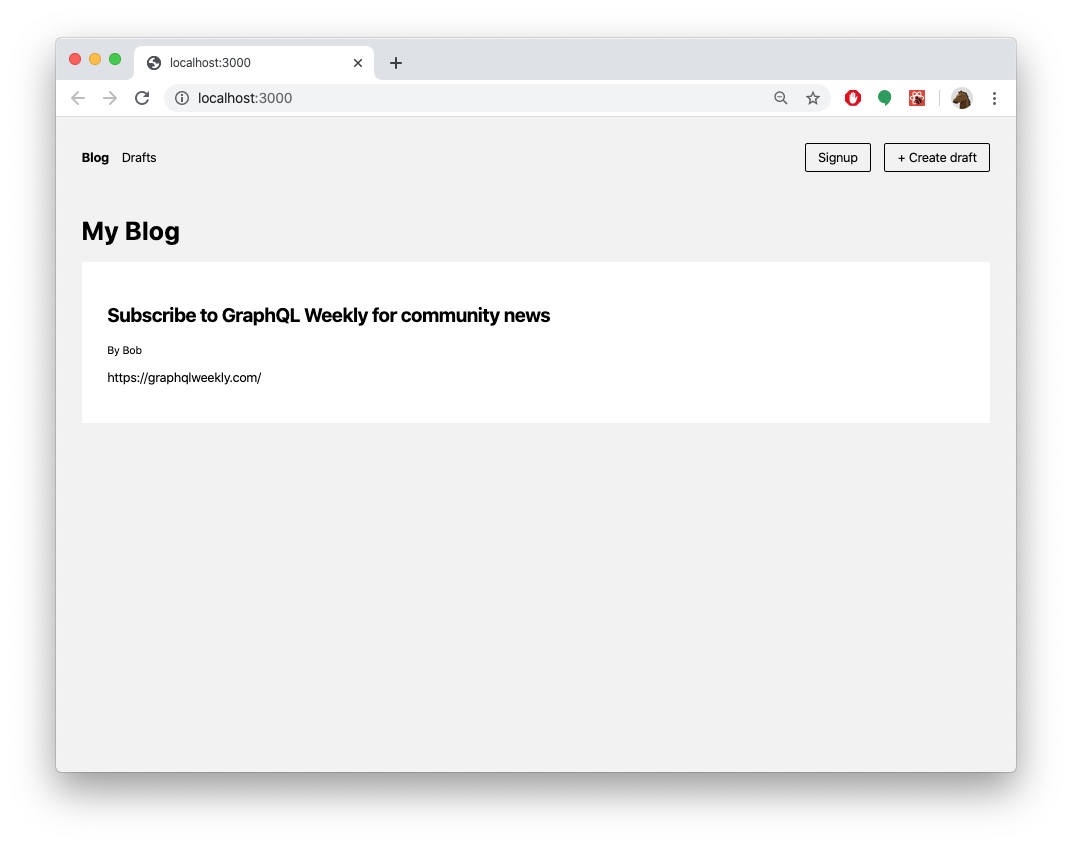
Signup (located in ./pages/signup.tsx)

Create post (draft) (located in ./pages/create.tsx)

Drafts (located in ./pages/drafts.tsx)
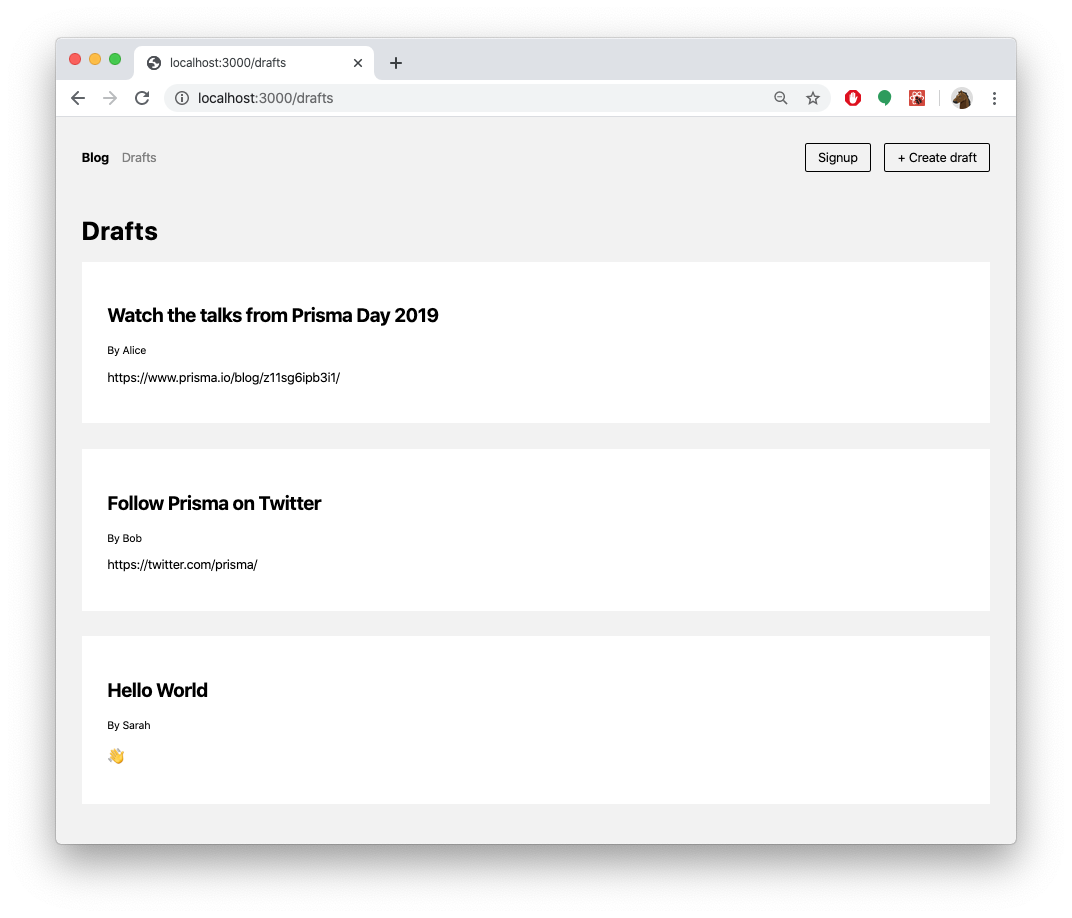
View post (located in ./pages/p/[id].tsx) (delete or publish here)

You can also access the GraphQL API of the API server directly. It is running on the same host machine and port and can be accessed via the /api/graphql route (in this case that is localhost:3000/api/graphql).
Below are a number of operations that you can send to the API.
query {
  feed {
    id
    title
    content
    published
    author {
      id
      name
      email
    }
  }
}
See more API operations
mutation {
  signupUser(name: "Sarah", email: "sarah@prisma.io") {
    id
  }
}mutation {
createDraft(
title: "Join the Prisma Discord"
content: "https://pris.ly/discord"
authorEmail: "alice@prisma.io"
) {
id
published
}
}mutation {
publish(postId: "__POST_ID__") {
id
published
}
}Note: You need to replace the
__POST_ID__-placeholder with an actualidfrom aPostitem. You can find one e.g. using thefilterPosts-query.
{
  filterPosts(searchString: "graphql") {
    id
    title
    content
    published
    author {
      id
      name
      email
    }
  }
}{
post(postId: "__POST_ID__") {
id
title
content
published
author {
id
name
email
}
}
}Note: You need to replace the
__POST_ID__-placeholder with an actualidfrom aPostitem. You can find one e.g. using thefilterPosts-query.
mutation {
  deletePost(postId: "__POST_ID__") {
    id
  }
}Note: You need to replace the
__POST_ID__-placeholder with an actualidfrom aPostitem. You can find one e.g. using thefilterPosts-query.
Evolving the application typically requires three steps:
- Migrate your database using Prisma Migrate
- Update your server-side application code
- Build new UI features in React
For the following example scenario, assume you want to add a "profile" feature to the app where users can create a profile and write a short bio about themselves.
The first step is to add a new table, e.g. called Profile, to the database. You can do this by adding a new model to your Prisma schema file file and then running a migration afterwards:
// ./prisma/schema.prisma

model User {
  id      Int      @default(autoincrement()) @id
  name    String?
  email   String   @unique
  posts   Post[]
+ profile Profile?
}

model Post {
  id        Int      @id @default(autoincrement())
  title     String
  content   String?
  published Boolean  @default(false)
  author    User?    @relation(fields: [authorId], references: [id])
  authorId  Int?
}

+model Profile {
+  id     Int     @default(autoincrement()) @id
+  bio    String?
+  user   User    @relation(fields: [userId], references: [id])
+  userId Int     @unique
+}
Once you've updated your data model, you can execute the changes against your database with the following command:
npx prisma migrate dev --name add-profile
This adds another migration to the prisma/migrations directory and creates the new Profile table in the database.
You can now use your PrismaClient instance to perform operations against the new Profile table. Those operations can be used to implement queries and mutations in the GraphQL API.
First, add a new GraphQL type via Pothos's prismaObject function:
// ./pages/api/graphql.ts

+builder.prismaObject('Profile', {
+  fields: (t) => ({
+    id: t.exposeInt('id'),
+    bio: t.exposeString('bio', { nullable: true }),
+    user: t.relation('user'),
+  }),
+})

builder.prismaObject('User', {
  fields: (t) => ({
    id: t.exposeInt('id'),
    name: t.exposeString('name', { nullable: true }),
    email: t.exposeString('email'),
    posts: t.relation('posts'),
+    profile: t.relation('profile'),
  }),
})// ./pages/api/graphql.ts
// other object types, queries and mutations
+builder.mutationField('createProfile', (t) =>
+ t.prismaField({
+ type: 'Profile',
+ args: {
+ bio: t.arg.string({ required: true }),
+ data: t.arg({ type: UserUniqueInput })
+ },
+ resolve: async (query, _parent, args, _context) =>
+ prisma.profile.create({
+ ...query,
+ data: {
+ bio: args.bio,
+ user: {
+ connect: {
+ id: args.data?.id || undefined,
+ email: args.data?.email || undefined
+ }
+ }
+ }
+ })
+ })
+)Finally, you can test the new mutation like this:
mutation {
  createProfile(
    email: "mahmoud@prisma.io"
    bio: "I like turtles"
  ) {
    id
    bio
    user {
      id
      name
    }
  }
}
Expand to view more sample Prisma Client queries on Profile
Here are some more sample Prisma Client queries on the new Profile model:
const profile = await prisma.profile.create({
  data: {
    bio: 'Hello World',
    user: {
      connect: { email: 'alice@prisma.io' },
    },
  },
})const user = await prisma.user.create({
data: {
email: 'john@prisma.io',
name: 'John',
profile: {
create: {
bio: 'Hello World',
},
},
},
})const userWithUpdatedProfile = await prisma.user.update({
where: { email: 'alice@prisma.io' },
data: {
profile: {
update: {
bio: 'Hello Friends',
},
},
},
})Once you have added a new query or mutation to the API, you can start building a new UI component in React. It could e.g. be called profile.tsx and would be located in the pages directory.
In the application code, you can access the new operations via Apollo Client and populate the UI with the data you receive from the API calls.
If you want to try this example with another database than Postgres, you can adjust the the database connection in prisma/schema.prisma by reconfiguring the datasource block.
Learn more about the different connection configurations in the docs.
Expand for an overview of example configurations with different databases
To use your own PostgreSQL database, set DATABASE_URL to your connection string (e.g. postgres://<username>:<password>@<host>:<port>/<database>). Ensure your app initializes PrismaClient with the @prisma/adapter-pg driver adapter as shown above.
Modify the provider value in the datasource block in the prisma.schema file:
datasource db {
  provider = "sqlite"
  url      = env("DATABASE_URL")
}
Create an .env file and add the SQLite database connection string in it. For example:
DATABASE_URL="file:./dev.db""
Modify the provider value in the datasource block in the prisma.schema file:
datasource db {
  provider = "mysql"
  url      = env("DATABASE_URL")
}
Create an .env file and add a MySQL database connection string in it. For example:
## This is a placeholder url
DATABASE_URL="mysql://janedoe:mypassword@localhost:3306/notesapi"
Modify the provider value in the datasource block in the prisma.schema file:
datasource db {
  provider = "sqlserver"
  url      = env("DATABASE_URL")
}
Create an .env file and add a Microsoft SQL Server database connection string in it. For example:
## This is a placeholder url
DATABASE_URL="sqlserver://localhost:1433;initial catalog=sample;user=sa;password=mypassword;"
Modify the provider value in the datasource block in the prisma.schema file:
datasource db {
  provider = "mongodb"
  url      = env("DATABASE_URL")
}
Create an .env file and add a local MongoDB database connection string in it. For example:
## This is a placeholder url
DATABASE_URL="mongodb://USERNAME:PASSWORD@HOST/DATABASE?authSource=admin&retryWrites=true&w=majority"
- Check out the Prisma docs
- Join our community on Discord to share feedback and interact with other users.
- Subscribe to our YouTube channel for live demos and video tutorials.
- Follow us on X for the latest updates.
- Report issues or ask questions on GitHub.