- Outline
- GApplication
- GForm
- GFrame
- GMenu
- GButton
- GLabel
- GCheckBox
- GSwitch
- GScrollBar
- GImageItem
- GList
- GPanel
- GViewPort
- GViewSlot
- GTextBox GTextField
- Custom UI Component
- XML Component common attributes
- Events
- Template
- MultiLanguage
- Style
- Layout
- Script
- Example
- Example Game
-

- Visible UI components are inherited from GObject.
- All GUI application are extends class GApplication, GApplication contains a GForm, and starts by AppManager.
- GForm is a panels of OS window or phone screen, a bottom visible UI container.
- GFrame is an internal closable and movable window container.
- All UI components are placed in a GContainer.
- GContainer can be a child of another GContainer.
- Set a GStyle for all components to change appearance.
- There are two methods to new a GObject , one is manual create an object, the other is added a node to XML file.
- GUI XML layout like HTML, and there is a simple script like javascript for HTML.
- iOS/Android system based on GLFM (/mobile/iosapp/ , /mobile/androidapp/)
- Desktop window system based on GLFW (/desktop/glfw_gui/)
- GUI rendering by Nanovg
- OpenGL 3.3 for desktop and OpenGLES 3.0 for mobile
- The UI consists of two parts, one is compiled into a dynamic link library by the jni native function, and the native function is compiled together with the JVM on the mobile phone, and the other part is the java api.
package test;
import org.mini.apploader.GApplication;
import org.mini.gui.GForm;

public class MyApp0 extends GApplication {
    GForm form;

    @Override
    public GForm getForm() {
        if (form != null) {
            return form;
        }
        form = new GForm(null);

        return form;
    }
}
This is a simplest app, override getForm() to export a GForm to AppManager, Device show the form ,and post events (Keyboard/Mouse/TouchScreen/etc) to the form.
miniJVM core does not contain a graphics system. For desktop and mobile phone, a graphics framework based on OpenGL/GLES is established attached to the JVM. This system will enter the graphical interface of AppManager after starting the VM. This application manager is managing more applications developed by java. It can be installing and deleting applications, etc. The way of installing applications include downloading jars, or uploading jars. These jars applications must contain a config.txt file in the jar, which is used to describe some properties of this application, such as startup class, icon, update address, etc.
config.txt file in jar root directory
name=ExApp
app=test.MyApp
icon=/res/hello.png
desc=  Mobile app develop example.\n  you can upgrade it.
version=1.0.4
upgradeurl=https://github.com/digitalgust/miniJVM/raw/master/mobile/assets/resfiles/ExApp.jar
maven dependency:
        <dependency>
            <groupId>io.github.digitalgust</groupId>
            <artifactId>xgui</artifactId>
            <version>1.1.0</version>
        </dependency>

Save the xml to a file .
<form name="FORM_MAIN" w="100%" h="100%">
</form>
Load the xml file and build form . there 3 attributes descript the form.
Attributes:
name : String , the form name.
w : form width, a percentage of OS window or a abstract int value for pixels. "100%" indicate the form width is window width, or phone screen width.
h : like w, form height.
package test;
import org.mini.apploader.GApplication;
import org.mini.gui.*;
import org.mini.layout.*;

public class MyApp2 extends GApplication {
    GForm form;

    @Override
    public GForm getForm() {
        if (form != null) {
            return form;
        }

        //load xml
        String xmlStr = GToolkit.readFileFromJarAsString("/res/myapp2-form.xml", "utf-8");
        UITemplate uit = new UITemplate(xmlStr);
        XContainer xc = (XContainer) XContainer.parseXml(uit.parse(), new XmlExtAssist(null));
        int screenW = GCallBack.getInstance().getDeviceWidth();
        int screenH = GCallBack.getInstance().getDeviceHeight();

        //build gui with event handler
        xc.build(screenW, screenH, new XEventHandler() {
            @Override
            public void action(GObject gobj) {
            }

            public void onStateChange(GObject gobj, String cmd) {
            }
        });
        form = xc.getGui();
        return form;
    }
}
The MyApp2 same as MyApp0. Show a form but there is nothing in the form.
<form name="FORM_MAIN" w="100%" h="100%" closable="1">
    <frame name="FRAME_TEST" w="80%" h="80%" title="WINDOW" onclose="onTestClose()" oninit="onTestOpen()">
    </frame>
</form>
There is a frame show on the form.
Attributes:
closable: 1: the frame can be closed. 0:can't close it.
title: String , the frame's title.
onclose: String , the script function call, this function must in the frame's script partion.
oninit: String , the script function call, this function must in the frame's script partion.

<form name="FORM_MAIN" w="100%" h="100%">
    <frame name="FRAME_TEST" w="80%" h="70%" title="WINDOW">
    </frame>

    <menu name="MENU_MAIN" x="0" y="90%" w="100%" h="10%" fixed="1" contextmenu="0">
        <mi name="MI_OPENFRAME" pic="/res/hello.png">Test</mi>
        <mi name="MI_EXIT" pic="/res/appmgr.png">Exit</mi>
    </menu>
</form>
The menu have two menu item, menu item have an icon, and a text. The menu location specify x=0 and y=90%, show on the buttom of form.
Attributes:
fixed: 1:menu location is fixed. 0:menu location is not fixed.
contextmenu: 1:the menu is contextmenu ,like "copy/paste"
How to active the menu item?
        //build gui with event handler
        xc.build(screenW, screenH, new XEventHandler() {
            @Override
            public void action(GObject gobj) {
                String name = gobj.getName();
                switch (name) {
                    case "MI_OPENFRAME":
                        // do something
                        break;
                    case "MI_EXIT":
                        closeApp();
                        break;
                }
            }

            public void onStateChange(GObject gobj, String cmd) {
            }
        });
in the XEventHandler, on Test Button touched or clicked ,then do something.

<button name="BT_SCRIPT" h="30" onclick="change()" addon="20" preicon="✉">Change</button>
If not specify the "w" width, the default width is Text width add addon.
If not specify the "h" height, the default height is Text width add 30pix.
Attributes:
onclick: String , the script function call, this function must in the frame's script partion.
addon: int , specify an int value for increase button's width, the default value is 30pix, in pixels.
preicon: utf8 emoji char , as icon front of the text.
<label h="30" align="left,vcenter" onclick="change()" addon="20" multiline="0">TEXT NOW</label>
If not specify the "w" width, the default width is Text width add addon.
If not specify the "h" height, the default height is Text width add 30pix.
Attributes:
align: String , value: left, hcenter, right, top, hcenter, bottom, bottom, center. "center" is "hcenter,hcenter"
onclick: String , the script function call, this function must in the frame's script partion.
addon: int , specify an int value for increase button's width, the default value is 30pix, in pixels.
multiline: int , 1: show multiple row text, if h is ignore ,the lable height is multiple line text total height. 0: single line text.
<checkbox name="SET_AUDIO_ENABLE" w="50%" selected="1" onclick="setAudioEnable()">Audio</checkbox>
If not specify the "w" width, the default width is Text width add 30pix.
If not specify the "h" height, the default height is Text width add 30pix.
Attributes:
selected: int , 1: the checkbox is selected. 0: not selected
onclick: String , the script function call, this function must in the frame's script partion.
<scrollbar name="SET_AUDIO_EFFECT" w="50%" h="25" value="0.0" scroll="h" onchange="seteffect()" onclick="seteffectAndSave()"></scrollbar>
If not specify the "w" width, the default width is Text width add 30pix.
If not specify the "h" height, the default height is Text width add 30pix.
Attributes:
value: float , 0.0f ~ 1.0f, percent of slider position
scroll: h: HORIZONTAL layout the scrollbar; v: VERTICAL layout the scrollbar.
<img w="32" h="32" fly="1" border="1" fontsize="10" pic="{SKILL_IMG_2}" onclick="onSkillClick({SKILL_INDEX_2})" cmd="{SKILL_CMD_2}" name="SKILL_{SKILL_INDEX_2}">{SKILL_LEV_2}</img>
If not specify the "w" width, the default width is image width.
If not specify the "h" height, the default height is image height.
Attributes:
fly: int , 1: the image item can be drag. 0: fixed and can not be drag
pic: String , the path of image in jar.
border: int , 1: draw a round rectanger out of the image. 0: no border
alpha: float , 0.0f - 1.0f: draw image with alpha
<list name="RECEIVERS" w="40%" h="30" scroll="1" multiline="0" multiselect="0">
    <li name ="LISTITEM1" pic="/res/ui/men.png" selected="1" preicon="✉">Jack</li>
    <li name ="LISTITEM1">>Tom</li>
</list>
GList is a multiple rows or single row with popup list.
If not specify the "w" width, the default width is parent's width .
If not specify the "h" height, the default height : multiline=1 that is items count multiply 40pix; multiline=0 that's 40pix.
Attributes of GList:
scroll: int , 1: the scrollbar is visible. 0: invisible
multiline: int , 1: the list is multiple row mod. 0: single row mod, when click the list would popup pulldown list
multiselect: int , 1: the select mod is multiple select mode . 0: select one menu item at once
Attributes of GListItem:
pic: String , the path of image in jar
selected: int , 1: the menu item is selected. 0: not selected
preicon: utf8 char , an emoji char as icon front of the text. if pic is not null, then the preicon invisible
<panel w="100%" h="100%"></panel>
If not specify the "w" width, the default width is parent's width.
If not specify the "h" height, the default height is parent's height.
Attributes:
<viewport w="100%" h="100%" name="MAINVIEW">
</viewport>
GViewPort is a scalable panel, the width and height will be automatic scale ,if child is add or remove
If not specify the "w" width, the default width is parent's width.
If not specify the "h" height, the default height is parent's height.
Attributes:
<viewslot w="100%" h="100%" y="0" scroll="h" name="SHOWBOARD">
    <viewport w="100%" h="100%" name="INTRO" move="right">
        <label>Label in viewport</label>
    </viewport>

    <panel w="100%" h="100%" move="left,right">
        <label>Label in panel</label>
    </panel>

    <table move="left">
        <tr><td><label>A</label></td><td><label>1</label></td></tr>
        <tr><td><label>B</label></td><td><label>2</label></td></tr>
    </table>
</viewslot>
GViewSlot is a multi-slot container. Each slot is a fullsize container. Only one slot is visible at once. It can be switched to another slot by dragging and dropping. There are three slots in the above example. One is a ViewPort, the second is a Panel, and the third is a table. Each container has a "move" attribute whose value indicates which direction it can slide.
If not specify the "w" width, the default width is parent's width.
If not specify the "h" height, the default height is parent's height.
Attributes:
scroll: h: the viewslot sliding direction is HORIZONTAL. v: VERTICAL
<input name="WRITE_BOX" w="100%" h="20%" multiline="1" edit="1">default text</input>
If not specify the "w" width, the default width is image width.
If not specify the "h" height, the default height is image height.
Attributes:
multiline: int , 1: multiple row input box. 0: single row input field
edit: int , 1: edit enable. 0: edit disable
style: search : the search style, ignored in multiline mode
hint: String : hint string in the input area,if text is inputed ,the hint invisible
union: String : another UI component name, the input box doesn't lost focus when union component clicked, this is important on phone device, if the input component's focus losted then the keyboard would hide .
password: int , 1: input text is hidden with *, 0: not password input
Customized components can be extended to meet requirements, and customized components can also be directly layout in the xml UI.
<test.ext.XCustomList name="CUSTLIST" w="100%" h="100%">
</test.ext.XCustomList>
Register customized UI components when parsing xml.
    XmlExtAssist assist = new XmlExtAssist(form);
    assist.registerGUI("test.ext.XCustomList");
    String xmlStr = GToolkit.readFileFromJarAsString("/res/Frame1.xml", "utf-8");
    UITemplate uit = new UITemplate(xmlStr);
    XContainer xc = (XContainer) XContainer.parseXml(uit.parse(), assist);
    xc.build((int) form.getW(), (int) form.getH(), this);
    GFrame f1 = xc.getGui();
customized parser:
package test.ext;

import org.mini.gui.GObject;
import org.mini.layout.XContainer;
import org.mini.layout.XList;

public class XCustomList extends XList {
    static public final String XML_NAME = "test.ext.XCustomList";


    public XCustomList(XContainer xc) {
        super(xc);
    }

    @Override
    protected String getXmlTag() {
        return XML_NAME;
    }


    protected GObject createGuiImpl() {
        return new GCustomList(getAssist().getForm(), x, y, width, height);
    }

}
customized GUI component:
package test.ext;

import org.mini.gui.GForm;
import org.mini.gui.GList;

public class GCustomList extends GList {

    public GCustomList(GForm form, float left, float top, float width, float height) {
        super(form, left, top, width, height);
    }

}
Many of UI component are supports these attribute, excepted GMenuItem and GListItem
| Attribute | Value | Example |
| name | the UI component name. it used for find the component on coding usually | name="BT_SUBMIT" |
| attachment | attach a String to the UI component, it's invisible | attachment="this component is used for memo" |
| cmd | same as attachment, attach a String to the UI component, it's invisible | attachment="more info here" |
| onclick | call script function when the UI component is clicked or touched, the function must in parents of this component | onclick="submit()" |
| onchange | call script function when the UI component state is changed, the function must in parents of this component | onchange="onChange()" |
| fly | whether or not the UI component can be drag to move, Implemente flyBegin(), flying(), flyEnd() events handler in XEventHandler. | fly="0" |
| hidden | whether or not hidden the UI component | hidden="0" |
| enable | enable or disable the UI component | enable="1" |
| move | the UI component as child of GViewSlot, the value describe sliding direction value: left/right/up/down | move="left,right" move="up,down" |
| w | the UI component width value type: int,percent,float | w="150" w="100%" w="float" |
| h | the UI component height value type: int,percent,float | h="150" h="100%" h="float" |
| x | the UI component x location value type: int,percent | h="10" h="30%" |
| y | the UI component y location value type: int,percent | h="10" h="30%" |
| bgcolor | set the UI component backgroud color value type: RGBA | h="10" bgcolor="00ff0080" |
| color | set the UI component text color value type: RGBA | h="10" color="00ff00ff" |
| fontsize | set the UI component text font size value range: 0-1000 | h="10" fontsize="18" |
| preicon | set the UI component preview icon char value type: emoji char | h="10" preicon="✉" |
An event example:
GButton bt = new GButton(form, "exit", 0, 0, 100, 20);
frame.add(bt);
bt.setActionListener(new GActionListener() {
    @Override
    public void action(GObject gObject) {
        closeApp();
    }
});
GActionListener
When mouse clicked or touched a UI component, the event be call, para gobj is the clicked component.
void action(GObject gobj);
Responses by:
All components.
GStateChangeListener
void onStateChange(GObject gobj);
When a UI component state changed, the event be cal.
Responses by:
GFrame closed
GList selected an item
ScrollBar slider moved
GTextBox/GTextField text changed
GViewSlot slot changed
GFlyListener
When draging a UI component to move, the event be call
public void flyBegin(GObject gObject, float x, float y);
public void flying(GObject gObject, float x, float y);
public void flyEnd(GObject gObject, float x, float y);
Responses by:
All components.
GChildrenListener
When a UI component add to or remove from it's parents, the event be call
void onChildAdd(GObject child);
void onChildRemove(GObject child);
Responses by:
All GContainer components.
GFocusChangeListener
When a UI component gain focus or lost focus, the event be call
void focusGot(GObject oldgo);
void focusLost(GObject newgo);
Responses by:
All components.
GAppActiveListener
When app has actived, the event be call
void focusGot(GObject oldgo);
void focusLost(GObject newgo);
Responses by:
When GApplication has actived.
GKeyboardShowListener
When keyboard popup, the event be call
void keyboardShow(boolean show, float x, float y, float w, float h);
Responses by:
GForm
GNotifyListener
An native async notify, like that iOS notify the application device UUID
void onNotify(String key, String val);
Responses by:
GForm
GPhotoPickedListener
When iOS and Android pick an image or video finished
void onPicked(int uid, String url, byte[] data);
Responses by:
GForm
GSizeChangeListener
When OS changed the window size or mobile phone screen changes horizontal and vertical
void onPicked(int uid, String url, byte[] data);
Responses by:
GForm
Each XML UI file is a template, and some keywords in these templates can be replaced, which is useful in multi-language development.
The keywords in the curly braces in the example below will be replaced during parsing.
<frame name="FRAME_TEST" w="80%" h="80%" bgcolor="{FRAME_BGCOLOR}" title="{FRAME_TITLE}">
</frame>
Parse code:
String xmlStr = GToolkit.readFileFromJarAsString("/res/MyForm.xml", "utf-8");
UITemplate uit = new UITemplate(xmlStr);
UITemplate.getVarMap().put("FRAME_TITLE", "Detail"); //replace keywork in xml
UITemplate.getVarMap().put("FRAME_BGCOLOR", "80303030"); //replace keywork in xml
XContainer xc = (XContainer) XContainer.parseXml(uit.parse());
//Add multilanguage words to the system
GLanguage.addString("Start", new String[]{"Start", "启动", "啟動"});
GLanguage.addString("Stop", new String[]{"Stop", "停止", "停止"});

//set the default language
GLanguage.setCurLang(GLanguage.ID_CHN); //more options : ID_ENG , ID_CHT

//If you need to add more languages, you can add more elements to the array, such as
GLanguage.addString("More", new String[]{"More", "更多", "更多", "もっと"});

GLanguage.setCurLang(3); //that 3 is array index
The GUI system can set a variety of color appearance. By default, two appearance of light and dark are provided. Users can customize other color schemes.
GToolkit.setStyle(new GStyleBright());
GToolkit.setStyle(new GStyleDark());  // Or set to customize style
Customize appearance
import org.mini.gui.GStyle;
import static org.mini.gui.GToolkit.nvgRGBA;

public class GStyleGolden extends GStyle {

    @Override
    public float getTextFontSize() {
        return 16f;
    }

    @Override
    public float getTitleFontSize() {
        return 18f;
    }

    @Override
    public float getIconFontSize() {
        return 35f;
    }

    float[] textFontColor = nvgRGBA(237, 217, 158, 0xc0);

    @Override
    public float[] getTextFontColor() {
        return textFontColor;
    }

    float[] textShadowColor = nvgRGBA(0, 0, 0, 0xb0);

    @Override
    public float[] getTextShadowColor() {
        return textShadowColor;
    }

    float[] disabledTextFontColor = nvgRGBA(0x60, 0x60, 0x60, 0x80);

    @Override
    public float[] getDisabledTextFontColor() {
        return disabledTextFontColor;
    }

    float[] frameBackground = nvgRGBA(0x20, 0x20, 0x20, 0xff);

    @Override
    public float[] getFrameBackground() {
        return frameBackground;
    }

    float[] frameTitleColor = nvgRGBA(0xd0, 0xd0, 0xd0, 0xff);

    @Override
    public float[] getFrameTitleColor() {
        return frameTitleColor;
    }

    float[] hintFontColor = nvgRGBA(0xff, 0xff, 0xff, 64);

    @Override
    public float[] getHintFontColor() {
        return hintFontColor;
    }

    float[] editBackground = nvgRGBA(0x00, 0x00, 0x00, 0x20);

    @Override
    public float[] getEditBackground() {
        return editBackground;
    }

    @Override
    public float getIconFontWidth() {
        return 18;
    }

    float[] selectedColor = nvgRGBA(0x80, 0xff, 0x80, 0x40);

    @Override
    public float[] getSelectedColor() {
        return selectedColor;
    }

    float[] unselectedColor = nvgRGBA(0x80, 0x80, 0x80, 0x10);

    @Override
    public float[] getUnselectedColor() {
        return unselectedColor;
    }

    float[] backgroundColor = nvgRGBA(0x30, 0x20, 0x15, 0xff);

    @Override
    public float[] getBackgroundColor() {
        return backgroundColor;
    }

    float[] listBackgroundColor = nvgRGBA(0x30, 0x20, 0x15, 0x30);

    @Override
    public float[] getListBackgroundColor() {
        return listBackgroundColor;
    }

    float[] popBackgroundColor = nvgRGBA(0x10, 0x10, 0x10, 0xc0);

    @Override
    public float[] getPopBackgroundColor() {
        return popBackgroundColor;
    }

    float[] highColor = nvgRGBA(0xff, 0xff, 0xff, 0x80);//

    public float[] getHighColor() {
        return highColor;
    }

    float[] lowColor = nvgRGBA(0x80, 0x80, 0x80, 0x80);//0x006080ff

    public float[] getLowColor() {
        return lowColor;
    }

}
-
All UI containers support the following three layouts. In XML, flow layout and table layout are usually simultaneously exist. Layout is just a concept, we do not need to specify which layout to use anywhere. The layout manager automatically layout according to the description in XML.
-
Manual init a GUI component, and specify fixed position. Example:
GFrame frame=new GFrame(form);
GLabel lab = new GLabel(form, "This is a label", 20, 20, 100, 20);
frame.getView().add(lab);
GButton but = new GButton(form, "Submit", 20, 100, 100, 20);
frame.getView().add(but);
-
The flow layout does not specify the fixed position of the UI components, and the components are arranged in rows. If the next UI component cannot be accommodated in current row, the component will be placed in a new row. The row height is the height of the highest component in this row.
If need force a line break, can use <br/> to break row.
- The table layout is the same as the HTML table, TABLE represents an area, TR represents a row, TD represents a column in a row, and another TABLE can be nested in TD. If the table has multiple rows, the height of one TR can be scalable, and the height attribute is h="float", that is, the table height is subtracted from the height of other rows, and the remaining height is the height of the scalable TR. If there are multiple columns in a row of the table, the width of one TD can be scalable. The width attribute is w="float". The width of this TR is subtracted from the sum of the widths of other TD, and the remaining width is the width of the scalable TD.
        <table w="100%" h="100%">
            <tr h="100%">
                <td w="50%" h="100%">
                    <table h="100%">
                        <tr h="30">
                            <td h="100%">
                                <label w="100%" align="center">Member List</label>
                            </td>
                        </tr>
                        <tr h="float">
                            <td>
                                <list name="NPCCLAN_LIST" w="100%" h="100%" multiline="1" itemh="25">
                                    <li>Jack</li>
                                    <li>Tom</li>
                                </list>
                            </td>
                        </tr>
                        <tr h="30">
                            <td>
                                <button name="NPCCLAN_PREV" w="30%">Preview</button>
                                <label name="NPCCLAN_PAGE" w="40%" align="center"></label>
                                <button name="NPCCLAN_NEXT" w="30%">Next</button>
                            </td>
                        </tr>
                    </table>
                </td>
                <td w="50%">
                    <label w="100%" align="center">Detail</label>
                    <label w="30%" align="left,vcenter">Name:</label>
                    <label w="70%" align="left,vcenter" name="NPCCLAN_NAME">NPCCLAN_NAME</label>
                    <label w="100%" h="80" multiline="1" name="NPCCLAN_DESC">NPCCLAN_DESC</label>
                    <br/>
                    <button name="NPCCLAN_APPL" w="100%">Application</button>
                </td>
            </tr>
        </table>
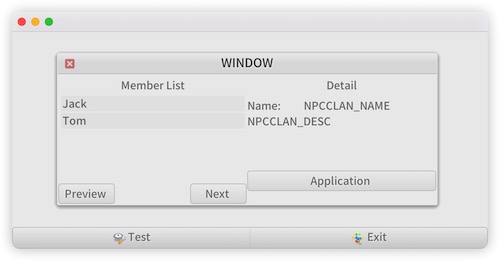
A simple scripting system is embedded in XML, and scripts can modify UI component or services for applications. This script is similar to what javascript for HTML.
The script can be extended as a bridge between the script and the java system.
XML node <script> can be place in any GContainer components, if a button has "onclick" attribute, the button find it's parent's script, if it's parent no script exists, then find the grandparent, until found .
    <frame name="FRAME_TEST" w="80%" h="70%" title="WINDOW" oninit="onOpen()">
        <script>
            <![CDATA[

            sub onOpen()
                print("FRAME_TEST is open")
            ret

            sub change()
                red=mod(random(),255)
                green=mod(random(),255)
                blue=mod(random(),255)
                setColor("LAB_HELP",red,green,blue,255)
                setText("LAB_HELP","Only a test")
            ret

            ]]>
        </script>

        <label name="LAB_HELP" w="50%" align="left,vcenter">TEXT NOW</label>
        <button name="BT_CHANGE" w="50%" onclick="change()">Change Color</button>
    </frame>
When the button BT_CHANGE clicked, the script function "change()" would be call, the func change the label "LAB_HELP" text and color.
Script onOpen() would be called when the frame is openning.
' this is comment
' Variable names are NOT case sensitive
a = 3        'define variable a as Int and set value to 3 , this Int is 64bit Int
b = "ABC"    'define variable b as Str and set value to "ABC"
c = true     'define variable c as Bool and set value to true

arr[2][10]      'define variable arr as 2 dim Array and set array length [2][10]
arr[0][0] = 5
arr[0][1] = "CDE"
arr[0][2] = false

'operator ex
a = (a + 7) * min(a, 5) - 15 / 3
b = "Hellow" + " world" + 100 + true
c = (7 > 6) | (a = 3) & (!c)

'branch statment
if(a > 5)
    b="great than five"
else
    b="less than or equals five"
eif

' loop statment
i = 0
while(i < 3)
    print(i+" ")
loop

' function call
a = sum(5, 7)
p(a)

'function define
'function names are NOT case sensitive
sub sum(x, y)
ret x+y           ' return value x+y

sub p(v)
    println(v)
ret               ' No value return
| Return Type | call | function |
| Int | arrlen(arr) | return array arr length |
| Int | abs(a) | return a<0?-a:a |
| Str | base64enc("ABCD") | return base64 encoded of "ABCD" |
| Str | base64dec("QUJDRA==") | return base64 decoded of "QUJDRA==" |
| void | def("varname",2) | Define a globe variable varname, and set as Int 2 |
| Bool | equals(str1,str2) | if str1 equals str2 return true, else false |
| Int | getbit(1000,1) | return 0 or 1, get bit index 1 of number 1000 |
| Bool/Str/Int/Obj | getobjfield(sound,"effectVolume") | return java Object sound field "effectVolume" value |
| Bool | isDef("varname") | Whether or not defined a globe variable varname |
| Int | idxof("ABCD", "CD") | return index of "CD" in "ABCD", this case is 2 |
| Bool | isnull(var) | determine var is null, var type limited: Str or Obj |
| Bool/Str/Int/Obj/void | invokejava(sound,"setSoundOpen(Z)V",true) | call java Object sound method "setSoundOpen(Z)V" , 1 parameter, no return invokejava(smgr,"addUser(Lcom.lba.user.Admin;I)Z",user1,30) ,2 para,the firstis user1 , an object of class com.lba.user.Admin, the second para 30 is int type. |
| Bool/Str/Int/Obj/void | invokeStatic("com.lba.user.Admin","check()V") | call class com.lba.user.Admin method "check()V" , 0 parameter, no return |
| Int | min(a,b) | return a<b?a:b |
| Int | max(a,b) | return a>b?a:b |
| Int | mod(a, b) | return a % b |
| void | print("ABC") | print a string |
| void | println() println("ABC"+3) | print a newline ; print a string with newline |
| Int | random() | return Int value may be negative |
| Int | strlen(str) | return string length |
| Str | substr("ABCD", 0, 3) | return sub string of "ABCD", start at 0, end at 3, this case return "ABC" |
| Array | split("A-BC-D", "-") | return splited string array , this case return ["A","BC","D"] |
| void | setObjField(sound,"effectVolume", 10) | set java Object sound field "effectVolume" value |
| Int | str2int("7") | Convert String to Int ,same as valueOf(Str) |
| Int | setbit(1000,5,0) | the number 1000, set bit index 5 to 0 |
| Str | trim(" ABC ") | return trim String , this case is "ABC" |
| Int | valueOf("7") | Convert String to Int |
| Return Type | call | function |
| void | setBgColor("COMP1",r,g,b,a) | set component background color |
| void | setColor("COMP1",r,g,b,a) | set component text color |
| void | setBgColorHexStr("COMP1","00ff00ff") | set component background color, color format is RGBA |
| void | setColorHexStr("COMP1","00ff00ff") | set component text color, color format is RGBA |
| void | setText("COMP1","new string") | set component text String |
| Str | getText("COMP1") | return component text |
| void | setXY("COMP1",x,y) | set component position to x,y |
| void | setWH("COMP1",w,h) | set component Width,Height to w,h |
| Int | getX("COMP1") getX() | get component position x, if no component specified, return form x |
| Int | getY("COMP1") getY() | get component position y, if no component specified, return form y |
| Int | getW("COMP1") getW() | get component position w, if no component specified, return form w |
| Int | getH("COMP1") getH() | get component position h, if no component specified, return form h |
| Str | getCmd("COMP1") | get component command string |
| void | setCmd("COMP1","command str") | set component command to the second parameter |
| void | close("FRAME1") | close GFrame that specified name |
| Int | getCurSlot("VIEWSLOT1") | get current slot of GViewSlot that specified name |
| void | showSlot("VIEWSLOT1",2,100) | set current slot of GViewSlot to 2, move animation 200ms |
| void | setImgPath("COMP1","/res/test.png") | set GImageItem image to "/res/test.png" |
| void | setImg("COMP1",gimageObj) | set GImageItem image to java GImage object |
| Obj | getImg("COMP1",gimageObj) | get GImageItem image to Obj type |
| void | setAttachStr("COMP1","a string") | attach the String to specify component |
| Str | getAttachStr("COMP1") | return the attachment as String from specify component |
| void | setAttachInt("COMP1","a string") | attach the Int to specify component |
| Int | getAttachInt("COMP1") | return the attachment as Int from specify component |
| Int | getListIdx("List1") | return the current selected index of specify GList |
| Str | getListText("List1") | return the selected item text of specify GList |
| void | setListIdx("List1",2) | set the specify GList selected item to 2 |
| void | setImgAlphaStr("List1","0.5") | set the specify GImageItem image alpha to 0.5, NOTICE the second parameter is String |
| void | setEnable("COMP1",true) | set the specify component active or not |
| void | setCheckBox("CHKBOX1",true) | set the specify GCheckBox status to true or false |
| Bool | getCheckBox("CHKBOX1") | return the specify GCheckBox status |
| void | setScrollBar("SCRBAR1",floatObj) | set the specify GScrollBar to Float obj |
| Obj | getScrollBar("SCRBAR1") | return the specify GScrollBar value |
| void | setSwitch("SWH1",true) | set the specify GSwitch status to true or false |
| Bool | getSwitch("SWH1") | return the specify GSwitch status |
| void | loadXmlUI("/res/accounts.xml",getXmlAssist(),getEventHandler()) | load xml with path String,XmlExtAssist(option),XEventHandler(option) |
| Bool | uiExist("COMP1") | Determine specify component is exists |
| void | showBar("a message") | show top bar message |
| void | showMsg("a message") | show a GFrame with message |
The extension function library inherit from Lib. register the extension function library before parsing the XML UI.
    XmlExtAssist assist = new XmlExtAssist(form);
    assist.registerGUI("test.ext.XCustomList");
    assist.addExtScriptLib(new ExScriptLib());
    String xmlStr = GToolkit.readFileFromJarAsString("/res/Frame1.xml", "utf-8");
    UITemplate uit = new UITemplate(xmlStr);
    XContainer xc = (XContainer) XContainer.parseXml(uit.parse(), assist);
    xc.build((int) form.getW(), (int) form.getH(), this);
    GFrame f1 = xc.getGui();
The extention library.
package test.ext;

import org.mini.gui.gscript.DataType;
import org.mini.gui.gscript.Interpreter;
import org.mini.gui.gscript.Lib;

import java.util.ArrayList;

public class ExScriptLib extends Lib {

    {
        methodNames.put("func1".toLowerCase(), 0);//
        methodNames.put("func2".toLowerCase(), 1);//
    }

    public DataType call(Interpreter inp, ArrayList<DataType> para, int methodID) {
        switch (methodID) {
            case 0:
                return func1(para);
            case 1:
                return func2(para);
        }
        return null;
    }

    public DataType func1(ArrayList<DataType> para) {
        String str1 = Interpreter.popBackStr(para);
        String str2 = Interpreter.popBackStr(para);
        System.out.println(str1);
        System.out.println(str2);
        return null;
    }

    public DataType func2(ArrayList<DataType> para) {
        int a = Interpreter.popBackInt(para);
        int b = Interpreter.popBackInt(para);
        return Interpreter.getCachedInt(a + b);
    }
}
The example demonstrate how develop java app for iOS and Android UI layout xml file MyForm.xml These files located in /mobile/java/ExApp .
<form name="FORM_MAIN" w="100%" h="100%">
    <script>
        <![CDATA[
        sub change()
            red=mod(random(),255)
            green=mod(random(),255)
            blue=mod(random(),255)
            setColor("LAB_HELP",red,green,blue,255)
            setText("LAB_HELP","Only a test")
        ret
        ]]>
    </script>

    <frame name="FRAME_TEST" w="80%" h="500" align="top,hcenter" title="WINDOW">
        <label name="LAB_HELP" w="100%" h="30" align="hcenter,vcenter">Help text:</label>
        <input w="100%" h="395" multiline="1" edit="0"><![CDATA[
            This app is an example of mini_jvm, Threre are a menu and a frame .
            Touch the 'Exit to AppManager' , you will enter the AppManager, AppManager manage all app, it can upload ,download , delete app.
            1. DOWNLOAD : Put your jar in a website , then input the url of jar in AppManager, Touch 'Download' ,it would download the jar ,then update the app list.
            2. UPLOAD : The first you touch the 'Start' to open the inapp webserver, then open browser in your Desktop Computer, open 'http://phone_ip_addr:8088' , and pickup a jar in the page, upload it. NOTE: That computer and the phone must be same LAN.
            3. RUN : Touch the App name in the list, Touch 'Run' can start the app.
            4. SET AS BOOT APP : The boot app will startup when MiniPack opend.
            5. UPGRADE : AppManager will download the new jar ,url that get from config.txt in jar.
            6. DELETE : The app would be deleteted.;
            ]]>
        </input>
        <br/>
        <button name="BT_SCRIPT" h="40" onclick="change()">{Change}</button>
        <button name="BT_CANCEL" h="40">{Cancel}</button>
        <br/>
    </frame>

    <menu name="MENU_MAIN" x="0" y="90%" w="100%" h="10%" fixed="1">
        <mi name="MI_OPENFRAME" pic="/res/hello.png">{Test}</mi>
        <mi name="MI_EXIT" pic="/res/appmgr.png">{Exit}</mi>
    </menu>
</form>
Java source file MyApp.java
package test;

import org.mini.apploader.AppManager;
import org.mini.apploader.GApplication;
import org.mini.gui.*;
import org.mini.layout.UITemplate;
import org.mini.layout.XContainer;
import org.mini.layout.XEventHandler;

/**
 * @author gust
 */
public class MyApp extends GApplication {

    GForm form;
    GMenu menu;
    GFrame gframe;

    @Override
    public GForm getForm() {
        if (form != null) {
            return form;
        }
        //set the default language
        GLanguage.setCurLang(GLanguage.ID_CHN);

        //load xml
        String xmlStr = GToolkit.readFileFromJarAsString("/res/MyForm.xml", "utf-8");

        UITemplate uit = new UITemplate(xmlStr);
        UITemplate.getVarMap().put("Cancel", "CANCEL"); //replace keywork in xml
        UITemplate.getVarMap().put("Change", "Change");
        UITemplate.getVarMap().put("Test", "Test");
        UITemplate.getVarMap().put("Exit", "QUIT");
        XContainer xc = (XContainer) XContainer.parseXml(uit.parse());
        int screenW = GCallBack.getInstance().getDeviceWidth();
        int screenH = GCallBack.getInstance().getDeviceHeight();

        //build gui with event handler
        xc.build(screenW, screenH, new XEventHandler() {
            @Override
            public void action(GObject gobj) {
                String name = gobj.getName();
                switch (name) {
                    case "MI_OPENFRAME":
                        if (form.findByName("FRAME_TEST") == null) {
                            form.add(gframe);
                        }
                        break;
                    case "MI_EXIT":
                        close();
                        break;
                    case "BT_CANCEL":
                        gframe.close();
                        break;
                }
            }

            public void onStateChange(GObject gobj, String cmd) {
            }
        });
        form = (GForm) xc.getGui();
        gframe = (GFrame) form.findByName("FRAME_TEST");
        if (gframe != null) gframe.align(GGraphics.HCENTER | GGraphics.VCENTER);
        menu = (GMenu) form.findByName("MENU_MAIN");

        //process Hori screen or Vert screen
        //if screen size changed ,then ui will resized relative
        form.setSizeChangeListener((width, height) -> {
            if (gframe != null && gframe.getLayout() != null) {
                form.getLayout().reSize(width, height);
                gframe.align(GGraphics.HCENTER | GGraphics.VCENTER);
            }
        });
        return form;
    }
}

public class SimplePanel extends GOpenGLPanel {

    public void gl_paint(){
    }

    public void gl_init(){
    }

    public void gl_destroy(){
    }

}
Game Example is placed /mobile/java/ExGame

Audio is based on open source soft miniaudio.
    //init a miniaudio engine
    MaEngine maEngine = new MaEngine();

    public void startBgm(String pathInJar) {
        byte[] audio = GToolkit.readFileFromJar(pathInJar);
        if (audio != null) {
            stopBgm();
            MaSound bgm;

            MaDecoder decoder = new MaDecoder(audio);
            bgm = new MaSound(maEngine, decoder, MiniAudio.MA_SOUND_FLAG_STREAM | MiniAudio.MA_SOUND_FLAG_ASYNC);
            bgm.setVolume(bgmVolume);
            bgm.setSpatialization(false);
            bgm.setLooping(true);
            bgm.setFadeIn(1000, bgmVolume);
            bgm.start();
        }
    }

    //like openAL
    public void play(String audioPath, float x, float y, float z) {
        if (!soundOpen) {
            return;
        }
        MaSound snd = getMaSound(audioPath);
        if (snd != null) {
            snd.setSpatialization(true);// support 3d audio
            snd.setAttenuationModel(MiniAudio.ma_attenuation_model_linear);
            snd.setMinDistance(minDistance);
            snd.setMaxDistance(maxDistance);
            snd.setPosition(x, y, z);
            snd.start();
        }
    }