This is a sample application to demonstrate how to use the ConfigCat C++ SDK.
- Instructions for CMake
- Instructions for GNU Make
- Instructions for CLion
- Instructions for Visual Studio
1. Install CMake
- Follow the instructions on https://cmake.org/install
2. Install Vcpkg
-
On Windows:
git clone https://github.com/microsoft/vcpkg
.\vcpkg\bootstrap-vcpkg.bat
-
On Linux/Mac:
git clone https://github.com/microsoft/vcpkg
./vcpkg/bootstrap-vcpkg.sh
cmake -S . -B build -DCMAKE_TOOLCHAIN_FILE=[path to vcpkg]/scripts/buildsystems/vcpkg.cmake
cmake --build build-
On Windows:
.\build\example.exe
-
On Linux/Mac:
./build/example
1. Install Vcpkg
git clone https://github.com/microsoft/vcpkg
./vcpkg/bootstrap-vcpkg.shMakefile uses the VCPKG_ROOT environment variable to install the ConfigCat package and its dependencies.
(export VCPKG_ROOT=[path to vcpkg] && make)./example1. Install Vcpkg
-
On Windows:
git clone https://github.com/microsoft/vcpkg
.\vcpkg\bootstrap-vcpkg.bat
-
On Linux/Mac:
git clone https://github.com/microsoft/vcpkg
./vcpkg/bootstrap-vcpkg.sh
Open the Toolchains settings
(File > Settings on Windows and Linux, CLion > Preferences on macOS),
and go to the CMake settings (Build, Execution, Deployment > CMake).
Finally, in CMake options, add the following line:
-DCMAKE_TOOLCHAIN_FILE=[vcpkg root]/scripts/buildsystems/vcpkg.cmake
1. Install Vcpkg
git clone https://github.com/microsoft/vcpkg
.\vcpkg\bootstrap-vcpkg.bat
In order to use vcpkg with Visual Studio, run the following command (may require administrator elevation):
.\vcpkg\vcpkg integrate installAfter this, you can now create a New non-CMake Project (or open an existing one).
All installed libraries are immediately ready to be #include'd and used
in your project without additional configuration.
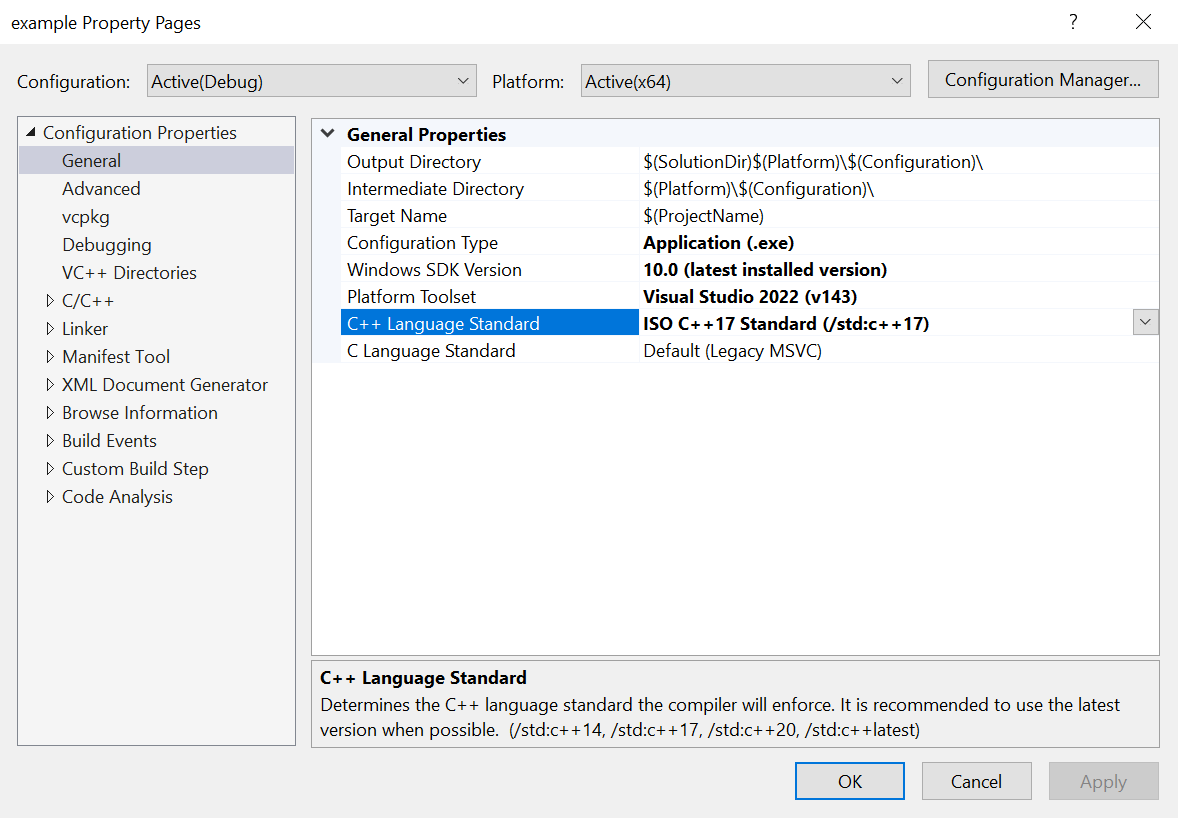
Note
Make sure that on the project's property pages
Use Vcpkg Manifestis turned on andC++ Language Standardis C++17.