
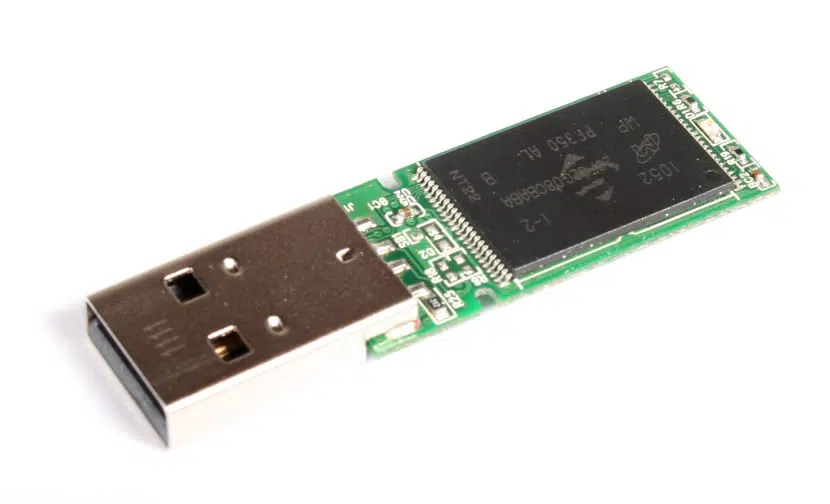
If you have an SD memory card, pendrive or any USB storage disk you want write protect, in this article we tell you step by step and in an easy way how to do it. And there is a bit of anti-writing protection that certain drivers allow, known as «write protection bit»Depending on whether it is active at 1 or 0, it will allow writing to the unit or not. This bit should not be confused with the WP of the CPUs' flag registers, which prevent overwriting by creating a forking process on UNIX-like systems, thus protecting the main memory from data writing. Nor to the typical protection tab that we find in some SD cards or storage media. In this case we are referring to a protection that is implemented in secondary storage media.
While the controller of the storage medium USB or SD memory card, or whatever means, detect that this bit is active, the driver will prevent the kernel from ordering a write order and therefore it will only be able to read the content. It is certainly very practical when we store data that we do not want to be modified, preventing writing or deletion by mistake. But if one of these protected media has fallen into our hands and we do not know of the existence of this bit, we could waste hours thinking that our unit is damaged, or raising and lowering the tab that some pendrives or SD cards have to protect them without any result. (Lock / Unlock) ...
Mount read-only or write-only media:

Although it is not exactly what we are looking for with the Write Protection Bit, we can also find that a medium has been automatically or manually mounted for read-only, so we will not have the ability to write in it. Something that in some cases can be very annoying and prevent us from modifying or storing things. Well, the solution to this is very simple.

For example, if in the / etc / fstab file the device is configured to mount automatically with the option ro (read only) or if we have mounted it with the command:
sudo mount -o ro /dev/sda /mnt
In such a case we can only read the / dev / sda device in this case it has been mounted on the / mnt mount point. So that we can write to it again:
sudo mount -o remount,rw /dev/sda /mnt
In case this method doesn't work for you, then it will be because the bit we have talked about is acting, and that is why we will have to use the tool that we present below.
What is hdparm?

The command hdparm is a low-level tool which acts as an interface between various Linux kernel drivers and SATA / PATA / SAS storage media using the libata library, as well as for old IDE media. Remember that many USB storage media controllers, including card readers such as SD cards, also use this type of controller to operate, therefore it is also compatible with them.
Su basic syntax is
hdparm [options] [device]
And presents many options with which to work, although I do not recommend that you use them if you do not know what you do well, since being a low-level tool you could seriously damage your device, for example if we manipulate some critical options such as -B. But I will tell you that among its options there are some quite interesting such as:
- Obtain the setting of the disk:
sudo hdparm /dev/sdd
- Show the identification of the disk:
sudo hdparm -i /dev/sdd
- Check buffer and cache read times:
sudo hdparm -t /dev/sdd
sudo hdparm -T /dev/sdd
Always remember to use the privileges, that is, run them as root user or putting sudo in front of them or they won't work ...
Remove and set the memory protection bit with hdparm:
Once the hdparm tool is known, we can use the -r option with which we can check the status of this bit with a simple command. To do this, we only need to know the physical name of our storage device. For example, if / dev / sdd were called, in that case we could use:
sudo hdparm -r /dev/sdd
And the value of said bit will be shown on the screen. If its value is 1 that means that the mode is active readonly or read-only, or in other words, the write-protect method is active and you won't be able to write anything to memory. To deactivate it or modify the bit, you just have to do the following:
sudo hdparm -r0 /dev/sdd
And now if we execute the first command and consume the state we will see that it has returned to 0, therefore the readonly mode is off or deactivated. In case you want to return it to the active state, use the option -r1 instead of -r0 and ready. For example:
sudo hdparm -r1 /dev/sdd
That simple is enable or disable this bit. It does not have too much mystery but for those who do not know this it can be a headache when it comes to unprotecting their storage media.
I hope it has helped you and now you know how to make a write-protected pendrive, don't forget leave your comments ...