<?xml version="1.0" encoding="utf-8"?><feed xmlns="http://www.w3.org/2005/Atom" ><generator uri="https://jekyllrb.com/" version="3.9.5">Jekyll</generator><link href="https://bluz71.github.io/feed.xml" rel="self" type="application/atom+xml" /><link href="https://bluz71.github.io/" rel="alternate" type="text/html" /><updated>2024-02-16T02:50:51+00:00</updated><id>https://bluz71.github.io/feed.xml</id><title type="html">The musings of bluz71</title><subtitle>My blog</subtitle><author><name>bluz71</name></author><entry><title type="html">Maximize Productivity Of The Bash Shell</title><link href="https://bluz71.github.io/2023/06/02/maximize-productivity-of-the-bash-shell.html" rel="alternate" type="text/html" title="Maximize Productivity Of The Bash Shell" /><published>2023-06-02T00:00:00+00:00</published><updated>2023-06-02T00:00:00+00:00</updated><id>https://bluz71.github.io/2023/06/02/maximize-productivity-of-the-bash-shell</id><content type="html" xml:base="https://bluz71.github.io/2023/06/02/maximize-productivity-of-the-bash-shell.html"><![CDATA[<h1 id="maximize-productivity-of-the-bash-shell">Maximize Productivity Of The Bash Shell</h1>

<p>This is a 2023 followup to my 2018 <a href="https://bluz71.github.io/2018/03/15/bash-shell-tweaks-tips.html">Bash Shell Tweaks &amp;
Tips</a> article.</p>

<p>Since that last article there has been a renaissance in shell-agnostic command
line tooling, often implemented in high-performance
<a href="https://www.rust-lang.org">Rust</a>, that has elevated the interactive shell
experience. Hence, now is the right time to revisit Bash with such tooling in
mind.</p>

<p>In this article we will: enable a host of useful shell options, script automatic
<code class="language-plaintext highlighter-rouge">pushd</code> along with matching directory stack navigation bindings, integrate an
interactive completion interface and we will document some modern command line
tools, among other tips and suggestions.</p>

<p>Note, my <a href="https://github.com/bluz71/dotfiles/blob/master/bashrc">bashrc</a> and
<a href="https://github.com/bluz71/dotfiles/blob/master/inputrc">inputrc</a> files
incorporate all the ideas documented in this article.</p>

<h2 id="dispelling-bash-misconceptions">Dispelling Bash Misconceptions</h2>

<p>Before proceeding, it is worth correcting some Bash misconceptions that still
intermittently persist:</p>

<ul>
  <li>Bash supports changing directories without entering the <code class="language-plaintext highlighter-rouge">cd</code> command</li>
  <li>Bash supports simple file and directory path <em>autocorrection</em></li>
  <li><code class="language-plaintext highlighter-rouge">**</code> recursive globbing is supported</li>
  <li>Command <code class="language-plaintext highlighter-rouge">history</code> can be shared between concurrent Bash instances</li>
  <li>Bash does support <em>tab-completion</em> cycling</li>
  <li>Command and context-aware completion is supported through the Bash Completion
package</li>
  <li>Interactive completion is supported by way of a 3rd party package</li>
</ul>

<p>Keep reading for details about all the above.</p>

<h2 id="installation-and-setup-for-macos">Installation And Setup For macOS</h2>

<p>Since OS Catalina (2019), <a href="https://www.zsh.org">Zsh</a> is now the default shell
for macOS. Apple still ships with Bash, but only version 3.2 which dates back to
2006; such a legacy version of Bash should be avoided for interactive use these
days.</p>

<p>Updating to a modern version of Bash is easily accomplished with the
<a href="https://brew.sh">Homebrew</a> package manager:</p>

<div class="language-sh highlighter-rouge"><div class="highlight"><pre class="highlight"><code>brew <span class="nb">install </span>bash
<span class="nb">echo</span> /opt/homebrew/bin/bash | <span class="nb">sudo tee</span> <span class="nt">-a</span> /etc/shells
chsh <span class="nt">-s</span> /opt/homebrew/bin/bash
</code></pre></div></div>

<p>Note, if using an older Intel-based Mac, please replace <code class="language-plaintext highlighter-rouge">/opt/homebrew</code> with
<code class="language-plaintext highlighter-rouge">/usr/local</code>.</p>

<p>Please also install the Bash Completion package as follows:</p>

<div class="language-sh highlighter-rouge"><div class="highlight"><pre class="highlight"><code>brew <span class="nb">install </span>bash-completion@2
</code></pre></div></div>

<p>And lastly add the following to your <code class="language-plaintext highlighter-rouge">~/.bash_profile</code>:</p>

<div class="language-sh highlighter-rouge"><div class="highlight"><pre class="highlight"><code><span class="o">[[</span> <span class="nt">-r</span> <span class="s2">"</span><span class="nv">$HOMEBREW_PREFIX</span><span class="s2">/etc/profile.d/bash_completion.sh"</span> <span class="o">]]</span> <span class="o">&amp;&amp;</span> <span class="nb">.</span> <span class="s2">"</span><span class="nv">$HOMEBREW_PREFIX</span><span class="s2">/etc/profile.d/bash_completion.sh"</span>
</code></pre></div></div>

<h2 id="readline-configuration">Readline Configuration</h2>

<p>The <a href="https://tiswww.case.edu/php/chet/readline/rltop.html">GNU Readline</a> library
is used by Bash, and certain other utilities, for line-editing and <code class="language-plaintext highlighter-rouge">history</code>
interaction.</p>

<p>Many beneficial Readline features are disabled by default; thankfully, it is
easy to enable these features for the betterment of the interactive experience.</p>

<p>The Readline library is configured through the <code class="language-plaintext highlighter-rouge">~/.inputrc</code> file. I use and
recommend these settings (with comments provided detailing each setting):</p>

<div class="language-sh highlighter-rouge"><div class="highlight"><pre class="highlight"><code><span class="c"># TAB cycles forward and Shift-TAB cycles backward through completion choices.</span>
TAB: menu-complete
<span class="s2">"</span><span class="se">\e</span><span class="s2">[Z"</span>: menu-complete-backward

<span class="c"># Substring history search using UP and DOWN arrow keys.</span>
<span class="s2">"</span><span class="se">\e</span><span class="s2">[A"</span>: history-substring-search-backward
<span class="s2">"</span><span class="se">\e</span><span class="s2">[B"</span>: history-substring-search-forward

<span class="c"># Launch $EDITOR on the current command and execute when finished editing.</span>
<span class="s2">"</span><span class="se">\e</span><span class="s2">e"</span>: edit-and-execute-command

<span class="c"># Enable completion coloring.</span>
<span class="nb">set </span>colored-completion-prefix on
<span class="nb">set </span>colored-stats on

<span class="c"># Ignore case when completing.</span>
<span class="nb">set </span>completion-ignore-case on

<span class="c"># Treat hypen and underscores as equivalent.</span>
<span class="nb">set </span>completion-map-case on

<span class="c"># The number of completions to display without prompt; when exceeded a</span>
<span class="c"># prompt-to-display will appear.</span>
<span class="nb">set </span>completion-query-items 200

<span class="c"># Automatically add slash to the end of symlinked directories when completing.</span>
<span class="nb">set </span>mark-symlinked-directories on

<span class="c"># Don't automatically match files beginning with dot.</span>
<span class="nb">set </span>match-hidden-files off

<span class="c"># Display the common prefix choices on the first completion then cycle the</span>
<span class="c"># available choices on the next completion.</span>
<span class="nb">set </span>menu-complete-display-prefix on

<span class="c"># Turn off the completions pager.</span>
<span class="nb">set </span>page-completions off

<span class="c"># Immediately display completion matches.</span>
<span class="nb">set </span>show-all-if-ambiguous on

<span class="c"># Smartly complete items when the cursor is not at the end of the line.</span>
<span class="nb">set </span>skip-completed-text on
</code></pre></div></div>

<p>Highlighting a few capabilities enabled above:</p>

<ul>
  <li>
    <p>The <code class="language-plaintext highlighter-rouge">&lt;TAB&gt;</code> and <code class="language-plaintext highlighter-rouge">&lt;Shift-Tab&gt;</code> keys will now cycle completions choices</p>
  </li>
  <li>
    <p>Completions will commence immediately after pressing the first <code class="language-plaintext highlighter-rouge">&lt;TAB&gt;</code></p>
  </li>
  <li>
    <p>Partially typing a command and pressing <code class="language-plaintext highlighter-rouge">&lt;Up&gt;</code> will engage <code class="language-plaintext highlighter-rouge">history</code> substring
matching, not simply just start of line matching</p>
  </li>
  <li>
    <p>The <code class="language-plaintext highlighter-rouge">&lt;Alt-e&gt;</code> edit-and-execute binding is a reasonable Vim-mode substitute if
Vim or Neovim is the configured <code class="language-plaintext highlighter-rouge">$EDITOR</code>; noting that Readline only supports
a very basic Vi-mode if configured</p>
  </li>
</ul>

<h2 id="shell-options">Shell Options</h2>

<p>Somewhat similar to the previous Readline section, Bash provides a number of
useful shell options that are also disabled by default.</p>

<p>Shell options should be set in <code class="language-plaintext highlighter-rouge">~/.bashrc</code>. I use and recommend these options
(with comments detailing each option):</p>

<div class="language-sh highlighter-rouge"><div class="highlight"><pre class="highlight"><code><span class="c">#  - autocd - change directory without entering the 'cd' command</span>
<span class="c">#  - cdspell - automatically fix directory typos when changing directory</span>
<span class="c">#  - direxpand - automatically expand directory globs when completing</span>
<span class="c">#  - dirspell - automatically fix directory typos when completing</span>
<span class="c">#  - globstar - ** recursive glob</span>
<span class="c">#  - histappend - append to history, don't overwrite</span>
<span class="c">#  - histverify - expand, but don't automatically execute, history expansions</span>
<span class="c">#  - nocaseglob - case-insensitive globbing</span>
<span class="c">#  - no_empty_cmd_completion - do not TAB expand empty lines</span>
<span class="nb">shopt</span> <span class="nt">-s</span> autocd cdspell direxpand dirspell globstar histappend histverify <span class="se">\</span>
    nocaseglob no_empty_cmd_completion
</code></pre></div></div>

<p>I find it somewhat baffling that these useful options are disabled by default.</p>

<h2 id="history">History</h2>

<p>In its out of the box configuration, <a href="https://www.gnu.org/software/bash/manual/html_node/Bash-History-Facilities.html">Bash
history</a>
is quite primitive:</p>

<ul>
  <li>Each running shell will have its own history, and when a shell ends the
running history of the current shell will entirely replace the contents of
<code class="language-plaintext highlighter-rouge">~/.bash_history</code> file</li>
  <li>Hence, history from the next exiting shell will overwrite the history of the
previously exited shell</li>
  <li>History will not be shared between concurrent shell sessions</li>
  <li>Duplicates will exist in the current session’s history</li>
  <li>Only the last 500 commands are preserved</li>
</ul>

<p>Fortunately, it is easy to greatly improve Bash history.</p>

<p>Firstly, in the previous <em>Shell Options</em> section, we enabled the important
<code class="language-plaintext highlighter-rouge">shopt -s histappend</code> option which appends the current shell history to the
history file rather than overwriting it.</p>

<p>And to compliment that shell option change, these are the history controls I
recommend in <code class="language-plaintext highlighter-rouge">~/.bashrc</code>:</p>

<div class="language-sh highlighter-rouge"><div class="highlight"><pre class="highlight"><code><span class="nv">HISTCONTROL</span><span class="o">=</span>ignoreboth:erasedups <span class="c"># Ignore and erase duplicates</span>
<span class="nv">HISTIGNORE</span><span class="o">=</span>?:??                  <span class="c"># Ignore one and two letter commands</span>
<span class="nv">HISTFILESIZE</span><span class="o">=</span>99999               <span class="c"># Max size of history file</span>
<span class="nv">HISTSIZE</span><span class="o">=</span>99999                   <span class="c"># Amount of history to preserve</span>
</code></pre></div></div>

<p>Lastly, to share history between concurrent Bash sessions:</p>

<div class="language-plaintext highlighter-rouge"><div class="highlight"><pre class="highlight"><code>PROMPT_COMMAND="history -a; history -n"
</code></pre></div></div>

<p>This will immediately append the current shell history to the history file and
load history from other active sessions in the current shell history each time
the prompt is updated.</p>

<h2 id="prompt">Prompt</h2>

<p>Speaking of prompts, an informative, colorful and configurable prompt is easily
attained nowadays. The cross-shell <a href="https://starship.rs">Starship</a> prompt has
become a fan-favourite due to its compatibility and customization simplicity.
For many, Starship is all the prompt they will ever need.</p>

<p>Install as per <a href="https://starship.rs/#quick-install">Starship instructions</a>, then
add the following to <code class="language-plaintext highlighter-rouge">~/.bashrc</code>:</p>

<div class="language-sh highlighter-rouge"><div class="highlight"><pre class="highlight"><code><span class="nb">eval</span> <span class="s2">"</span><span class="si">$(</span>starship init bash<span class="si">)</span><span class="s2">"</span>
</code></pre></div></div>

<p>And configure according to <a href="https://starship.rs/config">the documentation</a> on
the Starship website.</p>

<p>Be aware, Starship has now taken control of the <code class="language-plaintext highlighter-rouge">PROMPT_COMMAND</code> and the history
sharing noted in the previous section will no longer apply. I am led to believe
the following <code class="language-plaintext highlighter-rouge">~/.bashrc</code> configuration will restore history sharing:</p>

<div class="language-sh highlighter-rouge"><div class="highlight"><pre class="highlight"><code><span class="k">function </span>history_sharing<span class="o">()</span> <span class="o">{</span>
    <span class="nb">history</span> <span class="nt">-a</span> <span class="o">&amp;&amp;</span> <span class="nb">history</span> <span class="nt">-n</span>
<span class="o">}</span>
<span class="nv">starship_precmd_user_func</span><span class="o">=</span><span class="s2">"history_sharing"</span>
</code></pre></div></div>

<p>With all that said, I still use my own
<a href="https://github.com/bluz71/bash-seafly-prompt">bash-seafly-prompt</a> package
instead, which predates Starship, and which also has <a href="https://github.com/romkatv/gitstatus/issues/385#issuecomment-1532411950">superior Git status
performance</a>
when combined with either the
<a href="https://github.com/bluz71/git-status-fly">git-status-fly</a> or
<a href="https://github.com/romkatv/gitstatus">gitstatus</a> utilities.</p>

<p>Other popular prompt choices include:</p>

<ul>
  <li><a href="https://github.com/magicmonty/bash-git-prompt">bash-git-prompt</a></li>
  <li><a href="https://github.com/nojhan/liquidprompt">Liquid Prompt</a></li>
</ul>

<h2 id="fuzzy-finding">Fuzzy Finding</h2>

<p>These days, it is hard to imagine using an interactive shell without fuzzy
finding integration. <a href="https://github.com/junegunn/fzf">fzf</a> is the most
popular such fuzzy finding tool.</p>

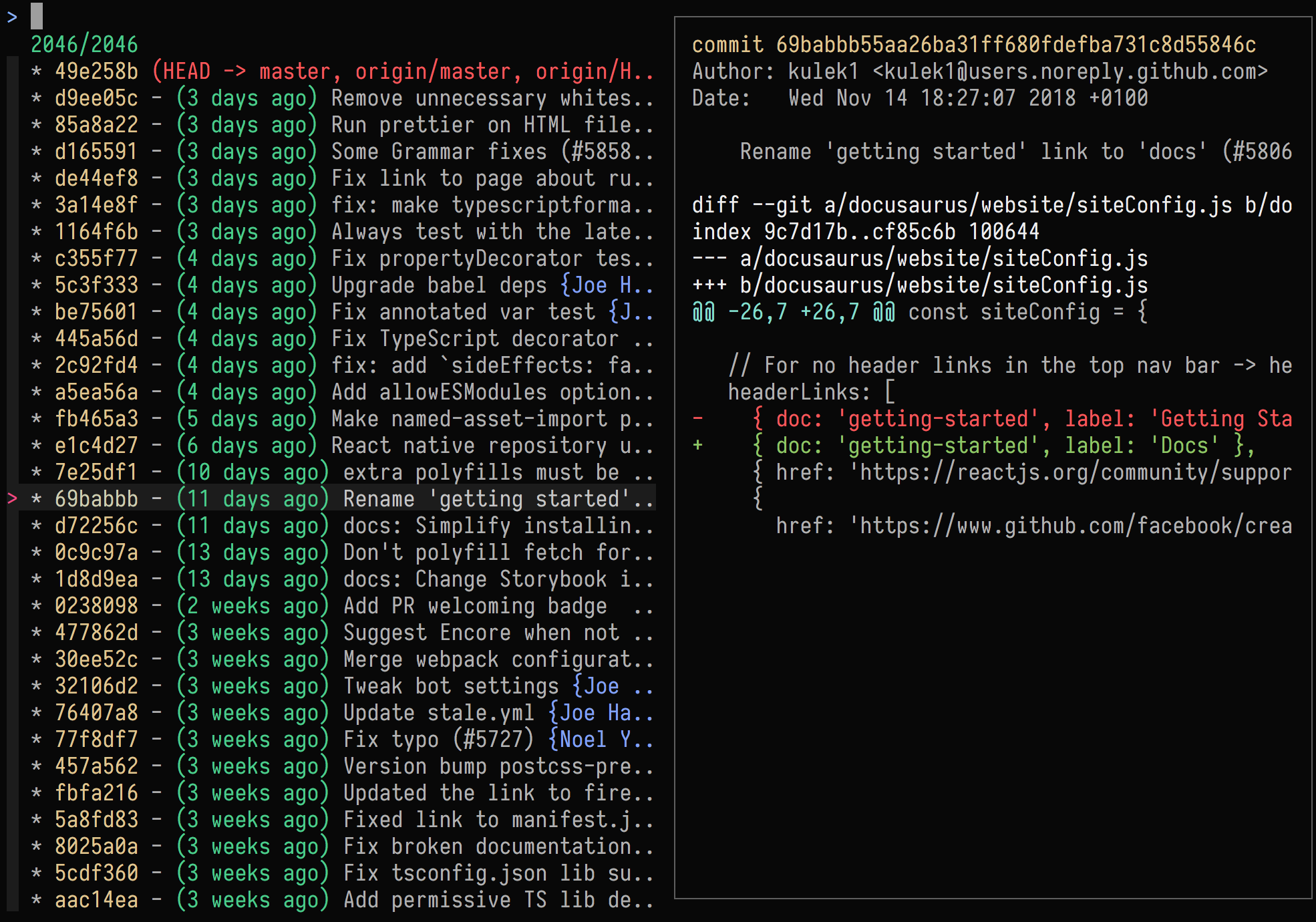
<p>I wrote a <a href="https://bluz71.github.io/2018/11/26/fuzzy-finding-in-bash-with-fzf.html">Fuzzy Finding in Bash with
fzf</a>
article a few years ago. That article is still relevant and applicable these
days; if time, permits I do recommend reading it.</p>

<p>Install as per <a href="https://github.com/junegunn/fzf#installation">fzf instructions</a>,
then add the following key-binding configuration to <code class="language-plaintext highlighter-rouge">~/.bashrc</code>:</p>

<div class="language-sh highlighter-rouge"><div class="highlight"><pre class="highlight"><code><span class="nb">.</span> /LOCATION/OF/FZF/INSTALLATION/shell/key-bindings.bash
</code></pre></div></div>

<p>That will add the following three key-bindings:</p>

<ul>
  <li><code class="language-plaintext highlighter-rouge">Control-r</code> - fuzzy reverse history search</li>
  <li><code class="language-plaintext highlighter-rouge">Control-t</code> - append fuzzy selections to the current shell command</li>
  <li><code class="language-plaintext highlighter-rouge">Alt-c</code> - change to the fuzzy found directory</li>
</ul>

<p>An assortment of custom <a href="https://bluz71.github.io/2018/11/26/fuzzy-finding-in-bash-with-fzf.html#search-scripts">search
scripts</a>
are documented in the previously mentioned <a href="https://bluz71.github.io/2018/11/26/fuzzy-finding-in-bash-with-fzf.html">Fuzzy Finding in Bash with
fzf</a>
article, they are well worth inspecting. These include: editing a fuzzy found
file, killing a fuzzy found process, Git staging fuzzy found files and fuzzy Git
log browsing to name a few.</p>

<p>The <a href="https://github.com/wfxr/forgit">forgit</a> project, which also combines <em>fzf</em>
with interactive Git, may be of interest.</p>

<h2 id="interactive-completion-powered-by-fzf">Interactive Completion Powered By fzf</h2>

<p>Unlike <a href="https://www.zsh.org">Zsh</a> and <a href="https://fishshell.com">Fish</a>, Bash does
not provide a native interactive completion mechanism; that is, completion that
can be interactively navigated with arrow keys to quickly select the desired
completion.</p>

<p>As noted above in the Readline section, Bash does support completion cycling,
but when there are many completions there is no ability to interactively
navigate the displayed completions.</p>

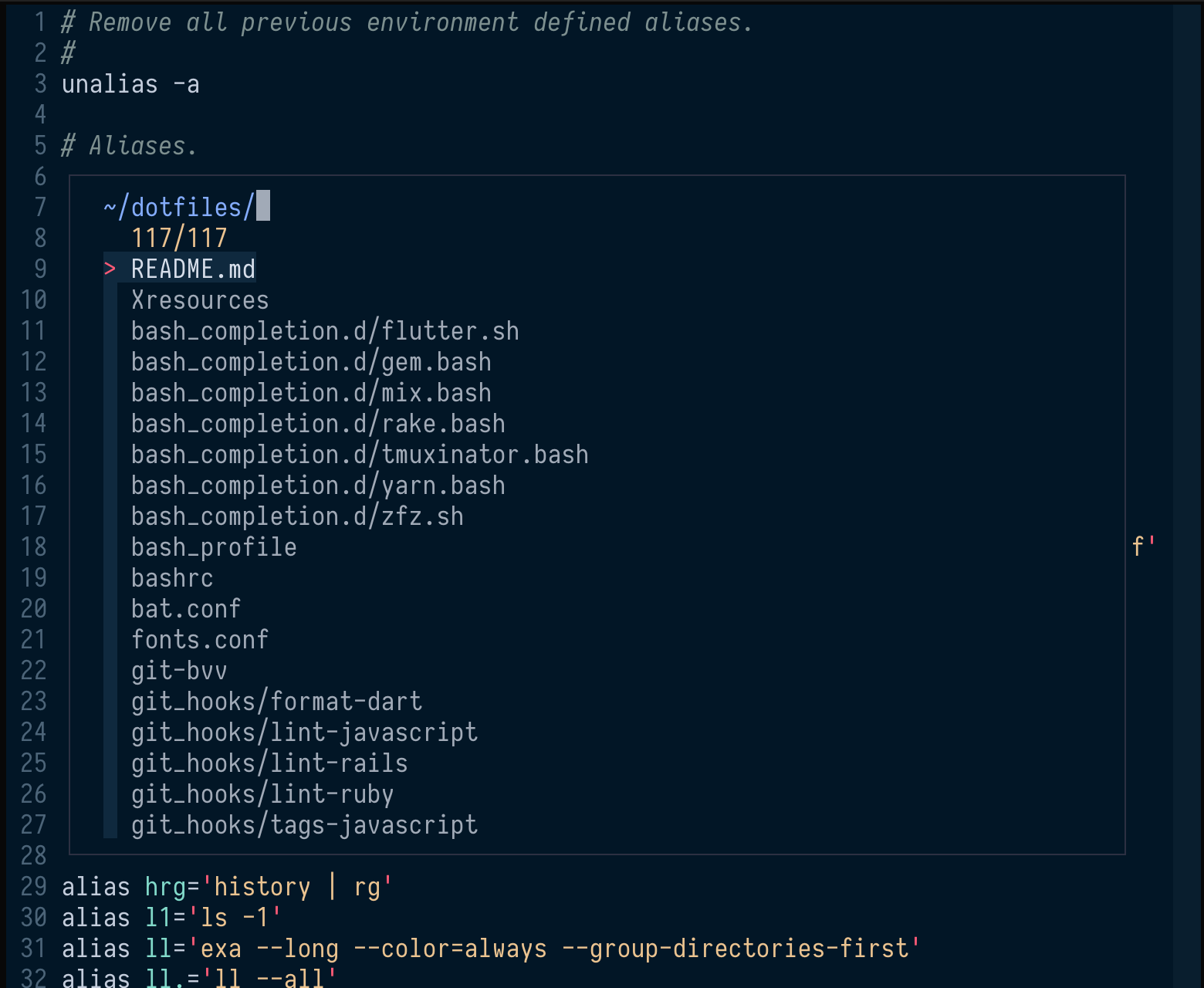
<p>The excellent
<a href="https://github.com/lincheney/fzf-tab-completion">fzf-tab-completion</a> package
however does provide interactive completions powered by the aforementioned <em>fzf</em>
utility.</p>

<p>Install by cloning the repository:</p>

<div class="language-sh highlighter-rouge"><div class="highlight"><pre class="highlight"><code>git clone <span class="nt">--depth</span> 1 https://github.com/lincheney/fzf-tab-completion ~/.fzf-tab-completion
</code></pre></div></div>

<p>Then add the following to <code class="language-plaintext highlighter-rouge">~/.bashrc</code>:</p>

<div class="language-sh highlighter-rouge"><div class="highlight"><pre class="highlight"><code><span class="nb">source</span> <span class="nv">$HOME</span>/.fzf-tab-completion/bash/fzf-bash-completion.sh
<span class="nb">bind</span> <span class="nt">-x</span> <span class="s1">'"\C-f": fzf_bash_completion'</span>
</code></pre></div></div>

<p>This binds <code class="language-plaintext highlighter-rouge">&lt;Control-f&gt;</code> (<code class="language-plaintext highlighter-rouge">f</code> for fuzzy) to <em>fzf-tab-completion</em> whilst keeping
<code class="language-plaintext highlighter-rouge">&lt;TAB&gt;</code> bound to native Bash completion. I find native Bash <code class="language-plaintext highlighter-rouge">&lt;TAB&gt;</code> completion
preferable for most simple completions, whilst reserving <em>fzf-tab-completion</em>
for the few occasions where there are many completion matches. Note, a <code class="language-plaintext highlighter-rouge">&lt;TAB&gt;</code>
initiated completion can be converted to <em>fzf-tab-completion</em> just by pressing
<code class="language-plaintext highlighter-rouge">&lt;Control-f&gt;</code>.</p>

<p>Lastly, <code class="language-plaintext highlighter-rouge">&lt;Control-f&gt;</code> is just my preferred binding, another binding, such as
<code class="language-plaintext highlighter-rouge">&lt;TAB&gt;</code> itself, can be defined instead.</p>

<h2 id="modern-shell-tools">Modern Shell Tools</h2>

<p>As mentioned in the introduction, there has been a resurgence in command line
tool development in recent years. Some of these new tools are  direct
replacements for long-established core utilities.</p>

<p>A few that are noteworthy:</p>

<ul>
  <li>
    <p><a href="https://github.com/sharkdp/bat">bat</a>, an enhanced <code class="language-plaintext highlighter-rouge">cat</code> clone</p>
  </li>
  <li>
    <p><a href="https://github.com/dandavison/delta">delta</a>, a syntax-highlighting pager for
<code class="language-plaintext highlighter-rouge">diff</code> and <code class="language-plaintext highlighter-rouge">git</code></p>
  </li>
  <li>
    <p><a href="https://github.com/bootandy/dust">dust</a>, an intuitive version of <code class="language-plaintext highlighter-rouge">du</code></p>
  </li>
  <li>
    <p><a href="https://github.com/ogham/exa">exa</a>, a modern replacement for <code class="language-plaintext highlighter-rouge">ls</code></p>
  </li>
  <li>
    <p><a href="https://github.com/sharkdp/fd">fd</a>, a simple, fast and user-friendly
alternative to <code class="language-plaintext highlighter-rouge">find</code></p>
  </li>
  <li>
    <p><a href="https://github.com/sharkdp/hyperfine">hyperfine</a>, a modern benchmarking
alternative to <code class="language-plaintext highlighter-rouge">time</code></p>
  </li>
  <li>
    <p><a href="https://github.com/BurntSushi/ripgrep">ripgrep</a>, a recursive pattern search
alternative to <code class="language-plaintext highlighter-rouge">grep</code></p>
  </li>
  <li>
    <p><a href="https://github.com/chmln/sd">sd</a>, an intuitive <code class="language-plaintext highlighter-rouge">sed</code> alternative</p>
  </li>
  <li>
    <p><a href="https://github.com/ajeetdsouza/zoxide">zoxide</a>, a smarter <code class="language-plaintext highlighter-rouge">cd</code> command,
inspired by <a href="https://github.com/rupa/z">z</a> and
<a href="https://github.com/wting/autojump">autojump</a>, that remembers visited
directories for instant navigation</p>
  </li>
</ul>

<p>Whilst not a new tool, I would also like to shout out (again), the brilliant
<a href="https://www.nongnu.org/renameutils">qmv</a> utility which makes bulk renames a
breeze by way of your current <code class="language-plaintext highlighter-rouge">$EDITOR</code>. I discuss it in greater <a href="https://bluz71.github.io/2018/03/15/bash-shell-tweaks-tips.html#the-qmv-rename-utility">detail
here</a>.</p>

<p>Similarly, for those interested, I detail the <em>ripgrep</em> and <em>fd</em> utilities
<a href="https://bluz71.github.io/2018/06/07/ripgrep-fd-command-line-search-tools.html">here</a>.</p>

<h1 id="miscellaneous-helpers">Miscellaneous Helpers</h1>

<p>Lastly, I will end with a couple of simple Bash helpers, inspired by other
shells, that have enhanced my shell usage.</p>

<h2 id="automatic-pushd-and-associated-navigation-bindings">Automatic pushd And Associated Navigation Bindings</h2>

<p>The Fish shell automatically provides <a href="https://fishshell.com/docs/current/interactive.html#navigating-directories">directory
history</a>
when changing directories along with companion <code class="language-plaintext highlighter-rouge">prevd</code> and <code class="language-plaintext highlighter-rouge">nextd</code> commands,
which themselves are bound to <code class="language-plaintext highlighter-rouge">&lt;Alt-Left&gt;</code> and <code class="language-plaintext highlighter-rouge">&lt;Alt-Right&gt;</code>, for directory
history navigation.</p>

<p>That functionality can be mimicked in Bash as follows:</p>

<div class="language-sh highlighter-rouge"><div class="highlight"><pre class="highlight"><code><span class="nb">cd</span><span class="o">()</span> <span class="o">{</span>
    <span class="nb">local </span><span class="nv">target</span><span class="o">=</span><span class="s2">"</span><span class="nv">$@</span><span class="s2">"</span>
    <span class="k">if</span> <span class="o">[[</span> <span class="nv">$# </span><span class="nt">-eq</span> 0 <span class="o">]]</span><span class="p">;</span> <span class="k">then</span>
        <span class="c"># Handle 'cd' without arguments; change to the $HOME directory.</span>
        <span class="nv">target</span><span class="o">=</span><span class="s2">"</span><span class="nv">$HOME</span><span class="s2">"</span>
    <span class="k">elif</span> <span class="o">[[</span> <span class="nv">$1</span> <span class="o">==</span> <span class="s2">"--"</span> <span class="o">]]</span><span class="p">;</span> <span class="k">then</span>
        <span class="c"># Handle 'autocd' shopt, that is just a directory name entered without</span>
        <span class="c"># a preceding 'cd' command. In that case the first argument will be '--'</span>
        <span class="c"># with the target directory defined by the remaining arguments.</span>
        <span class="nb">shift
        </span><span class="nv">target</span><span class="o">=</span><span class="s2">"</span><span class="nv">$@</span><span class="s2">"</span>
    <span class="k">fi</span>

    <span class="c"># Note, if the target directory is the same as the current directory do</span>
    <span class="c"># nothing since we don't want to populate the directory stack with</span>
    <span class="c"># consecutive repeat entries.</span>
    <span class="k">if</span> <span class="o">[[</span> <span class="s2">"</span><span class="nv">$target</span><span class="s2">"</span> <span class="o">!=</span> <span class="s2">"</span><span class="nv">$PWD</span><span class="s2">"</span> <span class="o">]]</span><span class="p">;</span> <span class="k">then
        </span><span class="nb">builtin pushd</span> <span class="s2">"</span><span class="nv">$target</span><span class="s2">"</span> 1&gt;/dev/null
    <span class="k">fi</span>
<span class="o">}</span>

<span class="c"># Alt-Left: rotate back through the directory stack.</span>
<span class="nb">bind</span> <span class="nt">-x</span> <span class="s1">'"\C-x\C-p": "pushd +1 &amp;&gt;/dev/null"'</span>
<span class="nb">bind</span> <span class="s1">'"\e[1;3D":"\C-x\C-p\n"'</span>
<span class="c"># Alt-Right rotate forward through the directory stack.</span>
<span class="nb">bind</span> <span class="nt">-x</span> <span class="s1">'"\C-x\C-n": "pushd -0 &amp;&gt;/dev/null"'</span>
<span class="nb">bind</span> <span class="s1">'"\e[1;3C":"\C-x\C-n\n"'</span>
</code></pre></div></div>

<p>All <code class="language-plaintext highlighter-rouge">cd</code> executions will be recorded to the directory stack and <code class="language-plaintext highlighter-rouge">&lt;Alt-Left&gt;</code> and
<code class="language-plaintext highlighter-rouge">&lt;Alt-Right&gt;</code> will now act like a browser’s back and forward buttons, but this
time for stacked directories.</p>

<h2 id="web-searching">Web Searching</h2>

<p>The <a href="https://github.com/ohmyzsh/ohmyzsh">Oh My Zsh</a> framework provides a handy
<a href="https://github.com/ohmyzsh/ohmyzsh/tree/master/plugins/web-search">web-search</a>
plugin.</p>

<p>We can mimic that as follows:</p>

<div class="language-sh highlighter-rouge"><div class="highlight"><pre class="highlight"><code><span class="k">if</span> <span class="o">[[</span> <span class="si">$(</span><span class="nb">uname</span><span class="si">)</span> <span class="o">==</span> Linux <span class="o">]]</span><span class="p">;</span> <span class="k">then
    </span><span class="nb">alias </span><span class="nv">open</span><span class="o">=</span><span class="s1">'xdg-open 2&gt;/dev/null'</span>
<span class="k">fi

</span>web<span class="o">()</span> <span class="o">{</span>
    <span class="nv">GOLD</span><span class="o">=</span><span class="si">$(</span>tput setaf 222<span class="si">)</span>
    <span class="nv">GREEN</span><span class="o">=</span><span class="si">$(</span>tput setaf 79<span class="si">)</span>
    <span class="nv">NC</span><span class="o">=</span><span class="si">$(</span>tput sgr0<span class="si">)</span>

    <span class="nb">read</span> <span class="nt">-ep</span> <span class="s2">"</span><span class="si">$(</span><span class="nb">echo</span> <span class="nt">-e</span> <span class="s2">"</span><span class="k">${</span><span class="nv">GOLD</span><span class="k">}</span><span class="s2">Search </span><span class="k">${</span><span class="nv">GREEN</span><span class="k">}</span><span class="s2">➜ </span><span class="k">${</span><span class="nv">NC</span><span class="k">}</span><span class="s2">"</span><span class="si">)</span><span class="s2">"</span> search_term
    <span class="k">if</span> <span class="o">[[</span> <span class="nt">-n</span> <span class="s2">"</span><span class="nv">$search_term</span><span class="s2">"</span> <span class="o">]]</span><span class="p">;</span> <span class="k">then
        </span>open <span class="s2">"https://duckduckgo.com/?q=</span><span class="k">${</span><span class="nv">search_term</span><span class="k">}</span><span class="s2">"</span> &amp;&gt;/dev/null
    <span class="k">fi</span>
<span class="o">}</span>
</code></pre></div></div>

<p>This will execute a <a href="https://duckduckgo.com">DuckDuckGo</a> search using the
default browser when <code class="language-plaintext highlighter-rouge">web</code> is executed. I like DuckDuckGo because it provides
<a href="https://duckduckgo.com/bangs">bang</a> shortcuts. For example, the following will
do a GitHub search, via the <code class="language-plaintext highlighter-rouge">!gh</code> bang, for Neovim:</p>

<div class="language-plaintext highlighter-rouge"><div class="highlight"><pre class="highlight"><code>Search➜ !gh Neovim
</code></pre></div></div>

<h2 id="copy-directory">Copy Directory</h2>

<p>Also inspired by <em>Oh My Zsh</em>, a clone of the
<a href="https://github.com/mwilc0x/ohmyzsh/tree/master/plugins/copydir">copydir</a> plugin
which simply copies the current working directory to the system clipboard:</p>

<div class="language-sh highlighter-rouge"><div class="highlight"><pre class="highlight"><code><span class="nb">alias </span><span class="nv">cwd</span><span class="o">=</span><span class="s1">'copy_working_directory'</span>

copy_working_directory<span class="o">()</span> <span class="o">{</span>
    <span class="k">if</span> <span class="o">[[</span> <span class="si">$(</span><span class="nb">uname</span><span class="si">)</span> <span class="o">==</span> Linux <span class="o">]]</span><span class="p">;</span> <span class="k">then
        </span><span class="nb">echo</span> <span class="nt">-n</span> <span class="k">${</span><span class="nv">PWD</span><span class="p">/#</span><span class="nv">$HOME</span><span class="p">/\~</span><span class="k">}</span> | <span class="nb">tr</span> <span class="nt">-d</span> <span class="s2">"</span><span class="se">\r\n</span><span class="s2">"</span> | xclip <span class="nt">-selection</span> clipboard <span class="nt">-i</span>
    <span class="k">elif</span> <span class="o">[[</span> <span class="si">$(</span><span class="nb">uname</span><span class="si">)</span> <span class="o">==</span> Darwin <span class="o">]]</span><span class="p">;</span> <span class="k">then
        </span><span class="nb">echo</span> <span class="nt">-n</span> <span class="k">${</span><span class="nv">PWD</span><span class="p">/#</span><span class="nv">$HOME</span><span class="p">/\~</span><span class="k">}</span> | <span class="nb">tr</span> <span class="nt">-d</span> <span class="s2">"</span><span class="se">\r\n</span><span class="s2">"</span> | pbcopy
    <span class="k">fi</span>
    <span class="c"># Also copy current directory to a tmux paste buffer if tmux is active.</span>
    <span class="k">if</span> <span class="o">[[</span> <span class="nt">-n</span> <span class="nv">$TMUX</span> <span class="o">]]</span><span class="p">;</span> <span class="k">then
        </span><span class="nb">echo</span> <span class="nt">-n</span> <span class="k">${</span><span class="nv">PWD</span><span class="p">/#</span><span class="nv">$HOME</span><span class="p">/\~</span><span class="k">}</span> | <span class="nb">tr</span> <span class="nt">-d</span> <span class="s2">"</span><span class="se">\r\n</span><span class="s2">"</span> | tmux load-buffer -
    <span class="k">fi</span>
<span class="o">}</span>
</code></pre></div></div>

<h1 id="conclusion">Conclusion</h1>

<p>Hopefully this assortment of settings, utilities and helpers provides
inspiration to improve your interactive Bash usage.</p>]]></content><author><name>bluz71</name></author><summary type="html"><![CDATA[Maximize Productivity Of The Bash Shell]]></summary></entry><entry><title type="html">Vim Tips (Revisited)</title><link href="https://bluz71.github.io/2021/09/10/vim-tips-revisited.html" rel="alternate" type="text/html" title="Vim Tips (Revisited)" /><published>2021-09-10T00:00:00+00:00</published><updated>2021-09-10T00:00:00+00:00</updated><id>https://bluz71.github.io/2021/09/10/vim-tips-revisited</id><content type="html" xml:base="https://bluz71.github.io/2021/09/10/vim-tips-revisited.html"><![CDATA[<h1 id="vim-tips-revisited">Vim Tips (Revisited)</h1>

<p>A few years ago I posted about <a href="https://bluz71.github.io/2017/05/15/vim-tips-tricks.html">Vim Tips &amp;
Tricks</a> that I found
useful at the time. In the interim, certain new tips have been added to my
toolbox.</p>

<p>Now feels like the right time to revisit this topic. Be aware, there will be
some overlap between the old and new posts, but there are enough new tips that
will make this article worthwhile.</p>

<p>As per usual, I claim no authorship over these tips, just pure collation over my
Vim journey. It should also be noted, these tips are agnostic, they will work
with any modern version of Vim or Neovim (emphasis on <strong>modern</strong>).</p>

<p>Note, these and other tips are housed in my
<a href="https://github.com/bluz71/dotfiles">dotfiles</a>, if that is of interest.</p>

<h2 id="multiple-leader-keys--group-similar-actions-with-the-same-prefix">Multiple Leader Keys &amp; Group Similar Actions With The Same Prefix</h2>

<p>We all know about the Vim <a href="https://learnvimscriptthehardway.stevelosh.com/chapters/06.html#leader">leader
key</a>.
Some may even be aware of the <a href="https://learnvimscriptthehardway.stevelosh.com/chapters/06.html#local-leader">local leader
key</a>.</p>

<p>As time has gone by I have come to the conclusion that just one, maybe two,
leader keys is not enough. Instead I now advocate the use of multiple key map
prefixes and to group like operations under the same prefix.</p>

<p>In my case I now use four prefix keys for my personal mappings (aka leaders):</p>

<ul>
  <li>
    <p><code class="language-plaintext highlighter-rouge">,</code> prefix for all window operation mappings (e.g. splits, tabs, switching, file
drawer etc)</p>
  </li>
  <li>
    <p><code class="language-plaintext highlighter-rouge">&lt;Space&gt;</code> prefix for fuzzy finding mappings (e.g. files, buffers, helptags etc)</p>
  </li>
  <li>
    <p><code class="language-plaintext highlighter-rouge">'</code> prefix for plugin operation mappings (e.g. running tests, easy motions etc)</p>
  </li>
  <li>
    <p><code class="language-plaintext highlighter-rouge">\</code> prefix for my <a href="https://bluz71.github.io/2019/03/11/find-replace-helpers-for-vim.html">find and replace
helpers</a></p>
  </li>
</ul>

<p>Life is now a lot simpler, even though it seems more complicated. The grouping
of similar operations under the same prefix has greatly helped with mapping
recall.</p>

<h2 id="persistent-undo">Persistent Undo</h2>

<p>Vim has had persistent undo capability since version 7.3.</p>

<p>However, by default, Vim does not enable persistent undo meaning change history
will only be saved for the active buffer, changing to another file results in
change history starting from scratch even when navigating back to the original
file. This is how one can lose <em>undos</em>.</p>

<p>Persistent undo remedies this issue by saving change history to disk.
Navigating between files or even exiting and returning to Vim will reference
these <em>saved</em> change histories allowing undo and redo to naturally work as one
would expect.</p>

<p>I favour saving these changes to fast temporary storage which means change
history will only be saved for the uptime of the workstation, which in my case
is all I need.</p>

<p>Add this snippet to your <em>vimrc:</em></p>

<div class="language-viml highlighter-rouge"><div class="highlight"><pre class="highlight"><code><span class="k">let</span> <span class="nv">s:undodir</span> <span class="p">=</span> <span class="s2">"/tmp/.undodir_"</span> <span class="p">.</span> $USER
<span class="k">if</span> <span class="p">!</span><span class="nb">isdirectory</span><span class="p">(</span><span class="nv">s:undodir</span><span class="p">)</span>
    <span class="k">call</span> <span class="nb">mkdir</span><span class="p">(</span><span class="nv">s:undodir</span><span class="p">,</span> <span class="s2">""</span><span class="p">,</span> <span class="m">0700</span><span class="p">)</span>
<span class="k">endif</span>
<span class="k">let</span> &amp;<span class="nb">undodir</span><span class="p">=</span><span class="nv">s:undodir</span>
<span class="k">set</span> <span class="nb">undofile</span>
</code></pre></div></div>

<p>The above configuration will store Vim change histories in a private
subdirectory of  <code class="language-plaintext highlighter-rouge">/tmp</code>, which on modern Linux workstations is carved from RAM.
If one desires to persist <em>undos</em> across reboots then please replace <code class="language-plaintext highlighter-rouge">/tmp</code> with
a directory in your home, for example <code class="language-plaintext highlighter-rouge">$HOME/.vim/undodir</code>. Note, in the latter
case you may need to periodically clean the undo directory since it will
accumulate changes forever.</p>

<h2 id="incrementing-and-decrementing">Incrementing and decrementing</h2>

<p>Vim provides the useful <code class="language-plaintext highlighter-rouge">ctrl-a</code> and <code class="language-plaintext highlighter-rouge">ctrl-x</code> commands to increment and
decrement numbers.</p>

<p>In normal mode, entering <code class="language-plaintext highlighter-rouge">ctrl-a</code> will increment the first number to the right
of the cursor on the current line. Preceded by a count <code class="language-plaintext highlighter-rouge">ctrl-a</code> will increment
by the count amount. The <code class="language-plaintext highlighter-rouge">ctrl-x</code> command will do the reverse decrement
operation.</p>

<p>Personally, I don’t like increment and decrement to take octal and hex
numbers into account, I prefer an increment on <code class="language-plaintext highlighter-rouge">07</code> to result in <code class="language-plaintext highlighter-rouge">08</code> and not
<code class="language-plaintext highlighter-rouge">010</code>. Blanking the <code class="language-plaintext highlighter-rouge">nrformats</code> option will force decimal-based arithmetic.</p>

<div class="language-viml highlighter-rouge"><div class="highlight"><pre class="highlight"><code><span class="k">set</span> <span class="nb">nrformats</span><span class="p">=</span>
</code></pre></div></div>

<p>Mapping the <code class="language-plaintext highlighter-rouge">+</code> and <code class="language-plaintext highlighter-rouge">-</code> keys to increment and decrement feels more natural than
using the <code class="language-plaintext highlighter-rouge">ctrl</code> based defaults.</p>

<div class="language-viml highlighter-rouge"><div class="highlight"><pre class="highlight"><code>nnoremap <span class="p">+</span> <span class="p">&lt;</span>C<span class="p">-</span><span class="k">a</span><span class="p">&gt;</span>
nnoremap <span class="p">-</span> <span class="p">&lt;</span>C<span class="p">-</span><span class="k">x</span><span class="p">&gt;</span>
</code></pre></div></div>

<p>Simply hit <code class="language-plaintext highlighter-rouge">+</code> or <code class="language-plaintext highlighter-rouge">-</code> to adjust numbers on the current line.</p>

<p>A very useful Vim increment capability is the <code class="language-plaintext highlighter-rouge">g ctrl-a</code> command which can
increment a sequence of numbers in a vertical visual selection.</p>

<p>Say for example you have the following three lines in a visual selection (aka
using <code class="language-plaintext highlighter-rouge">ctrl-v</code> block selection):</p>

<div class="language-plaintext highlighter-rouge"><div class="highlight"><pre class="highlight"><code>0
0
0
</code></pre></div></div>

<p>Entering <code class="language-plaintext highlighter-rouge">g ctrl-a</code> will result in:</p>

<div class="language-plaintext highlighter-rouge"><div class="highlight"><pre class="highlight"><code>1
2
3
</code></pre></div></div>

<p>Prepending a count to the <code class="language-plaintext highlighter-rouge">g ctrl-a</code> command will determine the step size of
the increments. The <code class="language-plaintext highlighter-rouge">g ctrl-x</code> command will decrement instead of increment.</p>

<p>Again, I like to use <code class="language-plaintext highlighter-rouge">+</code> and <code class="language-plaintext highlighter-rouge">-</code> instead of <code class="language-plaintext highlighter-rouge">ctrl-a</code> and <code class="language-plaintext highlighter-rouge">ctrl-x</code>, hence I
use these mappings instead for visual sequence increment and decrement.</p>

<div class="language-viml highlighter-rouge"><div class="highlight"><pre class="highlight"><code>xnoremap <span class="p">+</span> <span class="k">g</span><span class="p">&lt;</span>C<span class="p">-</span><span class="k">a</span><span class="p">&gt;</span>
xnoremap <span class="p">-</span> <span class="k">g</span><span class="p">&lt;</span>C<span class="p">-</span><span class="k">x</span><span class="p">&gt;</span>
</code></pre></div></div>

<h2 id="wrapping-with-breakindent">Wrapping with <em>breakindent</em></h2>

<p>The <code class="language-plaintext highlighter-rouge">breakindent</code> indent option is an excellent way to wrap long code lines.
When set, long lines will wrap <em>with</em> an indentation thus preserving the clean
indented look of code.</p>

<p>Set the following options to wrap long lines with indentation.</p>

<div class="language-viml highlighter-rouge"><div class="highlight"><pre class="highlight"><code><span class="k">set</span> <span class="nb">breakindent</span>
<span class="k">set</span> <span class="nb">breakindentopt</span><span class="p">=</span>shift<span class="p">:</span><span class="m">2</span>
<span class="k">set</span> <span class="nb">showbreak</span><span class="p">=</span>\\\\\
</code></pre></div></div>

<p>When using a modern font, such as
<a href="https://github.com/be5invis/iosevka">Iosevka</a>, then I recommend using a
bent-arrow glyph as the <code class="language-plaintext highlighter-rouge">showbreak</code>.</p>

<div class="language-viml highlighter-rouge"><div class="highlight"><pre class="highlight"><code><span class="k">set</span> <span class="nb">showbreak</span><span class="p">=</span>↳
</code></pre></div></div>

<h2 id="smarter-j-and-k-navigation">Smarter <em>j</em> and <em>k</em> navigation</h2>

<p>When any form of wrapping is in effect, I recommend <code class="language-plaintext highlighter-rouge">breakindent</code> as noted
above, then it is natural to convert the <strong>j</strong> and <strong>k</strong> movement commands from
strict linewise movements to onscreen display line movements via the <strong>gj</strong> and
<strong>gk</strong> commands. However, when preceded with a count, useful when
<code class="language-plaintext highlighter-rouge">relativenumber</code> is in effect, then we <em>want</em> to go back to strict linewise
movements.</p>

<p>The following mapping achieves both aims, display line movements unless
preceded by a count whilst also recording jump points for movements larger than
five lines:</p>

<div class="language-viml highlighter-rouge"><div class="highlight"><pre class="highlight"><code>nnoremap <span class="p">&lt;</span>expr<span class="p">&gt;</span> <span class="k">j</span> <span class="k">v</span><span class="p">:</span><span class="nb">count</span> ? <span class="p">(</span><span class="k">v</span><span class="p">:</span><span class="nb">count</span> <span class="p">&gt;</span> <span class="m">5</span> ? <span class="s2">"m'"</span> <span class="p">.</span> <span class="k">v</span><span class="p">:</span><span class="nb">count</span> <span class="p">:</span> <span class="s1">''</span><span class="p">)</span> <span class="p">.</span> <span class="s1">'j'</span> <span class="p">:</span> <span class="s1">'gj'</span>
nnoremap <span class="p">&lt;</span>expr<span class="p">&gt;</span> <span class="k">k</span> <span class="k">v</span><span class="p">:</span><span class="nb">count</span> ? <span class="p">(</span><span class="k">v</span><span class="p">:</span><span class="nb">count</span> <span class="p">&gt;</span> <span class="m">5</span> ? <span class="s2">"m'"</span> <span class="p">.</span> <span class="k">v</span><span class="p">:</span><span class="nb">count</span> <span class="p">:</span> <span class="s1">''</span><span class="p">)</span> <span class="p">.</span> <span class="s1">'k'</span> <span class="p">:</span> <span class="s1">'gk'</span>
</code></pre></div></div>

<h2 id="fast-previous-buffer-switching">Fast previous buffer switching</h2>

<p>Hit <code class="language-plaintext highlighter-rouge">Control-6</code> to switch to the previously edited buffer, and hit <code class="language-plaintext highlighter-rouge">Control-6</code>
again to switch forward to the original buffer. Handy.</p>

<p>However I find <code class="language-plaintext highlighter-rouge">Control-6</code> awkward, I prefer <strong>Backspace</strong> to toggle between the
last two buffers since the key itself has an arrow pointing backward, like a
browser back button.</p>

<div class="language-viml highlighter-rouge"><div class="highlight"><pre class="highlight"><code>nnoremap <span class="p">&lt;</span>Backspace<span class="p">&gt;</span> <span class="p">&lt;</span>C<span class="p">-</span>^<span class="p">&gt;</span>
</code></pre></div></div>

<h2 id="when-navigating-center-the-cursor">When navigating, center the cursor</h2>

<p>I am a big fan of the <code class="language-plaintext highlighter-rouge">zz</code> center command. I find it more relaxing to edit when
the cursor is centered. So I sprinkle centering to as many navigation operations
as I can.</p>

<div class="language-viml highlighter-rouge"><div class="highlight"><pre class="highlight"><code>nnoremap <span class="p">{</span>  <span class="p">{</span>zz
nnoremap <span class="p">}</span>  <span class="p">}</span>zz
nnoremap <span class="k">n</span>  nzz
nnoremap N  Nzz
nnoremap <span class="p">[</span><span class="k">c</span> <span class="p">[</span>czz
nnoremap <span class="p">]</span><span class="k">c</span> <span class="p">]</span>czz
nnoremap <span class="p">[</span><span class="k">j</span> <span class="p">&lt;</span>C<span class="p">-</span><span class="k">o</span><span class="p">&gt;</span>zz
nnoremap <span class="p">]</span><span class="k">j</span> <span class="p">&lt;</span>C<span class="p">-</span><span class="k">i</span><span class="p">&gt;</span>zz
nnoremap <span class="p">[</span>s <span class="p">[</span>szz
nnoremap <span class="p">]</span>s <span class="p">]</span>szz
</code></pre></div></div>

<h2 id="go-to-the-other-end-of-a-visual-selection">Go to the other end of a visual selection</h2>

<p>Hit <code class="language-plaintext highlighter-rouge">o</code> to go to the other of the current visual selection; for example if you
wish to extend the visual selection (at the other end). This works for all types
of visual selection, including line and block selections.</p>

<h2 id="substitute-in-a-visual-block">Substitute in a visual block</h2>

<p>Do the following to substitute <em>old</em> with <em>new</em> only within a rectangular
visual block, that being a <code class="language-plaintext highlighter-rouge">Control-v</code> style visual selection.</p>

<div class="language-plaintext highlighter-rouge"><div class="highlight"><pre class="highlight"><code>:'&lt;,'&gt;s/\%Vold/new
</code></pre></div></div>

<h2 id="make-dot-work-over-visual-line-selections">Make dot work over visual line selections</h2>

<p>By default, the <strong>.</strong> repeat operator does not work on visual selections.</p>

<p>Add this mapping in your <em>vimrc</em> file to enable a simple form of dot repetition
over visual line selections.</p>

<div class="language-viml highlighter-rouge"><div class="highlight"><pre class="highlight"><code>xnoremap <span class="p">.</span> <span class="p">:</span>norm<span class="p">.&lt;</span>CR<span class="p">&gt;</span>
</code></pre></div></div>

<p>It is recommended that only simple operations that start from the beginning of
a line be dot repeated. For example <code class="language-plaintext highlighter-rouge">ct=</code> (change up until =) or <code class="language-plaintext highlighter-rouge">5dw</code>
(delete the first five words of the line) are good candidates for visual dot
repetition.</p>

<h2 id="execute-a-macro-over-visual-line-selections">Execute a macro over visual line selections</h2>

<p>Somewhat related to the previous tip is having the ability to run a macro only
over a visual line selection.</p>

<p>I use the <code class="language-plaintext highlighter-rouge">qq</code> command to record a macro into the <em>q register</em>. I then setup
the following <code class="language-plaintext highlighter-rouge">Q</code> mapping:</p>

<div class="language-viml highlighter-rouge"><div class="highlight"><pre class="highlight"><code>xnoremap Q <span class="p">:</span><span class="s1">'&lt;,'</span><span class="p">&gt;:</span>normal @<span class="k">q</span><span class="p">&lt;</span>CR<span class="p">&gt;</span>
</code></pre></div></div>

<p>Typing <code class="language-plaintext highlighter-rouge">Q</code>, with a visual line selection in effect, will execute the <code class="language-plaintext highlighter-rouge">q</code> macro
over just the selected lines.</p>

<h2 id="redirect-change-operations-to-the-blackhole">Redirect change operations to the blackhole</h2>

<p>The unnamed register is quite fragile. I often found when I wanted to paste from
the unnamed register the content I wanted had frustratingly been overwritten.
Change operations being a prime culprit in overwriting the unnamed register.</p>

<p>Life for me is much better now that all change operations are directed to the
black hole register.</p>

<div class="language-viml highlighter-rouge"><div class="highlight"><pre class="highlight"><code>nnoremap <span class="k">c</span> "_c
nnoremap C "_C
</code></pre></div></div>

<h2 id="clone-current-paragraph">Clone current paragraph</h2>

<p>I find this copy/clone paragraph mapping surprisingly useful.</p>

<div class="language-viml highlighter-rouge"><div class="highlight"><pre class="highlight"><code>nnoremap <span class="k">cp</span> yap<span class="p">&lt;</span>S<span class="p">-}&gt;</span><span class="k">p</span>
</code></pre></div></div>

<h2 id="insert-mode-clipboard-pasting">Insert mode clipboard pasting</h2>

<p><code class="language-plaintext highlighter-rouge">Control-v</code> is a common system level shortcut to paste from the clipboard. So
why not use it also to paste from the system clipboard when in insert mode.</p>

<div class="language-viml highlighter-rouge"><div class="highlight"><pre class="highlight"><code>inoremap <span class="p">&lt;</span>C<span class="p">-</span><span class="k">v</span><span class="p">&gt;</span> <span class="p">&lt;</span>C<span class="p">-</span><span class="k">r</span><span class="p">&gt;+</span>
</code></pre></div></div>

<p>:point_right: <code class="language-plaintext highlighter-rouge">Control-v</code>, by default, is used to insert literal text. For
example, to insert a literal <code class="language-plaintext highlighter-rouge">Alt-t</code> one would do <code class="language-plaintext highlighter-rouge">Control-v</code> followed by
<code class="language-plaintext highlighter-rouge">Alt-t</code> in insert mode. Thankfully <code class="language-plaintext highlighter-rouge">Control-q</code> does the exact same literal
insertion; please use <code class="language-plaintext highlighter-rouge">Control-q</code> instead for literal text insertion.</p>

<h2 id="automatically-equalize-splits-when-vim-is-resized">Automatically equalize splits when Vim is resized</h2>

<p>It is an annoyance to manually equalize Vim splits that have been munged by some
type of resize event, for example zooming in and out a <em>tmux</em> pane.</p>

<p>The following <code class="language-plaintext highlighter-rouge">autocmd</code> will take care of split equalization for you.</p>

<div class="language-plaintext highlighter-rouge"><div class="highlight"><pre class="highlight"><code>autocmd VimResized * wincmd =
</code></pre></div></div>

<h2 id="signs-in-the-number-column">Signs in the number column</h2>

<p>Many years ago I never used the <code class="language-plaintext highlighter-rouge">signcolumn</code>. Then linting and language server
protocol became a part of my workflow, hence the <code class="language-plaintext highlighter-rouge">signcolumn</code> became a
necessity. However, I was never happy with the styling choices available; either
have the <code class="language-plaintext highlighter-rouge">signcolumn</code> permanently on, thereby losing two or more characters of
horizontal real estate, or have the <code class="language-plaintext highlighter-rouge">signcolumn</code> automatically open if in use,
which would result in a jarring sideways shift as the <code class="language-plaintext highlighter-rouge">signcolumn</code> came into and
out of existence (when linting that would happen often).</p>

<p>Nowadays I use the recent <code class="language-plaintext highlighter-rouge">set signcolumn=number</code> option which places signs over
the top of line numbers. Some line numbers will be sacrificed, in preference to
signs, but I honestly find it not that big a loss. I do like the compactness of
this setting, there is no screen real estate loss, nor any sideways jank.
However, I concede this option will not be for everyone, especially those who
like relative line numbers.</p>

<p><img src="https://i.stack.imgur.com/lZn5x.png" alt="signs" /></p>]]></content><author><name>bluz71</name></author><summary type="html"><![CDATA[Vim Tips (Revisited)]]></summary></entry><entry><title type="html">LSP in Vim with the LSC Plugin</title><link href="https://bluz71.github.io/2019/10/16/lsp-in-vim-with-the-lsc-plugin.html" rel="alternate" type="text/html" title="LSP in Vim with the LSC Plugin" /><published>2019-10-16T00:00:00+00:00</published><updated>2019-10-16T00:00:00+00:00</updated><id>https://bluz71.github.io/2019/10/16/lsp-in-vim-with-the-lsc-plugin</id><content type="html" xml:base="https://bluz71.github.io/2019/10/16/lsp-in-vim-with-the-lsc-plugin.html"><![CDATA[<h1 id="lsp-in-vim-with-the-lsc-plugin">LSP in Vim with the LSC Plugin</h1>

<p>The emergence of the <a href="https://microsoft.github.io/language-server-protocol">Language Server
Protocol</a> (LSP) and
asynchronous job support has given rise to a myriad of code completion
frameworks for the <a href="https://www.vim.org">Vim</a> and <a href="https://neovim.io">Neovim</a>
editors.</p>

<p>So many choices is both a benefit and curse; the benefit being that the savvy
Vim user can craft a configuration specific to their need, the curse, especially
for a novice, is the classic <a href="https://whatis.techtarget.com/definition/paradox-of-choice">paradox of
choice</a>, where to
start and what to choose?</p>

<p>This post will discuss my code completion setup, and more broadly my LSP setup,
for <a href="https://www.ruby-lang.org/en/">Ruby</a> and
<a href="https://developer.mozilla.org/en-US/docs/Web/JavaScript">JavaScript</a> filetypes
using the <a href="https://github.com/natebosch/vim-lsc">LSC</a> plugin.</p>

<p>Note, my choices may not necessarily suit you, but they do offer a starting
point for users wishing to use LSP-based code completion, and other advanced
language-aware actions, in Vim.</p>

<p>Feel free to refer to my <a href="https://github.com/bluz71/dotfiles">dotfiles</a> to view
my particular LSP configuration.</p>

<p><strong>UPDATE (Sep 2021)</strong>: I now use Neovim’s inbuilt LSP client instead of the LSC
plugin. However, the core concepts discussed in this apply apply to whichever
LSP client one chooses to use.</p>

<h2 id="prerequisites">Prerequisites</h2>

<p>A modern version of Vim or Neovim that supports asynchronous job control is
required. That means Vim 8 or any modern version of Neovim.</p>

<p>Preferably, a very recent version of Vim, version 8.1.2050 or Neovim 0.4.0 at
the time of this writing, is strongly recommended since the LSP hover operation
of the LSC plugin can use either Vim’s <a href="https://github.com/vim/vim/issues/4063">Popup
Window</a> or Neovim’s <a href="https://github.com/neovim/neovim/pull/6619">Floating
Window</a> functionality if available.</p>

<p>I also recommend installing and updating Vim, or Neovim, using
<a href="https://brew.sh/">Homebrew</a> on macOS and Linux.</p>

<p>For example, to install Neovim using Brew:</p>

<div class="language-sh highlighter-rouge"><div class="highlight"><pre class="highlight"><code>brew <span class="nb">install </span>neovim
</code></pre></div></div>

<p>And to update Neovim:</p>

<div class="language-sh highlighter-rouge"><div class="highlight"><pre class="highlight"><code>brew upgrade neovim
</code></pre></div></div>

<h2 id="language-server-protocol-lsp">Language Server Protocol (LSP)</h2>

<p>Created by <a href="https://www.microsoft.com">Microsoft</a>,
<a href="https://microsoft.github.io/language-server-protocol/">LSP</a> was originally
developed for the <a href="https://code.visualstudio.com">Visual Studio Code</a> editor to
decouple code editing and presentation from language-specific actions.</p>

<p>Language-specific actions, such as: auto-completion, hovering and navigation,
that used to be the purview of heavyweight
<a href="https://en.wikipedia.org/wiki/Integrated_development_environment">IDEs</a> are now
available to LSP-capable editors when associated with an appropriate
LSP-compliant language server. LSP transfers the responsibility of such
language-specific actions out of the editor to a vendor-agnostic language server
that runs as a separate background process on the host.</p>

<p>As an open JSON-RPC-based standard, LSP now has multi-vendor support which has
led to the development of numerous <a href="https://langserver.org/#implementations-client">language
clients</a> and
<a href="https://langserver.org/#implementations-server">servers</a>.</p>

<h2 id="vim-omni-completion">Vim Omni Completion</h2>

<p>The 2006 release of Vim 7 saw the introduction a new form of completion,
omni-completion. Omni-completion, orthogonal to existing forms of completion
such as <code class="language-plaintext highlighter-rouge">keyword</code> or <code class="language-plaintext highlighter-rouge">dictionary</code> completion, is performed by the defined
<code class="language-plaintext highlighter-rouge">omnifunc</code> and will usually offer filetype-specific completions.</p>

<p>Invoked by <code class="language-plaintext highlighter-rouge">&lt;Control-x&gt;&lt;Control-o&gt;</code>, the intelligence of omni-completion depends
on the sophistication of the <code class="language-plaintext highlighter-rouge">omnifunc</code> in use. Vim ships with set of
rudimentary omni completion implementations. Users can install more advanced
omni completion plugins, such as: <a href="https://github.com/ternjs/tern_for_vim">Tern</a>
for JavaScript or <a href="https://github.com/xavierd/clang_complete">clang_complete</a>
for C or C++, to improve the quality of such completions.</p>

<p>Nonetheless, there are a few issues with omni-completion:</p>

<ul>
  <li>
    <p>completion is a synchronous operation, invoking omni-completion will block the
editor until the operation is concluded</p>
  </li>
  <li>
    <p>omni-completion plugins need to be coded and maintained specifically for Vim</p>
  </li>
</ul>

<p>However, with LSP-based completion, Vim can leverage and use the same language
servers used by <a href="https://code.visualstudio.com">Visual Studio Code</a>. One can be
confident that the major language servers are actively developed and maintained.
On the other hand, some omni-completion plugins, such as <a href="https://github.com/ternjs/tern_for_vim">Tern for
Vim</a>, are no longer maintained.</p>

<p>Also, LSP-based solutions can leverage Vim &amp; Neovim’s asynchronous job control
to <strong>not</strong> block the editor whilst editing. Auto-completion, where completion
candidates are displayed as one types, <strong>should be</strong> asynchronous otherwise
editing may be painful due to stalls arising from the synchronous invocation of
the <code class="language-plaintext highlighter-rouge">omnifunc</code>.</p>

<p>:bulb: LSP offers more than just code completion; a full-featured language
server can provide context-aware navigation, <a href="https://en.wikipedia.org/wiki/Code_refactoring">code
refactoring</a> and hovering
tooltips, among other capabilities.</p>

<p>:gift: My LSP configuration, documented below, readily allows for both
non-blocking auto-completion or manually invoked omni-completion using the same
language servers in both cases. You choose which type of completion suits.</p>

<h2 id="vim-completion-frameworks-and-lsp-clients">Vim Completion Frameworks and LSP-clients</h2>

<p>A Vim completion framework is responsible for collating completion candidates
and displaying those choices to the user. Advanced completion frameworks often
operate, by default, in asynchronous auto-completion mode.</p>

<p>An LSP client on the other-hand is editor tooling that supports communication
with a language server employing the Language Server Protocol. As of the time of
this post, October 2019, neither Vim nor Neovim provide out-of-the-box support
for LSP. However, a future version of Neovim will provide LSP support as noted
<a href="https://github.com/neovim/neovim/pull/10222">in this pull request</a>.</p>

<p><strong>UPDATE (Sep 2021)</strong>: Neovim 0.5 ships with an LSP client.</p>

<p>In the meantime there are multiple Vim plugins that do provide LSP support.</p>

<p>Certain code completions frameworks also include direct LSP support whilst
others delegate such duties to a separate LSP-client plugin.</p>

<p>Notable code completion and LSP-client plugins for Vim and Neovim:</p>

<ul>
  <li>
    <p><a href="https://github.com/ycm-core/YouCompleteMe">YouCompleteMe</a>, a monolithic code
completion engine that predates LSP and asynchronous job control in Vim, both
of which have now been incorporated. For many years this was the go to code
completion plugin for Vim, nowadays there are lighter weight alternatives.</p>
  </li>
  <li>
    <p><a href="https://github.com/Shougo/deoplete.nvim">deoplete</a> by
<a href="https://github.com/Shougo">Shogo</a>, the first asynchronous code completion
framework for Neovim, but which now also supports Vim. Completion candidates
are gathered from <a href="https://github.com/Shougo/deoplete.nvim/wiki/Completion-Sources">deoplete-compatible
sources</a>;
note, LSP-based results require integration with the
<a href="https://github.com/autozimu/LanguageClient-neovim">LanguageClient-neovim</a>
plugin.</p>
  </li>
  <li>
    <p><a href="https://github.com/ncm2/ncm2">ncm2</a> by <a href="https://github.com/roxma">roxma</a>, is
another asynchronous code completion framework for Vim and Neovim.
Conceptually similar to deoplete, completion candidates are gathered from
<a href="https://github.com/ncm2/ncm2/wiki#completion-source">ncm2-compatible
sources</a>; however,
LSP-based candidates  require integration with either the
<a href="https://github.com/autozimu/LanguageClient-neovim">LanguageClient-neovim</a> or
<a href="https://github.com/ncm2/ncm2-vim-lsp">ncm2-vim-lsp</a> plugins.</p>
  </li>
  <li>
    <p><a href="https://github.com/neoclide/coc.nvim">Coc</a>, a contemporary code completion
framework for Neovim and Vim with inbuilt LSP support. Being
<a href="http://www.typescriptlang.org/">Typescript</a>-based allows Coc to leverage
existing plugins used by <a href="https://code.visualstudio.com">Visual Studio Code</a>.
Somewhat against the norm, Coc operates its own configuration and extension
system.</p>
  </li>
  <li>
    <p><a href="https://github.com/maralla/completor.vim">Completor</a>, an asynchronous
completion framework for Vim, and now also Neovim-compatible, with inbuilt LSP
support. Leaner and more accessible than the plugins mentioned above.</p>
  </li>
  <li>
    <p><a href="https://github.com/autozimu/LanguageClient-neovim">LanguageClient-neovim</a>, an
LSP client commonly used in combination with an asynchronous completion
framework such as deoplete or ncm2. The name implies Neovim-only support, but
nowadays it also supports Vim.</p>
  </li>
  <li>
    <p><a href="https://github.com/prabirshrestha/vim-lsp">vim-lsp</a>, an LSP client written in
Vimscript; unlike some Python-based clients listed above. This plugin is
frequently used with the
<a href="https://github.com/prabirshrestha/asyncomplete.vim">asyncomplete.vim</a> plugin
by the same author.</p>
  </li>
  <li>
    <p><a href="https://github.com/prabirshrestha/asyncomplete.vim">asyncomplete.vim</a>, an
ayschronous auto-completion framework written in Vimscript that supports both
Vim and Neovim’s asynchronous job control APIs. Like deoplete and ncm2,
LSP-based candidates  require integration with an LSP-client plugin, this time
with the <a href="https://github.com/prabirshrestha/vim-lsp">vim-lsp</a> plugin.</p>
  </li>
  <li>
    <p><a href="https://github.com/dense-analysis/ale">ALE</a>, primarily an asynchronous
linting and fixing plugin, but now extended to support LSP. Language servers
can provide linting, hence the reason why ALE integrated LSP. ALE now includes
LSP-based code completion in addition to other LSP functionality.</p>
  </li>
  <li>
    <p><a href="https://github.com/natebosch/vim-lsc">LSC</a> by <a href="https://github.com/natebosch">Nate
Bosch</a>, a performant LSP client, written in
Vimscript, that supports LSP-based asynchronous auto-completion in both Vim
and Neovim.</p>
  </li>
  <li>
    <p><a href="https://github.com/lifepillar/vim-mucomplete">MUcomplete</a>, a minimalist
auto-completion plugin that leverages Vim’s existing completion
infrastructure. This plugin does not support asynchronous operation.</p>
  </li>
  <li>
    <p><a href="https://github.com/ervandew/supertab">Supertab</a>, a tab completion plugin for
Vim. This plugin simply maps the <strong>TAB</strong> key to Vim’s existing completion
kinds.</p>
  </li>
  <li>
    <p><a href="https://github.com/ajh17/VimCompletesMe">VimCompletesMe</a>, another tab
completion plugin for Vim, similar to Supertab but simpler.</p>
  </li>
</ul>

<h2 id="the-lsc-plugin">The LSC Plugin</h2>

<p>After much trialling I chose <a href="https://github.com/natebosch/vim-lsc">LSC</a> due to
the following characteristics of the plugin:</p>

<ul>
  <li>
    <p>LSC is a combination LSP-client and completion plugin that stands alone, there
is no multi-plugin dance required</p>
  </li>
  <li>
    <p>Implemented in pure Vimscript, this eases installation and avoids certain
kinds of <a href="https://www.reddit.com/r/vim/comments/aexw9t/deoplete_replacement">upgrade
pain</a> that
may be experienced by Python-based alternatives</p>
  </li>
  <li>
    <p>Compatible with both Vim and Neovim’s differing asynchronous job control APIs</p>
  </li>
  <li>
    <p>Light in weight, less than three thousand lines of Vimscript; LSC augments
Vim, it does not take over unlike certain other plugins</p>
  </li>
  <li>
    <p>Excellent performance due to: asynchronous operation and use of performance
optimizations such as <a href="https://www.reddit.com/r/vim/comments/9zo98c/what_languageserver_client_does_everyone_use/eadqshn/">incremental
updates</a>
and
<a href="https://www.reddit.com/r/vim/comments/9zo98c/what_languageserver_client_does_everyone_use/eaf2pqi/">debouncing</a></p>
  </li>
  <li>
    <p>Pristine completions, candidates will only be sourced from the language
server, there will be no mixing of candidates from other completion sources</p>
  </li>
  <li>
    <p>Straightforward and concise <code class="language-plaintext highlighter-rouge">~/.vimrc</code>-based configuration</p>
  </li>
  <li>
    <p>Referenced language servers are installed and maintained externally, similar
to how the <a href="https://github.com/dense-analysis/ale">ALE</a> plugin uses external
linters and fixers</p>
  </li>
  <li>
    <p>Simple configuration option to select either asynchronous auto-completion or
synchronous manual completion, once the <code class="language-plaintext highlighter-rouge">omnifunc</code> option is appropriately set</p>
  </li>
  <li>
    <p>Auto-completion, if enabled, will only apply to filetypes that are associated
with a language server</p>
  </li>
  <li>
    <p>The <code class="language-plaintext highlighter-rouge">find all references</code> operation will populate the
<a href="https://vimhelp.org/quickfix.txt.html">quickfix</a> list; no custom UIs in
contrast to certain other LSP plugins</p>
  </li>
  <li>
    <p>The <code class="language-plaintext highlighter-rouge">symbol hover</code> operation, often mapped to <code class="language-plaintext highlighter-rouge">K</code>, can use either Vim’s
<a href="https://vimhelp.org/popup.txt.html">popup</a> window or Neovim’s
<a href="https://neovim.io/doc/user/api.html#api-floatwin">floating</a> window APIs if
available, whilst double <code class="language-plaintext highlighter-rouge">K</code> will convert a popup/floating window into
split-preview window if hover persistence is desired</p>
  </li>
  <li>
    <p>Easy to use <code class="language-plaintext highlighter-rouge">code actions</code> operation, just select the listed number to
carry out a specific language/framework action, for example wrapping a widget
with another widget in Flutter</p>
  </li>
</ul>

<p>The simplicity LSC may not suit you, especially if you wish to combine
completion candidates from multiple sources, say LSP-based candidates with
keyword-in-file candidates. In my case I already have <code class="language-plaintext highlighter-rouge">ctrl</code>-based <a href="https://bluz71.github.io/2017/06/14/a-few-vim-tmux-mappings.html#insert-mode-completion-mappings">mappings
that allow easy switching from one completion kind to
another</a>.</p>

<p>:nut_and_bolt: I augment LSC with the
<a href="https://github.com/ajh17/VimCompletesMe">VimCompletesMe</a> plugin since I like
using the <strong>TAB</strong> key to scroll through completion candidates, among other
benefits of that plugin.</p>

<h2 id="lsc-installation--configuration">LSC Installation &amp; Configuration</h2>

<p>If using the <a href="https://github.com/junegunn/vim-plug">vim-plug</a> plugin manager,
add the following to your <code class="language-plaintext highlighter-rouge">~/.vimrc</code> file:</p>

<div class="language-viml highlighter-rouge"><div class="highlight"><pre class="highlight"><code>Plug <span class="s1">'natebosch/vim-lsc'</span>
Plug <span class="s1">'ajh17/VimCompletesMe'</span>
</code></pre></div></div>

<p>Then run <code class="language-plaintext highlighter-rouge">:PlugInstall</code> to install the plugins. Please change the notation
appropriately if using an alternate plugin manager for Vim.</p>

<p>My Ruby and JavaScript LSC configuration:</p>

<div class="language-viml highlighter-rouge"><div class="highlight"><pre class="highlight"><code><span class="k">let</span> <span class="nv">g:lsc_server_commands</span> <span class="p">=</span> <span class="p">{</span>
<span class="se"> \</span>  <span class="s1">'ruby'</span><span class="p">:</span> <span class="p">{</span>
<span class="se"> \</span>    <span class="s1">'command'</span><span class="p">:</span> <span class="s1">'solargraph stdio'</span><span class="p">,</span>
<span class="se"> \</span>    <span class="s1">'log_level'</span><span class="p">:</span> <span class="m">-1</span><span class="p">,</span>
<span class="se"> \</span>    <span class="s1">'suppress_stderr'</span><span class="p">:</span> <span class="k">v</span><span class="p">:</span>true<span class="p">,</span>
<span class="se"> \</span>  <span class="p">},</span>
<span class="se"> \</span>  <span class="s1">'javascript'</span><span class="p">:</span> <span class="p">{</span>
<span class="se"> \</span>    <span class="s1">'command'</span><span class="p">:</span> <span class="s1">'typescript-language-server --stdio'</span><span class="p">,</span>
<span class="se"> \</span>    <span class="s1">'log_level'</span><span class="p">:</span> <span class="m">-1</span><span class="p">,</span>
<span class="se"> \</span>    <span class="s1">'suppress_stderr'</span><span class="p">:</span> <span class="k">v</span><span class="p">:</span>true<span class="p">,</span>
<span class="se"> \</span>  <span class="p">}</span>
<span class="se"> \</span><span class="p">}</span>
<span class="k">let</span> <span class="nv">g:lsc_auto_map</span> <span class="p">=</span> <span class="p">{</span>
<span class="se"> \</span>  <span class="s1">'GoToDefinition'</span><span class="p">:</span> <span class="s1">'gd'</span><span class="p">,</span>
<span class="se"> \</span>  <span class="s1">'FindReferences'</span><span class="p">:</span> <span class="s1">'gr'</span><span class="p">,</span>
<span class="se"> \</span>  <span class="s1">'Rename'</span><span class="p">:</span> <span class="s1">'gR'</span><span class="p">,</span>
<span class="se"> \</span>  <span class="s1">'ShowHover'</span><span class="p">:</span> <span class="s1">'K'</span><span class="p">,</span>
<span class="se"> \</span>  <span class="s1">'FindCodeActions'</span><span class="p">:</span> <span class="s1">'ga'</span><span class="p">,</span>
<span class="se"> \</span>  <span class="s1">'Completion'</span><span class="p">:</span> <span class="s1">'omnifunc'</span><span class="p">,</span>
<span class="se"> \</span><span class="p">}</span>
<span class="k">let</span> <span class="nv">g:lsc_enable_autocomplete</span>  <span class="p">=</span> <span class="k">v</span><span class="p">:</span>true
<span class="k">let</span> <span class="nv">g:lsc_enable_diagnostics</span>   <span class="p">=</span> <span class="k">v</span><span class="p">:</span>false
<span class="k">let</span> <span class="nv">g:lsc_reference_highlights</span> <span class="p">=</span> <span class="k">v</span><span class="p">:</span>false
<span class="k">let</span> <span class="nv">g:lsc_trace_level</span>          <span class="p">=</span> <span class="s1">'off'</span>
</code></pre></div></div>

<p>For a given filetype the LSC plugin will take care of launching, communicating
and shutting down the named language server <code class="language-plaintext highlighter-rouge">command</code>. The specified language
servers, listed above, will be discussed in greater detail in the following Ruby
and JavaScript sections.</p>

<p>In addition to LSP-based auto-completion, I define and use the following four
LSP actions:</p>

<table>
  <thead>
    <tr>
      <th>LSP Action</th>
      <th>LSC Command</th>
      <th>Vim Mapping</th>
    </tr>
  </thead>
  <tbody>
    <tr>
      <td><em>Go to definition</em> for the symbol under the cursor</td>
      <td><code class="language-plaintext highlighter-rouge">GoToDefinition</code></td>
      <td><code class="language-plaintext highlighter-rouge">gd</code></td>
    </tr>
    <tr>
      <td><em>Find all references</em> for the symbol under the cursor</td>
      <td><code class="language-plaintext highlighter-rouge">FindReferences</code></td>
      <td><code class="language-plaintext highlighter-rouge">gr</code></td>
    </tr>
    <tr>
      <td><em>Rename</em> the symbol under the cursor and all references</td>
      <td><code class="language-plaintext highlighter-rouge">Rename</code></td>
      <td><code class="language-plaintext highlighter-rouge">gR</code></td>
    </tr>
    <tr>
      <td><em>Show hover</em> tooltip for the symbol under the cursor</td>
      <td><code class="language-plaintext highlighter-rouge">ShowHover</code></td>
      <td><code class="language-plaintext highlighter-rouge">K</code></td>
    </tr>
    <tr>
      <td><em>Find code actions</em> at the cursor location</td>
      <td><code class="language-plaintext highlighter-rouge">FindCodeActions</code></td>
      <td><code class="language-plaintext highlighter-rouge">ga</code></td>
    </tr>
  </tbody>
</table>

<p>I <strong>strongly</strong> recommend the following <code class="language-plaintext highlighter-rouge">completeopt</code> setting when using
auto-completion:</p>

<div class="language-viml highlighter-rouge"><div class="highlight"><pre class="highlight"><code><span class="k">set</span> <span class="nb">completeopt</span><span class="p">=</span>menu<span class="p">,</span>menuone<span class="p">,</span>noinsert<span class="p">,</span>noselect
</code></pre></div></div>

<p>If you do not care for auto-completion but do wish to use LSP-based
omni-completion, via <code class="language-plaintext highlighter-rouge">&lt;Control-x&gt;&lt;Control-o&gt;</code>, then add the following to your
<code class="language-plaintext highlighter-rouge">~/.vimrc</code>:</p>

<div class="language-viml highlighter-rouge"><div class="highlight"><pre class="highlight"><code><span class="k">let</span> <span class="nv">g:lsc_enable_autocomplete</span> <span class="p">=</span> <span class="k">v</span><span class="p">:</span>false
</code></pre></div></div>

<p>I use the <a href="https://github.com/dense-analysis/ale">ALE</a> plugin for linting and
fixing, specifically <a href="https://github.com/testdouble/standard">StandardRB</a> for
Ruby and <a href="https://standardjs.com/">StandardJS</a> for JavaScript, hence, I disable
LSC diagnostics. However, if you wish to use LSP-based real-time linting, and
your language server supports it, then specify <code class="language-plaintext highlighter-rouge">let g:lsc_enable_diagnostics =
v:true</code>.</p>

<p>Lastly, I configure LSC to suppress all client/server messages; by default the
LSC plugin is a little too chatty with regard to displaying all messages, even
when they are not that useful.</p>

<p>:exclamation: Whilst debugging a recalcitrant language server please do enable
LSC diagnostics.</p>

<h2 id="screenshot">Screenshot</h2>

<p>The LSC plugin auto-completing JavaScript.</p>

<p><img width="800" alt="vim_lsc_completion" src="https://raw.githubusercontent.com/bluz71/misc-binaries/master/blog/vim_lsc_completion.png" /></p>

<h2 id="ruby-language-server">Ruby Language Server</h2>

<p><a href="https://github.com/castwide/solargraph">Solargraph</a> is an LSP-compliant
language server for <a href="https://www.ruby-lang.org">Ruby</a>.</p>

<p>Install Solargraph with the following command:</p>

<div class="language-sh highlighter-rouge"><div class="highlight"><pre class="highlight"><code>gem <span class="nb">install </span>solargraph
</code></pre></div></div>

<p>For LSC to function please ensure <code class="language-plaintext highlighter-rouge">solargraph</code> is available in your <code class="language-plaintext highlighter-rouge">$PATH</code>.</p>

<p>:gem: The intelligence of Solargraph, when operating in a <code class="language-plaintext highlighter-rouge">Gemfile</code>-managed
projects, can be improved by running following command in the project’s base
directory:</p>

<div class="language-sh highlighter-rouge"><div class="highlight"><pre class="highlight"><code>solargraph bundle
</code></pre></div></div>

<p>Solargraph will now use the documentation from the project’s Gems for improved
completions.</p>

<p>:steam_locomotive: Similarly, the quality of <a href="https://github.com/castwide/solargraph/issues/87">Solargraph completions will be
further enhanced for Rails</a>
projects by also copying <a href="https://gist.github.com/castwide/28b349566a223dfb439a337aea29713e">this
Gist</a> into
your project, I copied that file into the <code class="language-plaintext highlighter-rouge">initializers</code> directory.</p>

<p>:construction: Lastly, Solargraph is a still maturing technology, so please
install updates when they become available.</p>

<h2 id="javascript-language-server">JavaScript Language Server</h2>

<p><a href="https://github.com/sourcegraph/javascript-typescript-langserver">Sourcegraph’s language
server</a>,
<code class="language-plaintext highlighter-rouge">javascript-typescript-langserver</code>, is often noted as the language server to use
for JavaScript and TypeScript. However, I have found it to be a little slow and
somewhat buggy; for example the <em>find all references</em> action regularly failed
with my <a href="https://reactjs.org">React</a> projects.</p>

<p>Interestingly, Visual Studio Code actually uses editor-provided TypeScript
technologies, instead of Sourcegraph’s language server, for JavaScript and
TypeScript language actions. Unfortunately, Microsoft’s stand-alone TypeScript
server, <code class="language-plaintext highlighter-rouge">tsserver</code>, is not LSP-compliant, but it does provide the core
capabilities needed by an LSP client.</p>

<p>:clap: Thankfully <a href="https://www.typefox.io">TypeFox</a> does provide a
<a href="https://en.wikipedia.org/wiki/Shim_(computing)">shim</a> between <code class="language-plaintext highlighter-rouge">tsserver</code> and
the Language Server Protocol with the <a href="https://github.com/theia-ide/typescript-language-server">TypeScript Language
Server</a> package. This
is the language server I recommend for JavaScript and TypeScript filetypes.</p>

<p>Install the TypeScript Language Server with the following command:</p>

<div class="language-sh highlighter-rouge"><div class="highlight"><pre class="highlight"><code>npm <span class="nb">install</span> <span class="nt">-g</span> typescript-language-server
</code></pre></div></div>

<p>For LSC to function please ensure <code class="language-plaintext highlighter-rouge">typescript-language-server</code> is available in
your <code class="language-plaintext highlighter-rouge">$PATH</code>.</p>

<h2 id="language-servers">Language Servers</h2>

<p>Available language servers for certain prevalent programming languages:</p>

<table>
  <thead>
    <tr>
      <th>Language</th>
      <th>Language Server</th>
      <th>Command</th>
    </tr>
  </thead>
  <tbody>
    <tr>
      <td>C/C++</td>
      <td><a href="https://clang.llvm.org/extra/clangd">clangd</a></td>
      <td><code class="language-plaintext highlighter-rouge">clangd</code></td>
    </tr>
    <tr>
      <td>Go</td>
      <td><a href="https://github.com/golang/tools/tree/master/gopls">gopls</a></td>
      <td><code class="language-plaintext highlighter-rouge">gopls serve</code></td>
    </tr>
    <tr>
      <td>Python</td>
      <td><a href="https://github.com/microsoft/pyright">pyright</a></td>
      <td><code class="language-plaintext highlighter-rouge">pyright --stdio</code></td>
    </tr>
    <tr>
      <td>Rust</td>
      <td><a href="https://rust-analyzer.github.io">Rust Analyzer</a></td>
      <td><code class="language-plaintext highlighter-rouge">rust-analyzer</code></td>
    </tr>
    <tr>
      <td>Swift</td>
      <td><a href="https://github.com/apple/sourcekit-lsp">SourceKit-LSP</a></td>
      <td><code class="language-plaintext highlighter-rouge">sourcekit-lsp</code></td>
    </tr>
  </tbody>
</table>

<p>:warning: Note, I have not tested these language servers personally.</p>

<h2 id="conclusion">Conclusion</h2>

<p>Which plugin(s) one ultimately uses is not that interesting, what is genuinely
game-changing are the advanced editing capabilities that LSP provides.</p>

<p>This Language Server Protocol Vim screencast, by Greg Hurrell, is pertinent with
respect to that point:</p>

<iframe width="672" height="378" src="https://www.youtube.com/embed/8PZZkIr5Dcc" frameborder="0" allow="accelerometer; autoplay; encrypted-media; gyroscope; picture-in-picture" allowfullscreen=""></iframe>

<p>Hopefully this post provides enough detail to start your LSP journey in Vim.</p>]]></content><author><name>bluz71</name></author><summary type="html"><![CDATA[LSP in Vim with the LSC Plugin]]></summary></entry><entry><title type="html">Brave with DuckDuckGo, an alternative to Chrome</title><link href="https://bluz71.github.io/2019/05/26/brave-with-duckduckgo-an-alternative-to-chrome.html" rel="alternate" type="text/html" title="Brave with DuckDuckGo, an alternative to Chrome" /><published>2019-05-26T00:00:00+00:00</published><updated>2019-05-26T00:00:00+00:00</updated><id>https://bluz71.github.io/2019/05/26/brave-with-duckduckgo-an-alternative-to-chrome</id><content type="html" xml:base="https://bluz71.github.io/2019/05/26/brave-with-duckduckgo-an-alternative-to-chrome.html"><![CDATA[<h1 id="brave-with-duckduckgo-an-alternative-to-chrome">Brave with DuckDuckGo, an alternative to Chrome</h1>

<p>It seems as if Google is omnipresent these days as technology has become an
integral part of modern life.</p>

<p>With 90% of the market Google is dominant in web search whilst also now being
dominant in web browsing with Google Chrome having 70% of the market as of May
2019.</p>

<p>The ubiquity of the Google Search, Chrome, Android and YouTube suite of products
has provided Google with unrivaled power to individually target you with ads
based on your online footprint.</p>

<p>For those troubled with Google’s power and reach, this post will discuss the
<a href="https://brave.com">Brave browser</a> and <a href="https://duckduckgo.com">DuckDuckGo
search</a> products as viable alternatives to Google Chrome
and Google Search. Switching to these products will reduce your Google footprint
whilst also increasing your privacy and security.</p>

<h2 id="automatic-sign-in-issue-with-chrome">Automatic Sign-in issue with Chrome</h2>

<p>I was a long time user of Chrome, that being from launch in 2008 up until 2018.
I liked Chrome, it was fast, secure, extensible, and most importantly
cross-platform.</p>

<p>The inflection point when I soured on Chrome was when <a href="https://news.ycombinator.com/item?id=17942252">Google accounts were
merged with Chrome sign-in</a> in
Chrome 69. After that change, logging into your Google account, to read your
Gmail, for instance, would  also result in Chrome simultaneously signing-in to
Google. Presumably once Chrome is signed-in Google may synchronize, and
therefore track, your online activity without your consent, either now or in
the future.</p>

<p>I was not the only one upset by this particular change, Matthew Green, a
professor at Johns Hopkins University who teaches cryptography, <a href="https://blog.cryptographyengineering.com/2018/09/23/why-im-leaving-chrome">wrote about
the
issue</a>
in depth.</p>

<h2 id="brave-browser">Brave Browser</h2>

<p><a href="https://brave.com">Brave</a> is a modern, privacy-focussed web browser that is
based on the same <a href="https://chromium.googlesource.com/chromium/src">Chromium</a>
browser and <a href="https://www.chromium.org/blink">Blink</a> rendering engine that powers
Google Chrome.</p>

<p>The Brave browser is <a href="https://github.com/brave/brave-browser">openly</a> developed
by <a href="https://github.com/brave">Brave Software</a> which was co-founded by Brendon
Eich, the creator of <a href="https://en.wikipedia.org/wiki/JavaScript">JavaScript</a> and
co-founder of <a href="https://en.wikipedia.org/wiki/Mozilla">Mozilla</a>, the organization
that makes <a href="https://www.mozilla.org/en-US/firefox">Firefox</a>.</p>

<p>Notable privacy and security features of Brave:</p>

<ul>
  <li>
    <p>Automatically blocks unwanted content, such as tracking cookies and 3rd-party
ads</p>
  </li>
  <li>
    <p>Automatically protects against
<a href="https://github.com/brave/brave-browser/wiki/Fingerprinting-Protection-Mode">fingerprinting</a></p>
  </li>
  <li>
    <p>Where possible, insecure connections will be seamlessly be upgraded to
encrypted connections for secure communication</p>
  </li>
  <li>
    <p>True private browsing mode via the <a href="https://www.torproject.org">Tor</a> anonymity
network</p>
  </li>
</ul>

<p>Similarities of Brave to Chrome:</p>

<ul>
  <li>
    <p>Equivalent look and feel</p>
  </li>
  <li>
    <p>Multi-platform support, including all major desktop and mobile platforms</p>
  </li>
  <li>
    <p>Cross-platform and cross-device
<a href="https://support.brave.com/hc/en-us/articles/360021218111-How-do-I-set-up-Sync-">synchronization</a></p>
  </li>
  <li>
    <p>Compatibility with all extensions in the <a href="https://chrome.google.com/webstore/category/extensions">Chrome
Store</a></p>
  </li>
</ul>

<p>Notable Brave <a href="https://github.com/brave/brave-browser/wiki/Deviations-from-Chromium-(features-we-disable-or-remove)">deviations from
Chrome</a>:</p>

<ul>
  <li>
    <p>Google account synchronization is disabled</p>
  </li>
  <li>
    <p>All features that send data to Google are disabled</p>
  </li>
  <li>
    <p>Client-side cookie lifetimes are limited to 7 days</p>
  </li>
</ul>

<p>Whilst some privacy-focussed characteristics of Brave listed above are available
as browser extensions to Chrome, namely the <a href="https://github.com/gorhill/uBlock/">uBlock
Origin</a> and <a href="https://www.eff.org/https-everywhere">HTTPS
Everywhere</a> extensions, be aware that not
all versions of Chrome support extensions, most frustratingly Chrome on mobile
devices. Also, content-filtering extensions, such as uBlock, run the risk of one
day being black-listed by Google. That will never be an issue for Brave since
its security and privacy protections are built-in to the browser itself.</p>

<p>Note, Brave is not the only Chromium-based browser available, other choices
include: <a href="https://www.opera.com">Opera</a>, <a href="https://vivaldi.com">Vivaldi</a>,
<a href="https://github.com/Eloston/ungoogled-chromium">Ungoogled Chromium</a> and now
even Microsoft’s <a href="https://www.microsoftedgeinsider.com/en-us">Edge browser</a>.
Personally, I favour Brave above all these alternatives due to: open-source
development, native privacy and security features, timely updates,
cross-platform support and synchronization and lastly its resemblance to
Chrome.</p>

<p>Lastly, Brave has an excellent and easy to understand <a href="https://brave.com/privacy">privacy
policy</a>.</p>

<h2 id="recommended-brave-settings">Recommended Brave Settings</h2>

<p>Privacy and security can be enhanced by tweaking Brave’s settings. Note, the
following settings were valid as of May 2019, however, there is no guarantee
they will be named the same, or even exist, going forward.</p>

<p>Brave desktop-specific settings:</p>

<ul>
  <li>
    <p><code class="language-plaintext highlighter-rouge">Search engine</code>, <code class="language-plaintext highlighter-rouge">Search engine used in the address bar</code>, change to
<code class="language-plaintext highlighter-rouge">DuckDuckGo</code></p>
  </li>
  <li>
    <p><code class="language-plaintext highlighter-rouge">Brave Shields default</code>, <code class="language-plaintext highlighter-rouge">Fingerprintig protection</code> change to <code class="language-plaintext highlighter-rouge">Block
all fingerprinting</code></p>
  </li>
  <li>
    <p><code class="language-plaintext highlighter-rouge">Social Buttons and Logins</code>, disable all choices</p>
  </li>
  <li>
    <p><code class="language-plaintext highlighter-rouge">Privacy and security</code>, disable <code class="language-plaintext highlighter-rouge">Use a web service to help resolve navigation
errors</code>, <code class="language-plaintext highlighter-rouge">Use a prediction service to load pages more quickly</code> and <code class="language-plaintext highlighter-rouge">Allow
sites to check if you have payment methods saved</code></p>
  </li>
  <li>
    <p><code class="language-plaintext highlighter-rouge">Privacy and security</code>, change <code class="language-plaintext highlighter-rouge">WebRTC IP Handling Policy</code> to <code class="language-plaintext highlighter-rouge">Disable
Non-Proxied UDP</code></p>
  </li>
</ul>

<p>Brave mobile-specific settings:</p>

<ul>
  <li>
    <p><code class="language-plaintext highlighter-rouge">Search engine</code>, change <code class="language-plaintext highlighter-rouge">Standard Tab</code> and <code class="language-plaintext highlighter-rouge">Private Tab</code> to <code class="language-plaintext highlighter-rouge">DuckDuckGo</code></p>
  </li>
  <li>
    <p><code class="language-plaintext highlighter-rouge">Privacy</code>, disable <code class="language-plaintext highlighter-rouge">Navigation error suggestions</code>, <code class="language-plaintext highlighter-rouge">Search and URL
suggestions</code> and <code class="language-plaintext highlighter-rouge">Access payment methods</code></p>
  </li>
</ul>

<h2 id="duckduckgo">DuckDuckGo</h2>

<p><a href="https://duckduckgo.com">DuckDuckGo</a> is a privacy-focussed Internet search
engine.</p>

<p>Unlike Google Search, DuckDuckGo will:</p>

<ul>
  <li>
    <p><strong>Not</strong> log user searches</p>
  </li>
  <li>
    <p><strong>Not</strong> log user meta-data, such as your IP address</p>
  </li>
  <li>
    <p><strong>Not</strong> track your online activity</p>
  </li>
  <li>
    <p>Display the same results, for a given search, to <strong>all</strong> users</p>
  </li>
</ul>

<p>The quality and relevance of search results from DuckDuckGo has greatly improved
over the last few years, hence, it no longer feels like a compromise to use
DuckDuckGo as compared to Google Search.</p>

<p>Much like Brave, DuckDuckGo also has an excellent and easy to understand
<a href="https://duckduckgo.com/privacy">privacy policy</a>.</p>

<h2 id="duckduckgo-bangs">DuckDuckGo !Bangs</h2>

<p>DuckDuckGo Bangs are simple shortcuts to 3rd-party search sites. To invoke a
Bang search simply type <code class="language-plaintext highlighter-rouge">!</code> with the appropriate site code followed by the
search query.</p>

<p>Note, as of May 2019 there are over <a href="https://duckduckgo.com/bang">12,000 Bangs
available</a> to use.</p>

<p>A few helpful DuckDuckGo Bangs:</p>

<ul>
  <li>
    <p><code class="language-plaintext highlighter-rouge">!g search query</code>, <a href="https://www.google.com">Google Search</a></p>
  </li>
  <li>
    <p><code class="language-plaintext highlighter-rouge">!gi search query</code>, <a href="https://images.google.com">Goggle Images</a></p>
  </li>
  <li>
    <p><code class="language-plaintext highlighter-rouge">!gm search query</code>, <a href="https://www.google.com/maps">Google Maps</a></p>
  </li>
  <li>
    <p><code class="language-plaintext highlighter-rouge">!yt search query</code>, <a href="https://www.youtube.com">YouTube</a></p>
  </li>
  <li>
    <p><code class="language-plaintext highlighter-rouge">!a search query</code>, <a href="https://www.amazon.com">Amazon</a></p>
  </li>
  <li>
    <p><code class="language-plaintext highlighter-rouge">!w search query</code>, <a href="https://www.wikipedia.org">Wikipedia</a></p>
  </li>
  <li>
    <p><code class="language-plaintext highlighter-rouge">!e search query</code>, <a href="https://www.ebay.com">eBay</a></p>
  </li>
  <li>
    <p><code class="language-plaintext highlighter-rouge">!r search query</code>, <a href="https://www.reddit.com">Reddit</a></p>
  </li>
  <li>
    <p><code class="language-plaintext highlighter-rouge">!gh search query</code>, <a href="https://www.github.com">Github</a></p>
  </li>
  <li>
    <p><code class="language-plaintext highlighter-rouge">!so search query</code>, <a href="https://stackoverflow.com">Stack Overflow</a></p>
  </li>
  <li>
    <p><code class="language-plaintext highlighter-rouge">!t search query</code>, <a href="https://www.thesaurus.com">Thesaurus.com</a></p>
  </li>
  <li>
    <p><code class="language-plaintext highlighter-rouge">!d search query</code>, <a href="https://www.thefreedictionary.com">The Free Dictionary</a></p>
  </li>
  <li>
    <p><code class="language-plaintext highlighter-rouge">!rt search query</code>, <a href="https://www.rottentomatoes.com">Rotten Tomatoes</a></p>
  </li>
  <li>
    <p><code class="language-plaintext highlighter-rouge">!bang search query</code> <a href="https://duckduckgo.com/bang">DuckDuckGo Bangs</a></p>
  </li>
</ul>

<p>Bangs work particularly well in Brave once DuckDuckGo has been configured as the
default Search Engine; simply enter the Bang of choice and search query directly
in the address bar.</p>

<p>DuckDuckGo Bangs making searching the web easy, simple and fast.</p>

<h2 id="duckduckgo-instant-answers">DuckDuckGo Instant Answers</h2>

<p><a href="https://help.duckduckgo.com/duckduckgo-help-pages/features/instant-answers-and-other-features">DuckDuckGo Instant
Answers</a>
provides answers to searches, just below the search field, without need to click
any search results.</p>

<p>A few helpful DuckDuckGo Instant Answers:</p>

<ul>
  <li>
    <p><code class="language-plaintext highlighter-rouge">shorten http:\\really-long-url</code>, shorten a long web link</p>
  </li>
  <li>
    <p><code class="language-plaintext highlighter-rouge">@user_handle</code>, search social media platforms for a particular user handle</p>
  </li>
  <li>
    <p><code class="language-plaintext highlighter-rouge">calendar</code>, this months calendar</p>
  </li>
  <li>
    <p><code class="language-plaintext highlighter-rouge">calendar june 2011</code>, a particular months calendar</p>
  </li>
  <li>
    <p><code class="language-plaintext highlighter-rouge">calculator</code>, a simple calculator</p>
  </li>
  <li>
    <p><code class="language-plaintext highlighter-rouge">stopwatch</code>, a simple stopwatch</p>
  </li>
  <li>
    <p><code class="language-plaintext highlighter-rouge">weather</code>, this weeks weather</p>
  </li>
  <li>
    <p><code class="language-plaintext highlighter-rouge">weather london</code>, this weeks weather in a particular city</p>
  </li>
</ul>

<h2 id="conclusion">Conclusion</h2>

<p>The Web is now dominated by a few giant companies, chief among them Google. That
market concentration is not healthy, so it behooves us to sensibly diversify
where possible. Thankfully, with Brave and DuckDuckGo, as alternatives to Chrome
and Google Search respectively, diversifying will incur little compromise whilst
reaping genuine dividends, especially regarding privacy.</p>

<p>The more people that use products like Brave and DuckDuckGo, the healthier the
web will be. Please give these alternatives a try :beers:</p>]]></content><author><name>bluz71</name></author><summary type="html"><![CDATA[Brave with DuckDuckGo, an alternative to Chrome]]></summary></entry><entry><title type="html">Find &amp;amp; Replace Helpers for Vim</title><link href="https://bluz71.github.io/2019/03/11/find-replace-helpers-for-vim.html" rel="alternate" type="text/html" title="Find &amp;amp; Replace Helpers for Vim" /><published>2019-03-11T00:00:00+00:00</published><updated>2019-03-11T00:00:00+00:00</updated><id>https://bluz71.github.io/2019/03/11/find-replace-helpers-for-vim</id><content type="html" xml:base="https://bluz71.github.io/2019/03/11/find-replace-helpers-for-vim.html"><![CDATA[<h1 id="find--replace-helpers-for-vim">Find &amp; Replace Helpers for Vim</h1>

<p><strong>UPDATED SEPTEMBER 2021</strong></p>

<p>The post, <a href="https://www.reddit.com/r/vim/comments/armt3o/how_do_you_handle_these_common_find_replace_use">how do you handle these common find / replace use
cases</a>,
from the <a href="https://www.reddit.com/r/vim">Vim subreddit</a> was the spark that led
me down a <em>find &amp; replace</em> rabbit-hole.</p>

<p>Programming often entails
<a href="https://en.wikipedia.org/wiki/Code_refactoring">refactoring</a> code, that may be
as simple as renaming a local variable or as complex as changing a typename
throughout a project’s entire codebase.</p>

<p>Vim does not prescribe a way to do such refactors, for example: one may execute
a find followed by <code class="language-plaintext highlighter-rouge">cw</code> (change-word) and then repeat with <code class="language-plaintext highlighter-rouge">n.n.n.</code>, or one may
use the <code class="language-plaintext highlighter-rouge">:%substitute</code> command, to name a couple choices among many.</p>

<p>This post will highlight my new helpers for <em>finding &amp; replacing</em> in Vim for
the following three scenarios:</p>

<ul>
  <li>
    <p>Find &amp; replace nearby instances</p>
  </li>
  <li>
    <p>Find &amp; replace within the current file</p>
  </li>
  <li>
    <p>Find &amp; replace project-wide</p>
  </li>
</ul>

<p>In each scenario the text to be replaced will either be the word under the
cursor when in <em>normal mode</em> (similar to the <code class="language-plaintext highlighter-rouge">*</code> operator), or the highlighted
text when in <em>visual mode</em> (similar to the
<a href="https://github.com/nelstrom/vim-visual-star-search">visual-star-search</a>
plugin).</p>

<p>Note, I am <strong>not</strong> proclaiming these helpers as best-in-class, rather they
should be viewed as a <em>resource of possibilities</em>.</p>

<h2 id="prerequisites">Prerequisites</h2>

<p>A modern version of Vim, at least <a href="https://www.vim.org/download.php">Vim
7.4.858</a> or <a href="https://github.com/neovim/neovim/wiki/Installing-Neovim">Neovim
0.2.0</a>, is required
since some helpers make use of the modern <code class="language-plaintext highlighter-rouge">gn</code> and <code class="language-plaintext highlighter-rouge">:cfdo</code> commands.</p>

<p>The project-wide helper will also make use of the
<a href="https://github.com/BurntSushi/ripgrep">ripgrep</a> command-line search tool. The
ripgrep tool is documented in <a href="https://bluz71.github.io/2018/06/07/ripgrep-fd-command-line-search-tools.html">this
article</a>.</p>

<p>Please set ripgrep as the preferred grep tool in your <code class="language-plaintext highlighter-rouge">~/.vimrc</code>:</p>

<div class="language-viml highlighter-rouge"><div class="highlight"><pre class="highlight"><code><span class="k">set</span> <span class="nb">grepprg</span><span class="p">=</span>rg\ <span class="p">--</span><span class="k">vimgrep</span>\ <span class="p">--</span>smart<span class="p">-</span>case
<span class="k">set</span> <span class="nb">grepformat</span><span class="p">=</span>%<span class="k">f</span><span class="p">:</span>%<span class="k">l</span><span class="p">:</span>%<span class="k">c</span><span class="p">:</span>%<span class="k">m</span><span class="p">,</span>%<span class="k">f</span><span class="p">:</span>%<span class="k">l</span><span class="p">:</span>%<span class="k">m</span>
</code></pre></div></div>

<p>The <code class="language-plaintext highlighter-rouge">:substitute</code>-based helpers assume global replacement has been set in your
<code class="language-plaintext highlighter-rouge">~/.vimrc</code></p>

<div class="language-viml highlighter-rouge"><div class="highlight"><pre class="highlight"><code><span class="k">set</span> <span class="nb">gdefault</span>
</code></pre></div></div>

<p>:bomb: I am aware this is a controversial setting since it <strong>may</strong> break
<strong>some</strong> plugins. But, after many years I have yet to experience any
deleterious effects with the plugins I use, whilst I thoroughly detest the
need to enter <code class="language-plaintext highlighter-rouge">/g</code> with every <code class="language-plaintext highlighter-rouge">:substitute</code> command prior to that. Your mileage
may vary.</p>

<h2 id="nearby-find--replace">Nearby Find &amp; Replace</h2>

<p>Editors such as <a href="https://code.visualstudio.com">Visual Studio Code</a>,
<a href="https://atom.io">Atom</a> and <a href="https://www.sublimetext.com">Sublime</a> provide a
multi-cursor option which allows a user to mark multiple locations, after a
search, and then batch-edit simultaneously at those locations. That pattern
works well for finding and replacing instances that are nearby.</p>

<p>With Vim, I recommend against the use of any multi-cursor plugins, instead the
modern <code class="language-plaintext highlighter-rouge">gn</code>
<a href="http://vimcasts.org/episodes/operating-on-search-matches-using-gn">command</a> is
the natural operator for this scenario.</p>

<p>Helpers to add to <code class="language-plaintext highlighter-rouge">~/.vimrc</code></p>

<div class="language-viml highlighter-rouge"><div class="highlight"><pre class="highlight"><code>nnoremap <span class="p">&lt;</span><span class="k">silent</span><span class="p">&gt;</span> <span class="p">&lt;</span>Leader<span class="p">&gt;</span><span class="k">c</span> <span class="p">:</span><span class="k">let</span> @/<span class="p">=</span><span class="s1">'\&lt;'</span><span class="p">.</span><span class="nb">expand</span><span class="p">(</span><span class="s1">'&lt;cword&gt;'</span><span class="p">).</span><span class="s1">'\&gt;'</span><span class="p">&lt;</span>CR<span class="p">&gt;</span>cgn
xnoremap <span class="p">&lt;</span><span class="k">silent</span><span class="p">&gt;</span> <span class="p">&lt;</span>Leader<span class="p">&gt;</span><span class="k">c</span> "<span class="k">sy</span><span class="p">:</span><span class="k">let</span> @/<span class="p">=</span>@s<span class="p">&lt;</span>CR<span class="p">&gt;</span>cgn
nnoremap <span class="p">&lt;</span>CR<span class="p">&gt;</span> gnzz
xmap <span class="p">&lt;</span>CR<span class="p">&gt;</span> <span class="p">.&lt;</span>Esc<span class="p">&gt;</span>gnzz
xnoremap <span class="p">!</span> <span class="p">&lt;</span>Esc<span class="p">&gt;</span>ngnzz
autocmd<span class="p">!</span> <span class="nb">BufReadPost</span> quickfix nnoremap <span class="p">&lt;</span><span class="k">buffer</span><span class="p">&gt;</span> <span class="p">&lt;</span>CR<span class="p">&gt;</span> <span class="p">&lt;</span>CR<span class="p">&gt;</span>
autocmd<span class="p">!</span> <span class="nb">CmdwinEnter</span> *        nnoremap <span class="p">&lt;</span><span class="k">buffer</span><span class="p">&gt;</span> <span class="p">&lt;</span>CR<span class="p">&gt;</span> <span class="p">&lt;</span>CR<span class="p">&gt;</span>
</code></pre></div></div>

<p>Initiate nearby replacements by executing <code class="language-plaintext highlighter-rouge">&lt;Leader&gt;c</code> on the word to be
replaced, or for the current visual selection, type the new text and then hit
<code class="language-plaintext highlighter-rouge">Esc</code> to complete the change. The dot operator will immediately repeat that
change forward for the next match, hit dot again to continue repeating the
change. However, if one wishes to individually accept or reject each change then
the <em>enter</em> and <em>exclamation mark</em> mappings listed above will prove useful;
<code class="language-plaintext highlighter-rouge">Enter</code> will accept the change and then move forward to the next match, <code class="language-plaintext highlighter-rouge">!</code> will
reject the change whilst also moving forward to the next match.</p>

<p>Note, we restore the default <code class="language-plaintext highlighter-rouge">Enter</code> behaviour, via an <code class="language-plaintext highlighter-rouge">autocmd</code>, when in the
quickfix list, that being the ability to go to the entry selected.</p>

<p>Why <code class="language-plaintext highlighter-rouge">&lt;Leader&gt;c</code> as the mapping? The <strong>c</strong> is for change. So the mnemonic behind
<code class="language-plaintext highlighter-rouge">&lt;Leader&gt;c</code> is find-and-change. Please replace it with whatever key-sequence
works best for you.</p>

<h2 id="find--replace-in-the-current-file">Find &amp; Replace in the Current File</h2>

<p>Helpers to add to <code class="language-plaintext highlighter-rouge">~/.vimrc</code></p>

<div class="language-viml highlighter-rouge"><div class="highlight"><pre class="highlight"><code>nnoremap <span class="p">&lt;</span>Leader<span class="p">&gt;</span>s <span class="p">:</span>%s<span class="sr">/&lt;C-r&gt;&lt;C-w&gt;/</span>/<span class="p">&lt;</span>Left<span class="p">&gt;</span>
xnoremap <span class="p">&lt;</span>Leader<span class="p">&gt;</span>s "<span class="k">sy</span><span class="p">:</span>%s<span class="sr">/&lt;C-r&gt;s/</span>/<span class="p">&lt;</span>Left<span class="p">&gt;</span>
</code></pre></div></div>

<p>As most Vim users will be aware, the <code class="language-plaintext highlighter-rouge">:substitute</code> command when prefixed with
<code class="language-plaintext highlighter-rouge">%</code> is all that is required to substitute throughout the current file. The
<code class="language-plaintext highlighter-rouge">&lt;Leader&gt;s</code> helper will pre-populate the source field of the <code class="language-plaintext highlighter-rouge">:%substitute</code>
command with either the word under the cursor or the current visual selection,
one is then free to simply enter the replacement text followed by <code class="language-plaintext highlighter-rouge">Enter</code> to
perform the substitutions.</p>

<p>Note, if confirmation for each replacement is required than append <code class="language-plaintext highlighter-rouge">/c</code> to the
end of the <code class="language-plaintext highlighter-rouge">:%substitute</code> command.</p>

<p>Similar to the <code class="language-plaintext highlighter-rouge">&lt;Leader&gt;c</code> mapping above, the mnemonic behind <code class="language-plaintext highlighter-rouge">&lt;Leader&gt;s</code> is
find-and-substitute, <strong>s</strong> for substitute. Please replace that mapping with
whatever key-sequence works best for you.</p>

<p>:bulb: <a href="https://neovim.io">Neovim</a> provides an option, <code class="language-plaintext highlighter-rouge">inccommand</code>, to live
preview the <code class="language-plaintext highlighter-rouge">:substitute</code> command. If you use Neovim then I recommend this
turning on this setting.</p>

<div class="language-viml highlighter-rouge"><div class="highlight"><pre class="highlight"><code><span class="k">if</span> <span class="nb">has</span><span class="p">(</span><span class="s2">"nvim"</span><span class="p">)</span>
    <span class="k">set</span> inccommand<span class="p">=</span>nosplit
<span class="k">endif</span>
</code></pre></div></div>

<p><a href="http://vimcasts.org/episodes/neovim-eyecandy">This Vimcast</a> by Drew Neil
highlights the live preview feature.</p>

<h2 id="project-wide-find--replace">Project-wide Find &amp; Replace</h2>

<p>Helpers to add to <code class="language-plaintext highlighter-rouge">~/.vimrc</code></p>

<div class="language-viml highlighter-rouge"><div class="highlight"><pre class="highlight"><code>nnoremap <span class="p">&lt;</span>Leader<span class="p">&gt;</span>S
<span class="se">  \</span> <span class="p">:</span><span class="k">let</span> @s<span class="p">=</span><span class="s1">'\&lt;'</span><span class="p">.</span><span class="nb">expand</span><span class="p">(</span><span class="s1">'&lt;cword&gt;'</span><span class="p">).</span><span class="s1">'\&gt;'</span><span class="p">&lt;</span>CR<span class="p">&gt;</span>
<span class="se">  \</span> <span class="p">:</span><span class="k">let</span> &amp;<span class="nb">grepprg</span><span class="p">=</span>&amp;<span class="nb">grepprg</span> <span class="p">.</span> <span class="s1">' -w'</span><span class="p">&lt;</span>CR<span class="p">&gt;</span>
<span class="se">  \</span> <span class="p">:</span><span class="k">silent</span> <span class="k">grep</span> <span class="p">&lt;</span>C<span class="p">-</span><span class="k">r</span><span class="p">&gt;&lt;</span>C<span class="p">-</span><span class="k">w</span><span class="p">&gt;&lt;</span>CR<span class="p">&gt;</span>
<span class="se">  \</span> <span class="p">:</span><span class="k">let</span> &amp;<span class="nb">grepprg</span><span class="p">=</span><span class="s1">'rg --vimgrep --smart-case'</span><span class="p">&lt;</span>CR<span class="p">&gt;</span>
<span class="se">  \</span> <span class="p">:</span><span class="k">cfdo</span> %s<span class="sr">/&lt;C-r&gt;s/</span>/ \<span class="p">|</span> <span class="k">update</span>
<span class="se">  \</span> <span class="p">&lt;</span>Left<span class="p">&gt;&lt;</span>Left<span class="p">&gt;&lt;</span>Left<span class="p">&gt;&lt;</span>Left<span class="p">&gt;&lt;</span>Left<span class="p">&gt;&lt;</span>Left<span class="p">&gt;&lt;</span>Left<span class="p">&gt;&lt;</span>Left<span class="p">&gt;&lt;</span>Left<span class="p">&gt;&lt;</span>Left<span class="p">&gt;&lt;</span>Left<span class="p">&gt;</span>
xnoremap <span class="p">&lt;</span>Leader<span class="p">&gt;</span>S
<span class="se">  \</span> "<span class="k">sy</span>\<span class="p">|</span>
<span class="se">  \</span> <span class="p">:</span><span class="k">silent</span> <span class="k">grep</span> <span class="p">&lt;</span>C<span class="p">-</span><span class="k">r</span><span class="p">&gt;</span>s<span class="p">&lt;</span>CR<span class="p">&gt;</span>
<span class="se">  \</span> <span class="p">:</span><span class="k">cfdo</span> %s<span class="sr">/&lt;C-r&gt;s/</span>/ \<span class="p">|</span> <span class="k">update</span>
<span class="se">  \</span> <span class="p">&lt;</span>Left<span class="p">&gt;&lt;</span>Left<span class="p">&gt;&lt;</span>Left<span class="p">&gt;&lt;</span>Left<span class="p">&gt;&lt;</span>Left<span class="p">&gt;&lt;</span>Left<span class="p">&gt;&lt;</span>Left<span class="p">&gt;&lt;</span>Left<span class="p">&gt;&lt;</span>Left<span class="p">&gt;&lt;</span>Left<span class="p">&gt;&lt;</span>Left<span class="p">&gt;</span>
</code></pre></div></div>

<p>Note, please make sure <a href="https://github.com/BurntSushi/ripgrep">ripgrep</a> is
available on the host. Again for reference, I have documented both the ripgrep
tool
<a href="https://bluz71.github.io/2018/06/07/ripgrep-fd-command-line-search-tools.html">here</a>.</p>

<p>The above-listed <code class="language-plaintext highlighter-rouge">&lt;Leader&gt;S</code> helpers use ripgrep, via the <code class="language-plaintext highlighter-rouge">grep</code> command, to do
a project-wide search on either the word under the cursor or the current visual
selection, followed by a pre-populated substitution by way of the <code class="language-plaintext highlighter-rouge">:cfdo</code>
<a href="https://bluz71.github.io/2017/05/15/vim-tips-tricks.html#cfdo">command</a> on the
grep matched files in the <em>quickfix</em> list. Yes, the mapping and the
explanation are convoluted, but in use it really is quite simple.</p>

<p>Note, if confirmation for each replacement is required than append <code class="language-plaintext highlighter-rouge">/c</code> to the
end of the <code class="language-plaintext highlighter-rouge">:%substitute</code> command.</p>

<p>The mnemonic behind <code class="language-plaintext highlighter-rouge">&lt;Leader&gt;S</code> is find-and-SUBSTITUTE, capital <strong>S</strong> for
substitute across many files. As per usual, please replace that mapping with a
key-sequence that works best for you.</p>

<h1 id="summary">Summary</h1>

<p>I am sure there are many other fine Vim-related find &amp; replace solutions beyond
those I have listed here. Hopefully this article stimulates you to improve your
Vim workflow similar to how <a href="https://www.reddit.com/r/vim/comments/armt3o/how_do_you_handle_these_common_find_replace_use">this Reddit
post</a>
did for me :beer:</p>]]></content><author><name>bluz71</name></author><summary type="html"><![CDATA[Find &amp; Replace Helpers for Vim]]></summary></entry><entry><title type="html">Fuzzy Finding in Vim with fzf</title><link href="https://bluz71.github.io/2018/12/04/fuzzy-finding-in-vim-with-fzf.html" rel="alternate" type="text/html" title="Fuzzy Finding in Vim with fzf" /><published>2018-12-04T00:00:00+00:00</published><updated>2018-12-04T00:00:00+00:00</updated><id>https://bluz71.github.io/2018/12/04/fuzzy-finding-in-vim-with-fzf</id><content type="html" xml:base="https://bluz71.github.io/2018/12/04/fuzzy-finding-in-vim-with-fzf.html"><![CDATA[<h1 id="fuzzy-finding-in-vim-with-fzf">Fuzzy Finding in Vim with fzf</h1>

<p><strong>UPDATED FEBRUARY 2020</strong></p>

<p>Following on from <a href="https://bluz71.github.io/2018/11/26/fuzzy-finding-in-bash-with-fzf.html">fuzzy finding in Bash with
fzf</a>,
this post will discuss usage of the <a href="https://github.com/junegunn/fzf">fzf</a> tool
within the <a href="https://www.vim.org">Vim</a> and <a href="https://neovim.io">Neovim</a> editors.</p>

<p>Please do read <a href="https://bluz71.github.io/2018/11/26/fuzzy-finding-in-bash-with-fzf.html">fuzzy finding in Bash with
fzf</a>
to first gain insight about the fzf tool. That post notes how to install,
configure and then use fzf within the <a href="https://www.gnu.org/software/bash">Bash</a>
shell.</p>

<p>Fuzzy finding is a powerful search technique that can be just as useful inside
an editor as it is at the command-line. Useful fuzzy finding operations within
an editor, such as Vim, may include: opening a project file in a far-away
location by short fuzzy name, switching to an open buffer by fuzzy name or
opening a file by fuzzy
<a href="http://vim.wikia.com/wiki/Browsing_programs_with_tags">tag</a>.</p>

<p>As always, feel free to refer to my
<a href="https://github.com/bluz71/dotfiles/blob/master/bashrc">bashrc</a> and
<a href="https://github.com/bluz71/dotfiles/blob/master/vimrc">vimrc</a> files to view my
fzf configurations.</p>

<h2 id="requirements">Requirements</h2>

<p>For the best user experience, please use a modern version of Vim or Neovim that
provides a built-in terminal. For Vim that means using version 8.1 or later,
and for Neovim that means using version 0.2 or later. GUI-based Vims, such as
gVim and <a href="https://github.com/macvim-dev/macvim">MacVim</a>, especially benefit
since versions pre-terminal integration, when running fzf, would spawn an ugly
external terminal window which was highly unpleasant.</p>

<p>I recommend installing and updating Vim, or Neovim, using
<a href="https://brew.sh/">Homebrew</a> on macOS and Linux.</p>

<p>For example, to install Neovim using Brew:</p>

<div class="language-sh highlighter-rouge"><div class="highlight"><pre class="highlight"><code>brew <span class="nb">install </span>neovim
</code></pre></div></div>

<p>And to update Neovim:</p>

<div class="language-sh highlighter-rouge"><div class="highlight"><pre class="highlight"><code>brew upgrade neovim
</code></pre></div></div>

<h2 id="plugin">Plugin</h2>

<p>The <a href="https://github.com/junegunn/fzf">fzf</a> tool provides basic <a href="https://github.com/junegunn/fzf/blob/master/README-VIM.md">Vim
integration</a> out of
the box.</p>

<p>However, I strongly recommend installing and using the
<a href="https://github.com/junegunn/fzf.vim">fzf.vim</a> plugin  which smartly wraps the
fzf command-line tool whilst also providing a number of powerful Vim commands.
Note, both fzf and fzf.vim were created and are maintained by <a href="https://github.com/junegunn">Junegunn
Choi</a>, hence, they will always be synchronized if
installed and updated simultaneously.</p>

<p>Just like the command-line tool, fzf.vim provides responsive real-time updates
as fuzzy text is entered.</p>

<p>If using <a href="https://github.com/junegunn/vim-plug">vim-plug</a>, please add the
following to your <code class="language-plaintext highlighter-rouge">~/.vimrc</code> file:</p>

<div class="language-viml highlighter-rouge"><div class="highlight"><pre class="highlight"><code>Plug <span class="s1">'junegunn/fzf'</span><span class="p">,</span> <span class="p">{</span> <span class="s1">'do'</span><span class="p">:</span> <span class="p">{</span> <span class="p">-&gt;</span> fzf#install<span class="p">()</span> <span class="p">}</span> <span class="p">}</span>
Plug <span class="s1">'junegunn/fzf.vim'</span>
</code></pre></div></div>

<p>Then run <code class="language-plaintext highlighter-rouge">:PlugInstall</code> to install both the fzf command-line tool and
associated Vim plugin.</p>

<p>You may wonder, if one has already installed the fzf command-line tool, why
bother with installing it again via a Vim plugin? Basically to maintain runtime
synchronization between the Vim plugin and command-line tool.</p>

<p>If using a different plugin manager, please adjust the above statements
appropriately.</p>

<h2 id="usage">Usage</h2>

<p>With <a href="https://github.com/junegunn/fzf.vim">fzf.vim</a> installed we can now
focus on how to use fzf within Vim.</p>

<p>Hint, use the ESC key to quickly dismiss a fzf window in Vim. To do the same in
Neovim add the following to your <code class="language-plaintext highlighter-rouge">~/.vimrc</code>:</p>

<div class="language-viml highlighter-rouge"><div class="highlight"><pre class="highlight"><code><span class="k">if</span> <span class="nb">has</span><span class="p">(</span><span class="s2">"nvim"</span><span class="p">)</span>
    <span class="c">" Escape inside a FZF terminal window should exit the terminal window</span>
    <span class="c">" rather than going into the terminal's normal mode.</span>
    autocmd <span class="nb">FileType</span> fzf <span class="k">tnoremap</span> <span class="p">&lt;</span><span class="k">buffer</span><span class="p">&gt;</span> <span class="p">&lt;</span>Esc<span class="p">&gt;</span> <span class="p">&lt;</span>Esc<span class="p">&gt;</span>
<span class="k">endif</span>
</code></pre></div></div>

<h2 id="files-command">Files command</h2>

<p>The <code class="language-plaintext highlighter-rouge">:Files</code> command is a fuzzy file finder. Without an argument <code class="language-plaintext highlighter-rouge">:Files</code> will
recursively search files that match the supplied fuzzy query from the current
directory downwards.</p>

<p>Note, when the fzf command line tool is configured to use the
<a href="https://github.com/sharkdp/fd">fd</a> tool, Git ignores will be respected, which
can greatly increase fuzzy find performance. Please refer to <a href="https://bluz71.github.io/2018/11/26/fuzzy-finding-in-bash-with-fzf.html">fuzzy finding in
Bash with
fzf</a>
for details about how to configure fzf to use fd.</p>

<p>Refine a search by entering in more characters at the prompt. Use the UP and
DOWN keys to move the selection line. Hit the ENTER key to edit a selected file
in the current window, or use TAB to first select multiple files and then hit
ENTER to edit all the selected files. To open the selected file(s) in a new
tab, rather than the current window, use <code class="language-plaintext highlighter-rouge">Control-t</code> instead of ENTER.
Similarly, use <code class="language-plaintext highlighter-rouge">Control-x</code> or <code class="language-plaintext highlighter-rouge">Control-v</code> to open file selections in new
horizontal or vertical splits.</p>

<h3 id="example-key-mapping">Example key mapping</h3>

<p>Typing <code class="language-plaintext highlighter-rouge">:Files</code> soon becomes a burden, instead please use a mapping like the
following.</p>

<div class="language-viml highlighter-rouge"><div class="highlight"><pre class="highlight"><code><span class="k">let</span> mapleader <span class="p">=</span> <span class="s2">" "</span>
nnoremap <span class="p">&lt;</span><span class="k">silent</span><span class="p">&gt;</span> <span class="p">&lt;</span>Space<span class="p">&gt;&lt;</span>Space<span class="p">&gt;</span> <span class="p">:</span>Files<span class="p">&lt;</span>CR<span class="p">&gt;</span>
</code></pre></div></div>

<p>Hitting SPACE SPACE quickly brings up the fuzzy file finder. An alternative
would be to map <code class="language-plaintext highlighter-rouge">Control-p</code> to <code class="language-plaintext highlighter-rouge">:Files</code> if transitioning over from the
<a href="https://github.com/ctrlpvim/ctrlp.vim">CtrlP</a> plugin.</p>

<h3 id="screenshot">Screenshot</h3>

<p><img width="800" alt="vim_fzf_files" src="https://raw.githubusercontent.com/bluz71/misc-binaries/master/blog/vim_fzf_files.png" /></p>

<h2 id="sibling-files">Sibling files</h2>

<p>Sometimes one may need to edit a sibling file of the currently edited file,
that being a file in the same directory of the current file.</p>

<p>This SPACE DOT mapping will open the fuzzy finder just for the directory
containing the currently edited file.</p>

<div class="language-viml highlighter-rouge"><div class="highlight"><pre class="highlight"><code>nnoremap <span class="p">&lt;</span><span class="k">silent</span><span class="p">&gt;</span> <span class="p">&lt;</span>Space<span class="p">&gt;.</span> <span class="p">:</span>Files <span class="p">&lt;</span>C<span class="p">-</span><span class="k">r</span><span class="p">&gt;=</span><span class="nb">expand</span><span class="p">(</span><span class="s2">"%:h"</span><span class="p">)&lt;</span>CR<span class="p">&gt;</span>/<span class="p">&lt;</span>CR<span class="p">&gt;</span>
</code></pre></div></div>

<h2 id="project-navigation">Project navigation</h2>

<p>Modern project frameworks, such as <a href="https://rubyonrails.org">Ruby on Rails</a> and
<a href="https://github.com/facebook/create-react-app">Create React App</a>, are
opinionated in regards to directory structure and project layout.</p>

<p>Those opinionated project layouts, as created by the above listed frameworks
and others, can form the basis for fuzzy project navigation.</p>

<p>In a Rails application, controller files are located in <code class="language-plaintext highlighter-rouge">app/controllers</code>,
whilst models are located in <code class="language-plaintext highlighter-rouge">app/models</code> and lastly views are located in
<code class="language-plaintext highlighter-rouge">app/views</code>. With that in mind the following mappings will provide quick fuzzy
access to controller, model and view files.</p>

<div class="language-viml highlighter-rouge"><div class="highlight"><pre class="highlight"><code>nnoremap <span class="p">&lt;</span><span class="k">silent</span><span class="p">&gt;</span> <span class="p">&lt;</span>Space<span class="p">&gt;</span><span class="k">ec</span> <span class="p">:</span>Files app/controllers<span class="p">&lt;</span>CR<span class="p">&gt;</span>
nnoremap <span class="p">&lt;</span><span class="k">silent</span><span class="p">&gt;</span> <span class="p">&lt;</span>Space<span class="p">&gt;</span><span class="k">em</span> <span class="p">:</span>Files app/models<span class="p">&lt;</span>CR<span class="p">&gt;</span>
nnoremap <span class="p">&lt;</span><span class="k">silent</span><span class="p">&gt;</span> <span class="p">&lt;</span>Space<span class="p">&gt;</span>ev <span class="p">:</span>Files app/views<span class="p">&lt;</span>CR<span class="p">&gt;</span>
</code></pre></div></div>

<p>A React application, on the other hand, may be navigated with the following
mappings.</p>

<div class="language-viml highlighter-rouge"><div class="highlight"><pre class="highlight"><code>nnoremap <span class="p">&lt;</span><span class="k">silent</span><span class="p">&gt;</span> <span class="p">&lt;</span>Space<span class="p">&gt;</span><span class="k">ec</span> <span class="p">:</span>Files <span class="k">src</span>/components<span class="p">&lt;</span>CR<span class="p">&gt;</span>
nnoremap <span class="p">&lt;</span><span class="k">silent</span><span class="p">&gt;</span> <span class="p">&lt;</span>Space<span class="p">&gt;</span><span class="nb">et</span> <span class="p">:</span>Files <span class="k">src</span><span class="sr">/__tests__/</span>components<span class="p">&lt;</span>CR<span class="p">&gt;</span>
</code></pre></div></div>

<p>When dealing with multiple frameworks I recommend scoping such key mappings by
searching for a distinguishing file, that way key mappings can be reused such
as the <code class="language-plaintext highlighter-rouge">&lt;Space&gt;ec</code> mapping noted above.</p>

<p>For example:</p>

<div class="language-viml highlighter-rouge"><div class="highlight"><pre class="highlight"><code><span class="k">if</span> <span class="nb">filereadable</span><span class="p">(</span><span class="s1">'config/routes.rb'</span><span class="p">)</span>
  <span class="c">" This looks like a Rails app, add Rails specific mappings here.</span>
<span class="k">elseif</span> <span class="nb">filereadable</span><span class="p">(</span><span class="s1">'src/index.js'</span><span class="p">)</span>
  <span class="c">" This looks like a React app, add React specific mappings here.</span>
<span class="k">endif</span>
</code></pre></div></div>

<p>Note, the <a href="https://github.com/tpope/vim-rails">vim-rails</a> and
<a href="https://github.com/tpope/vim-projectionist">vim-projectionist</a> plugins can also
be used to navigate projects. All these project navigation techniques are
complimentary, they can happily co-exist.</p>

<h2 id="buffers-command">Buffers command</h2>

<p>The <code class="language-plaintext highlighter-rouge">:Buffers</code> command is used to quickly switch to an open buffer.</p>

<h3 id="example-key-mapping-1">Example key mapping</h3>

<div class="language-viml highlighter-rouge"><div class="highlight"><pre class="highlight"><code>nnoremap <span class="p">&lt;</span><span class="k">silent</span><span class="p">&gt;</span> <span class="p">&lt;</span>Space<span class="p">&gt;</span><span class="k">b</span> <span class="p">:</span>Buffers<span class="p">&lt;</span>CR<span class="p">&gt;</span>
</code></pre></div></div>

<h2 id="gfiles-command">GFiles? command</h2>

<p>The <code class="language-plaintext highlighter-rouge">:GFiles?</code> command is used to display the status of the current Git
repository whilst also allowing easy navigation to modified files.</p>

<h3 id="example-key-mapping-2">Example key mapping</h3>

<div class="language-viml highlighter-rouge"><div class="highlight"><pre class="highlight"><code>nnoremap <span class="p">&lt;</span><span class="k">silent</span><span class="p">&gt;</span> <span class="p">&lt;</span>Space<span class="p">&gt;</span><span class="k">g</span> <span class="p">:</span>GFiles?
</code></pre></div></div>

<h2 id="tags-command">Tags command</h2>

<p>The <code class="language-plaintext highlighter-rouge">:Tags</code> and <code class="language-plaintext highlighter-rouge">:BTags</code> commands are used to navigate a project by fuzzy
<a href="http://vim.wikia.com/wiki/Browsing_programs_with_tags">tag</a>. The <code class="language-plaintext highlighter-rouge">:BTags</code>
command will limit navigation to the tags associated with the current buffer
whilst <code class="language-plaintext highlighter-rouge">:Tags</code> will use the complete project tags.</p>

<h3 id="example-key-mapping-3">Example key mapping</h3>

<div class="language-viml highlighter-rouge"><div class="highlight"><pre class="highlight"><code>nnoremap <span class="p">&lt;</span><span class="k">silent</span><span class="p">&gt;</span> <span class="p">&lt;</span>Space<span class="p">&gt;]</span> <span class="p">:</span>Tags<span class="p">&lt;</span>CR<span class="p">&gt;</span>
nnoremap <span class="p">&lt;</span><span class="k">silent</span><span class="p">&gt;</span> <span class="p">&lt;</span>Space<span class="p">&gt;</span>B <span class="p">:</span>BTags<span class="p">&lt;</span>CR<span class="p">&gt;</span>
</code></pre></div></div>

<h2 id="commits-command">Commits command</h2>

<p>The <code class="language-plaintext highlighter-rouge">:Commits</code> and <code class="language-plaintext highlighter-rouge">:BCommits</code> commands are used to explore a project’s
<a href="https://git-scm.com">Git</a> history. The <code class="language-plaintext highlighter-rouge">:BCommits</code> command will limit
exploration to the history associated with the current buffer whilst the
<code class="language-plaintext highlighter-rouge">:Commits</code> command will explore the complete history of the project.</p>

<h3 id="example-configuration-and-key-mappings">Example configuration and key mappings</h3>

<div class="language-viml highlighter-rouge"><div class="highlight"><pre class="highlight"><code><span class="k">let</span> <span class="nv">g:fzf_commits_log_options</span> <span class="p">=</span> '<span class="p">--</span>graph <span class="p">--</span>color<span class="p">=</span>always
<span class="se">  \</span> <span class="p">--</span>format<span class="p">=</span>"%C<span class="p">(</span>yellow<span class="p">)</span>%<span class="k">h</span>%C<span class="p">(</span><span class="k">red</span><span class="p">)</span>%<span class="k">d</span>%C<span class="p">(</span>reset<span class="p">)</span>
<span class="se">  \</span> <span class="p">-</span> %C<span class="p">(</span><span class="nb">bold</span> green<span class="p">)(</span>%<span class="k">ar</span><span class="p">)</span>%C<span class="p">(</span>reset<span class="p">)</span> %s %C<span class="p">(</span>blue<span class="p">)&lt;</span>%an<span class="p">&gt;</span>%C<span class="p">(</span>reset<span class="p">)</span>"'

nnoremap <span class="p">&lt;</span><span class="k">silent</span><span class="p">&gt;</span> <span class="p">&lt;</span>Space<span class="p">&gt;</span>C <span class="p">:</span>Commits<span class="p">&lt;</span>CR<span class="p">&gt;</span>
nnoremap <span class="p">&lt;</span><span class="k">silent</span><span class="p">&gt;</span> <span class="p">&lt;</span>Space<span class="p">&gt;</span><span class="k">c</span> <span class="p">:</span>BCommits<span class="p">&lt;</span>CR<span class="p">&gt;</span>
</code></pre></div></div>

<p>The <code class="language-plaintext highlighter-rouge">g:fzf_commits_log_options</code> option customizes the appearance of Git log
command used by the <code class="language-plaintext highlighter-rouge">:Commits</code> and <code class="language-plaintext highlighter-rouge">:BCommits</code> commands.</p>

<h3 id="screenshot-1">Screenshot</h3>

<p><img width="800" alt="vim_fzf_commits" src="https://raw.githubusercontent.com/bluz71/misc-binaries/master/blog/vim_fzf_commits.png" /></p>

<h2 id="pattern-search-with-the-rg-command">Pattern search with the Rg command</h2>

<p><a href="https://github.com/BurntSushi/ripgrep">ripgrep</a> is an excellent command-line
text search utility that I have previously <a href="https://bluz71.github.io/2018/06/07/ripgrep-fd-command-line-search-tools.html#ripgrep">posted
about</a>.</p>

<p>The <a href="https://github.com/junegunn/fzf.vim">fzf.vim</a> plugin provides access
to ripgrep with the <code class="language-plaintext highlighter-rouge">:Rg</code> and <code class="language-plaintext highlighter-rouge">:Rg!</code> commands. Both commands should be
launched with a search term, for example <code class="language-plaintext highlighter-rouge">:Rg my_search_term</code>. The bang
version, <code class="language-plaintext highlighter-rouge">:Rg!</code>, launches a fullscreen window whilst <code class="language-plaintext highlighter-rouge">:Rg</code> launches a separate
window.</p>

<p>Once a search has been completed, fzf can be used to filter the results to just
those of interest. If only one selection is chosen then that match will be
opened, otherwise if multiple selections are chosen then the first match will
be opened along with the
<a href="http://vimdoc.sourceforge.net/htmldoc/quickfix.html">quickfix</a> window listing
all matches. Note, use <code class="language-plaintext highlighter-rouge">Alt-a</code> and <code class="language-plaintext highlighter-rouge">Alt-d</code> to select and deselect all matches.</p>

<h3 id="example-key-mapping-4">Example key mapping</h3>

<div class="language-viml highlighter-rouge"><div class="highlight"><pre class="highlight"><code>nnoremap <span class="p">&lt;</span>Space<span class="p">&gt;</span>/ <span class="p">:</span>Rg<span class="p">&lt;</span>Space<span class="p">&gt;</span>
</code></pre></div></div>

<p>The preview window can be toggled with the QUESTION MARK key.</p>

<h2 id="most-recently-used-files">Most Recently Used Files</h2>

<p>Sometimes one may want to open an out-of-project file that had been previously
edited in Vim. Such a need is best served by an MRU (most-recently-used) cache
that can provide access to a list of recently opened files.</p>

<p>The <a href="https://github.com/junegunn/fzf.vim">fzf.vim</a> plugin unfortunately does
not provide any MRU functionality, however, the
<a href="https://github.com/pbogut/fzf-mru.vim">fzf-mru</a> plugin does provide a bridge
between fzf and a MRU cache.</p>

<p>If using <a href="https://github.com/junegunn/vim-plug">vim-plug</a>, please add the
following to your <code class="language-plaintext highlighter-rouge">~/.vimrc</code> file:</p>

<div class="language-viml highlighter-rouge"><div class="highlight"><pre class="highlight"><code>Plug <span class="s1">'pbogut/fzf-mru.vim'</span>
</code></pre></div></div>

<p>Run <code class="language-plaintext highlighter-rouge">:PlugInstall</code> to install the plugin. If using a different plugin manager,
please adjust the above statement appropriately.</p>

<h3 id="example-key-mapping-5">Example key mapping</h3>

<div class="language-viml highlighter-rouge"><div class="highlight"><pre class="highlight"><code>nnoremap <span class="p">&lt;</span><span class="k">silent</span><span class="p">&gt;</span> <span class="p">&lt;</span>Space<span class="p">&gt;</span><span class="k">m</span> <span class="p">:</span>FZFMru<span class="p">&lt;</span>CR<span class="p">&gt;</span>
</code></pre></div></div>

<p>The SPACE m key combination will launch the fzf window with a list of recently
opened-by-Vim files.</p>

<h2 id="other-commands">Other commands</h2>

<p>The <a href="https://github.com/junegunn/fzf.vim">fzf.vim</a> plugin also provides the
following useful commands.</p>

<ul>
  <li>
    <p><code class="language-plaintext highlighter-rouge">:Lines</code> - list lines of all open buffers, then navigate to the selection</p>
  </li>
  <li>
    <p><code class="language-plaintext highlighter-rouge">:BLines</code> - list lines of the current buffer, then navigate to the selection</p>
  </li>
  <li>
    <p><code class="language-plaintext highlighter-rouge">:Marks</code> - list all <a href="http://vim.wikia.com/wiki/Using_marks">marks</a>, then
navigate to the selection</p>
  </li>
  <li>
    <p><code class="language-plaintext highlighter-rouge">:Snippets</code> - list <a href="https://github.com/SirVer/ultisnips">UltiSnips</a> snippets,
then run the selected snippet</p>
  </li>
  <li>
    <p><code class="language-plaintext highlighter-rouge">:Maps</code> - list all
<a href="http://vim.wikia.com/wiki/Mapping_keys_in_Vim_-_Tutorial_(Part_1)">mappings</a></p>
  </li>
  <li>
    <p><code class="language-plaintext highlighter-rouge">:Helptags</code> - explore Vim’s <code class="language-plaintext highlighter-rouge">:help</code> documentation, then navigate to the
selected topic</p>
  </li>
  <li>
    <p><code class="language-plaintext highlighter-rouge">:Colors</code> - list color schemes, then change <code class="language-plaintext highlighter-rouge">colorscheme</code> to the selection</p>
  </li>
</ul>

<h2 id="fzf-in-a-floating-or-popup-window">fzf in a Floating or Popup Window</h2>

<p>By default, <em>fzf</em> in Vim displays as a split window across the lower part of the
Vim workspace. However, with the release of Neovim 0.4 in September 2019 and Vim
patch release 8.2.091 in February 2020, it is now possible to display <em>fzf</em> in
an floating window over the top of the current workspace.</p>

<p>Here is an example user configuration, in <code class="language-plaintext highlighter-rouge">~/.vimrc</code>, that displays fzf in a
floating window when run in a modern version of Vim or Neovim:</p>

<div class="language-viml highlighter-rouge"><div class="highlight"><pre class="highlight"><code><span class="k">if</span> <span class="nb">has</span><span class="p">(</span><span class="s1">'nvim-0.4.0'</span><span class="p">)</span> <span class="p">||</span> <span class="nb">has</span><span class="p">(</span><span class="s2">"patch-8.2.0191"</span><span class="p">)</span>
    <span class="k">let</span> <span class="nv">g:fzf_layout</span> <span class="p">=</span> <span class="p">{</span> <span class="s1">'window'</span><span class="p">:</span> <span class="p">{</span>
<span class="se">                \</span> <span class="s1">'width'</span><span class="p">:</span> <span class="m">0</span><span class="p">.</span><span class="m">9</span><span class="p">,</span>
<span class="se">                \</span> <span class="s1">'height'</span><span class="p">:</span> <span class="m">0</span><span class="p">.</span><span class="m">7</span><span class="p">,</span>
<span class="se">                \</span> <span class="s1">'highlight'</span><span class="p">:</span> <span class="s1">'Comment'</span><span class="p">,</span>
<span class="se">                \</span> <span class="s1">'rounded'</span><span class="p">:</span> <span class="k">v</span><span class="p">:</span>false <span class="p">}</span> <span class="p">}</span>
<span class="k">else</span>
    <span class="k">let</span> <span class="nv">g:fzf_layout</span> <span class="p">=</span> <span class="p">{</span> <span class="s2">"window"</span><span class="p">:</span> <span class="s2">"silent botright 16split enew"</span> <span class="p">}</span>
<span class="k">endif</span>
</code></pre></div></div>

<h3 id="screenshot-2">Screenshot</h3>

<p><img width="800" alt="floating_fzf" src="https://raw.githubusercontent.com/bluz71/misc-binaries/master/blog/overlapping_fzf.png" /></p>

<h2 id="why-not-just-use-ctrlp">Why not just use CtrlP</h2>

<p>The <a href="https://github.com/ctrlpvim/ctrlp.vim">CtrlP</a> plugin is the precursor to
most Vim fuzzy finding plugins. It is an excellent plugin which is still
actively maintained.</p>

<p>I used CtrlP for many years. I even posted how to <a href="https://bluz71.github.io/2017/10/26/turbocharge-the-ctrlp-vim-plugin.html">turbocharge the CtrlP Vim
plugin</a>.</p>

<p>So why am I not using CtrlP anymore? Answer, performance.</p>

<p>Even with the turbocharging noted above CtrlP can still slowdown when
navigating huge source trees or when navigating a very large tags file. Neovim
especially, when running the <a href="https://github.com/nixprime/cpsm">cpsm</a> CtrlP
matcher, can be sluggish due to the cost of Python RPCs
(remote-procedure-calls) as noted in this
<a href="https://github.com/neovim/neovim/issues/7063">issue</a>.</p>

<p>The <a href="https://github.com/junegunn/fzf.vim">fzf.vim</a> plugin is highly performant,
even when dealing with very large source trees or tags files. Pattern matching
is asynchronous and progressive, so it usually feels very fast and rarely
laggy.</p>

<p>I will note, if you are a CtrlP user, and its performance is fine to you, then
there really is no need to change over to fzf.vim unless some of its unique
features, such as <code class="language-plaintext highlighter-rouge">:Commits</code> or <code class="language-plaintext highlighter-rouge">:Rg</code>, appeal to you.</p>

<h2 id="conclusion">Conclusion</h2>

<p>I have found fzf-based fuzzy finding, when editing in Vim, to be a productivity
game-changer.</p>

<p>So I encourage you to be curious and to not be afraid to go down the fzf rabbit
hole :rabbit2:</p>]]></content><author><name>bluz71</name></author><summary type="html"><![CDATA[Fuzzy Finding in Vim with fzf]]></summary></entry><entry><title type="html">Fuzzy Finding in Bash with fzf</title><link href="https://bluz71.github.io/2018/11/26/fuzzy-finding-in-bash-with-fzf.html" rel="alternate" type="text/html" title="Fuzzy Finding in Bash with fzf" /><published>2018-11-26T00:00:00+00:00</published><updated>2018-11-26T00:00:00+00:00</updated><id>https://bluz71.github.io/2018/11/26/fuzzy-finding-in-bash-with-fzf</id><content type="html" xml:base="https://bluz71.github.io/2018/11/26/fuzzy-finding-in-bash-with-fzf.html"><![CDATA[<h1 id="fuzzy-finding-in-bash-with-fzf">Fuzzy Finding in Bash with fzf</h1>

<p>The <a href="https://github.com/junegunn/fzf">fzf</a> utility is a line-oriented fuzzy
finding tool for the Unix command-line.</p>

<p>Fuzzy finding is a search technique that uses approximate pattern matching
rather than exact matching. For some search tasks <em>fuzzy finding</em> will be
highly effective at generating relevant results for a minimal amount of search
effort. In practice this often means that just a few notable characters need be
entered to quickly fuzzy find the item of interest.</p>

<p>Adhering to the <a href="https://en.wikipedia.org/wiki/Unix_philosophy">Unix
philosophy</a>, fzf performs one
primary task, fuzzy finding, whilst also handling and emitting text streams.
Hence, it is quite easy to build useful <a href="https://bluz71.github.io/2018/11/26/fuzzy-finding-in-bash-with-fzf#search-scripts">search
scripts</a>
built upon fzf.</p>

<p>Some notable characteristics of fzf:</p>

<ul>
  <li>
    <p>real-time updates</p>
  </li>
  <li>
    <p><a href="https://junegunn.kr/2015/02/fzf-in-go">high-performance core</a></p>
  </li>
  <li>
    <p>comprehensive feature set</p>
  </li>
  <li>
    <p>colorful interface</p>
  </li>
  <li>
    <p>optional search preview in a split window</p>
  </li>
</ul>

<p>Note, feel free to refer to my
<a href="https://github.com/bluz71/dotfiles/blob/master/bashrc">bashrc</a> file to view my
latest fzf configuration.</p>

<h2 id="installation">Installation</h2>

<p>fzf is easily installed using <a href="https://brew.sh">Homebrew</a> on macOS and Linux.</p>

<div class="language-sh highlighter-rouge"><div class="highlight"><pre class="highlight"><code>brew <span class="nb">install </span>fzf
</code></pre></div></div>

<p>For other platforms please consult <a href="https://github.com/junegunn/fzf#installation">these installation
details</a>.</p>

<p>When <strong>STDIN</strong> is not supplied, fzf, by default, will use the <a href="https://en.wikipedia.org/wiki/Find_(Unix)">find
command</a> to fetch a list of files
to filter through. I recommend installing and then using the
<a href="https://github.com/sharkdp/fd">fd</a> utility instead.</p>

<div class="language-sh highlighter-rouge"><div class="highlight"><pre class="highlight"><code>brew <span class="nb">install </span>fd
</code></pre></div></div>

<p>Note, some key bindings and scripts in this post make use of the:
<a href="https://github.com/BurntSushi/ripgrep">ripgrep</a>,
<a href="https://github.com/sharkdp/bat">bat</a> and
<a href="http://mama.indstate.edu/users/ice/tree">tree</a> utilities. If using Brew please
install those utilities as follows:</p>

<div class="language-sh highlighter-rouge"><div class="highlight"><pre class="highlight"><code>brew <span class="nb">install </span>ripgrep bat tree
</code></pre></div></div>

<p>Details about the fd tool are noted in <a href="https://bluz71.github.io/2018/06/07/ripgrep-fd-command-line-search-tools.html#fd">this
post</a>,
whilst ripgrep is noted
<a href="https://bluz71.github.io/2018/06/07/ripgrep-fd-command-line-search-tools.html#ripgrep">here</a>
and bat is discussed
<a href="https://remysharp.com/2018/08/23/cli-improved#bat--cat">here</a>.</p>

<h2 id="configuration">Configuration</h2>

<p>Please consider adding the following optional configuration settings to your
<code class="language-plaintext highlighter-rouge">~/.bashrc</code> file.</p>

<p>Enable fzf key bindings in the Bash shell.</p>

<div class="language-sh highlighter-rouge"><div class="highlight"><pre class="highlight"><code><span class="nb">.</span> <span class="si">$(</span>brew <span class="nt">--prefix</span><span class="si">)</span>/opt/fzf/shell/key-bindings.bash
</code></pre></div></div>

<p>Note, if not using Brew installed fzf, please adjust the above listed path
appropriately.</p>

<p>Use the <code class="language-plaintext highlighter-rouge">fd</code> command instead of the <code class="language-plaintext highlighter-rouge">find</code> command.</p>

<div class="language-sh highlighter-rouge"><div class="highlight"><pre class="highlight"><code><span class="nb">export </span><span class="nv">FZF_DEFAULT_COMMAND</span><span class="o">=</span><span class="s1">'fd --type f --color=never'</span>
<span class="nb">export </span><span class="nv">FZF_CTRL_T_COMMAND</span><span class="o">=</span><span class="s2">"</span><span class="nv">$FZF_DEFAULT_COMMAND</span><span class="s2">"</span>
<span class="nb">export </span><span class="nv">FZF_ALT_C_COMMAND</span><span class="o">=</span><span class="s1">'fd --type d . --color=never'</span>
</code></pre></div></div>

<p>The default fzf look and behaviour are overridden by the
<strong>FZF_DEFAULT_COMMAND</strong> environment variable. I like a top-down 75% fzf window
that enables multi-selection and also responds to <code class="language-plaintext highlighter-rouge">control-f</code>/<code class="language-plaintext highlighter-rouge">control-b</code> keys.</p>

<div class="language-sh highlighter-rouge"><div class="highlight"><pre class="highlight"><code><span class="nb">export </span><span class="nv">FZF_DEFAULT_OPTS</span><span class="o">=</span><span class="s1">'
  --height 75% --multi --reverse
  --bind ctrl-f:page-down,ctrl-b:page-up
'</span>
</code></pre></div></div>

<p>Please experiment and choose your own <strong>FZF_DEFAULT_OPTS</strong>.</p>

<h2 id="usage">Usage</h2>

<p>Examples:</p>

<div class="language-sh highlighter-rouge"><div class="highlight"><pre class="highlight"><code>fzf                             <span class="c"># Fuzzy file lister</span>
fzf <span class="nt">--preview</span><span class="o">=</span><span class="s2">"head -</span><span class="nv">$LINES</span><span class="s2"> {}"</span> <span class="c"># Fuzzy file lister with file preview</span>
vim <span class="si">$(</span>fzf<span class="si">)</span>                      <span class="c"># Launch Vim editor on fuzzy found file</span>
<span class="nb">history</span> | fzf                   <span class="c"># Fuzzy find a command from history</span>
<span class="nb">cat</span> /usr/share/dict/words | fzf <span class="c"># Fuzzy search a dictionary word</span>
</code></pre></div></div>

<p>Commands:</p>

<ul>
  <li><code class="language-plaintext highlighter-rouge">Up</code> / <code class="language-plaintext highlighter-rouge">Down</code>, move cursor line up and down</li>
  <li><code class="language-plaintext highlighter-rouge">Enter</code>, select choice</li>
  <li><code class="language-plaintext highlighter-rouge">Tab</code>, mark multiple choices</li>
  <li><code class="language-plaintext highlighter-rouge">Page Down</code> / <code class="language-plaintext highlighter-rouge">Ctrl-f</code>, move cursor line down a page</li>
  <li><code class="language-plaintext highlighter-rouge">Page Up</code> / <code class="language-plaintext highlighter-rouge">Ctrl-b</code>, move cursor line up a page</li>
</ul>

<p>Search syntax:</p>

<ul>
  <li><code class="language-plaintext highlighter-rouge">abcd</code>, fuzzy match</li>
  <li><code class="language-plaintext highlighter-rouge">'abcd</code>, exact match</li>
  <li><code class="language-plaintext highlighter-rouge">^abcd</code>, exact prefix match</li>
  <li><code class="language-plaintext highlighter-rouge">abcd$</code>, exact suffix match</li>
</ul>

<h2 id="bash-key-bindings">Bash Key Bindings</h2>

<p>In the configuration section above the following Bash key bindings were enabled.</p>

<ul>
  <li>
    <p>Reverse search through Bash history using fzf as the filter.</p>

    <div class="language-sh highlighter-rouge"><div class="highlight"><pre class="highlight"><code>  Control-r
</code></pre></div>    </div>
  </li>
  <li>
    <p>Append fuzzy found files to the end of the current shell command.</p>

    <div class="language-sh highlighter-rouge"><div class="highlight"><pre class="highlight"><code>  Control-t
</code></pre></div>    </div>

    <p>If desired, optionally enable file previews, using
  <a href="https://github.com/sharkdp/bat">bat</a>, for <code class="language-plaintext highlighter-rouge">Control-t</code>.</p>

    <div class="language-sh highlighter-rouge"><div class="highlight"><pre class="highlight"><code>  <span class="nb">export </span><span class="nv">FZF_CTRL_T_OPTS</span><span class="o">=</span><span class="s2">"--preview 'bat --color=always --line-range :500 {}'"</span>
</code></pre></div>    </div>
  </li>
  <li>
    <p>Change to a fuzzy found sub-directory.</p>

    <div class="language-sh highlighter-rouge"><div class="highlight"><pre class="highlight"><code>  Alt-c
</code></pre></div>    </div>

    <p>If desired, optionally enable directory previews, using
<a href="http://mama.indstate.edu/users/ice/tree/">tree</a>, for <code class="language-plaintext highlighter-rouge">Alt-c</code>.</p>

    <div class="language-sh highlighter-rouge"><div class="highlight"><pre class="highlight"><code>  <span class="nb">export </span><span class="nv">FZF_ALT_C_OPTS</span><span class="o">=</span><span class="s2">"--preview 'tree -C {} | head -100'"</span>
</code></pre></div>    </div>
  </li>
</ul>

<h2 id="search-scripts"><a id="search-scripts"></a>Search Scripts</h2>

<p>Whilst the above bare and key-bound usages of are useful, fzf really is best
utilized when scripting custom search commands.</p>

<p>Here are some that I use.</p>

<h3 id="find-file-and-edit">Find File and Edit</h3>

<div class="language-sh highlighter-rouge"><div class="highlight"><pre class="highlight"><code>fzf_find_edit<span class="o">()</span> <span class="o">{</span>
    <span class="nb">local </span><span class="nv">file</span><span class="o">=</span><span class="si">$(</span>
      fzf <span class="nt">--query</span><span class="o">=</span><span class="s2">"</span><span class="nv">$1</span><span class="s2">"</span> <span class="nt">--no-multi</span> <span class="nt">--select-1</span> <span class="nt">--exit-0</span> <span class="se">\</span>
          <span class="nt">--preview</span> <span class="s1">'bat --color=always --line-range :500 {}'</span>
    <span class="si">)</span>
    <span class="k">if</span> <span class="o">[[</span> <span class="nt">-n</span> <span class="s2">"</span><span class="nv">$file</span><span class="s2">"</span> <span class="o">]]</span><span class="p">;</span> <span class="k">then</span>
        <span class="nv">$EDITOR</span> <span class="s2">"</span><span class="nv">$file</span><span class="s2">"</span>
    <span class="k">fi</span>
<span class="o">}</span>

<span class="nb">alias </span><span class="nv">fe</span><span class="o">=</span><span class="s1">'fzf_find_edit'</span>
</code></pre></div></div>

<p>Fuzzy find a file, with optional initial file name, and then edit:</p>

<ul>
  <li>
    <p>If one file matches then edit immediately</p>
  </li>
  <li>
    <p>If multiple files match, or no file name is provided, then open fzf with
colorful preview</p>
  </li>
  <li>
    <p>If no files match then exit immediately</p>
  </li>
</ul>

<h3 id="find-directory-and-change">Find Directory and Change</h3>

<div class="language-sh highlighter-rouge"><div class="highlight"><pre class="highlight"><code>fzf_change_directory<span class="o">()</span> <span class="o">{</span>
    <span class="nb">local </span><span class="nv">directory</span><span class="o">=</span><span class="si">$(</span>
      fd <span class="nt">--type</span> d | <span class="se">\</span>
        fzf <span class="nt">--query</span><span class="o">=</span><span class="s2">"</span><span class="nv">$1</span><span class="s2">"</span> <span class="nt">--no-multi</span> <span class="nt">--select-1</span> <span class="nt">--exit-0</span> <span class="se">\</span>
            <span class="nt">--preview</span> <span class="s1">'tree -C {} | head -100'</span>
    <span class="si">)</span>
    <span class="k">if</span> <span class="o">[[</span> <span class="nt">-n</span> <span class="nv">$directory</span> <span class="o">]]</span><span class="p">;</span> <span class="k">then
        </span><span class="nb">cd</span> <span class="s2">"</span><span class="nv">$directory</span><span class="s2">"</span>
    <span class="k">fi</span>
<span class="o">}</span>

<span class="nb">alias </span><span class="nv">fcd</span><span class="o">=</span><span class="s1">'fzf_change_directory'</span>
</code></pre></div></div>

<p>Fuzzy find a directory, with optional initial directory name, and then change to
it:</p>

<ul>
  <li>
    <p>If one directory matches then <code class="language-plaintext highlighter-rouge">cd</code> immediately</p>
  </li>
  <li>
    <p>If multiple directories match, or no directory name is provided, then open fzf
with tree preview</p>
  </li>
  <li>
    <p>If no directories match then exit immediately</p>
  </li>
</ul>

<h3 id="find-and-kill-process">Find and Kill Process</h3>

<div class="language-sh highlighter-rouge"><div class="highlight"><pre class="highlight"><code>fzf_kill<span class="o">()</span> <span class="o">{</span>
    <span class="k">if</span> <span class="o">[[</span> <span class="si">$(</span><span class="nb">uname</span><span class="si">)</span> <span class="o">==</span> Linux <span class="o">]]</span><span class="p">;</span> <span class="k">then
        </span><span class="nb">local </span><span class="nv">pids</span><span class="o">=</span><span class="si">$(</span>ps <span class="nt">-f</span> <span class="nt">-u</span> <span class="nv">$USER</span> | <span class="nb">sed </span>1d | fzf | <span class="nb">awk</span> <span class="s1">'{print $2}'</span><span class="si">)</span>
    <span class="k">elif</span> <span class="o">[[</span> <span class="si">$(</span><span class="nb">uname</span><span class="si">)</span> <span class="o">==</span> Darwin <span class="o">]]</span><span class="p">;</span> <span class="k">then
        </span><span class="nb">local </span><span class="nv">pids</span><span class="o">=</span><span class="si">$(</span>ps <span class="nt">-f</span> <span class="nt">-u</span> <span class="nv">$USER</span> | <span class="nb">sed </span>1d | fzf | <span class="nb">awk</span> <span class="s1">'{print $3}'</span><span class="si">)</span>
    <span class="k">else
        </span><span class="nb">echo</span> <span class="s1">'Error: unknown platform'</span>
        <span class="k">return
    fi
    if</span> <span class="o">[[</span> <span class="nt">-n</span> <span class="s2">"</span><span class="nv">$pids</span><span class="s2">"</span> <span class="o">]]</span><span class="p">;</span> <span class="k">then
        </span><span class="nb">echo</span> <span class="s2">"</span><span class="nv">$pids</span><span class="s2">"</span> | xargs <span class="nb">kill</span> <span class="nt">-9</span> <span class="s2">"</span><span class="nv">$@</span><span class="s2">"</span>
    <span class="k">fi</span>
<span class="o">}</span>

<span class="nb">alias </span><span class="nv">fkill</span><span class="o">=</span><span class="s1">'fzf_kill'</span>
</code></pre></div></div>

<p>Fuzzy find a process or group of processes, then <code class="language-plaintext highlighter-rouge">SIGKILL</code> them.
Multi-selection is enabled to allow multiple processes to be selected via the
TAB key.</p>

<p>This script negates the need to run <code class="language-plaintext highlighter-rouge">ps</code> manually and all the related pain
involved to kill a recalcitrant process :tada: :tada:</p>

<h3 id="git-stage-files">Git Stage Files</h3>

<div class="language-sh highlighter-rouge"><div class="highlight"><pre class="highlight"><code>fzf_git_add<span class="o">()</span> <span class="o">{</span>
    <span class="nb">local </span><span class="nv">selections</span><span class="o">=</span><span class="si">$(</span>
      git ls-files <span class="nt">-m</span> <span class="nt">-o</span> <span class="nt">--exclude-standard</span> | <span class="se">\</span>
        fzf <span class="nt">--ansi</span> <span class="se">\</span>
            <span class="nt">--preview</span> <span class="s1">'if (git ls-files --error-unmatch {1} &amp;&gt;/dev/null); then
                           git diff --color=always {1}
                       else
                           bat --color=always --line-range :500 {1}
                       fi'</span>
    <span class="si">)</span>
    <span class="k">if</span> <span class="o">[[</span> <span class="nt">-n</span> <span class="nv">$selections</span> <span class="o">]]</span><span class="p">;</span> <span class="k">then
        </span>git add <span class="nt">--verbose</span> <span class="nv">$selections</span>
    <span class="k">fi</span>
<span class="o">}</span>

<span class="nb">alias </span><span class="nv">gadd</span><span class="o">=</span><span class="s1">'fzf_git_add'</span>
</code></pre></div></div>

<p>Selectively stage modified and untracked files, with preview, for committing.
Note, modified and untracked files will be listed for staging.</p>

<h3 id="git-log-browser">Git Log Browser</h3>

<div class="language-sh highlighter-rouge"><div class="highlight"><pre class="highlight"><code>fzf_git_log<span class="o">()</span> <span class="o">{</span>
    <span class="nb">local </span><span class="nv">selection</span><span class="o">=</span><span class="si">$(</span>
      git ll <span class="nt">--color</span><span class="o">=</span>always <span class="s2">"</span><span class="nv">$@</span><span class="s2">"</span> | <span class="se">\</span>
        fzf <span class="nt">--no-multi</span> <span class="nt">--ansi</span> <span class="nt">--no-sort</span> <span class="nt">--no-height</span> <span class="se">\</span>
            <span class="nt">--preview</span> <span class="s2">"echo {} | grep -o '[a-f0-9]</span><span class="se">\{</span><span class="s2">7</span><span class="se">\}</span><span class="s2">' | head -1 |
                       xargs -I@ sh -c 'git show --color=always @'"</span>
    <span class="si">)</span>
    <span class="k">if</span> <span class="o">[[</span> <span class="nt">-n</span> <span class="nv">$selection</span> <span class="o">]]</span><span class="p">;</span> <span class="k">then
        </span><span class="nb">local </span><span class="nv">commit</span><span class="o">=</span><span class="si">$(</span><span class="nb">echo</span> <span class="s2">"</span><span class="nv">$selection</span><span class="s2">"</span> | <span class="nb">sed</span> <span class="s1">'s/^[* |]*//'</span> | <span class="nb">awk</span> <span class="s1">'{print $1}'</span> | <span class="nb">tr</span> <span class="nt">-d</span> <span class="s1">'\n'</span><span class="si">)</span>
        git show <span class="nv">$commit</span>
    <span class="k">fi</span>
<span class="o">}</span>

<span class="nb">alias </span><span class="nv">gll</span><span class="o">=</span><span class="s1">'fzf_git_log'</span>
</code></pre></div></div>

<p>The <code class="language-plaintext highlighter-rouge">ll</code> Git alias used above can be created with the following command:</p>

<div class="language-sh highlighter-rouge"><div class="highlight"><pre class="highlight"><code>git config <span class="nt">--global</span> alias.ll <span class="s1">'log --graph --format="%C(yellow)%h%C(red)%d%C(reset) - %C(bold green)(%ar)%C(reset) %s %C(blue)&lt;%an&gt;%C(reset)"'</span>
</code></pre></div></div>

<p>The <code class="language-plaintext highlighter-rouge">gll</code> Bash alias displays a compact Git log list that can be filtered by
entering a fuzzy term at the prompt. Navigation up and down the commit list will
preview the changes of each commit.</p>

<p>Git Log Browser in action:</p>

<p><img width="800" alt="git_log_browser" src="https://raw.githubusercontent.com/bluz71/misc-binaries/master/blog/git_log_browser.png" /></p>

<h3 id="git-reflog-browser">Git RefLog Browser</h3>

<div class="language-sh highlighter-rouge"><div class="highlight"><pre class="highlight"><code>fzf_git_reflog<span class="o">()</span> <span class="o">{</span>
    <span class="nb">local </span><span class="nv">selection</span><span class="o">=</span><span class="si">$(</span>
      git reflog <span class="nt">--color</span><span class="o">=</span>always <span class="s2">"</span><span class="nv">$@</span><span class="s2">"</span> |
        fzf <span class="nt">--no-multi</span> <span class="nt">--ansi</span> <span class="nt">--no-sort</span> <span class="nt">--no-height</span> <span class="se">\</span>
            <span class="nt">--preview</span> <span class="s2">"git show --color=always {1}"</span>
    <span class="si">)</span>
    <span class="k">if</span> <span class="o">[[</span> <span class="nt">-n</span> <span class="nv">$selection</span> <span class="o">]]</span><span class="p">;</span> <span class="k">then
        </span>git show <span class="si">$(</span><span class="nb">echo</span> <span class="nv">$selection</span> | <span class="nb">awk</span> <span class="s1">'{print $1}'</span><span class="si">)</span>
    <span class="k">fi</span>
<span class="o">}</span>

<span class="nb">alias </span><span class="nv">grl</span><span class="o">=</span><span class="s1">'fzf_git_reflog'</span>
</code></pre></div></div>

<p>The <code class="language-plaintext highlighter-rouge">grl</code> Bash alias displays a Git
<a href="https://git-scm.com/docs/git-reflog">reflog</a> list that can be filtered by
entering a fuzzy term at the prompt. Navigation up and down the hash list will
preview the changes of each hash.</p>

<h3 id="git-pickaxe-browser">Git Pickaxe Browser</h3>

<div class="language-sh highlighter-rouge"><div class="highlight"><pre class="highlight"><code>fzf_git_log_pickaxe<span class="o">()</span> <span class="o">{</span>
     <span class="k">if</span> <span class="o">[[</span> <span class="nv">$# </span><span class="o">==</span> 0 <span class="o">]]</span><span class="p">;</span> <span class="k">then
         </span><span class="nb">echo</span> <span class="s1">'Error: search term was not provided.'</span>
         <span class="k">return
     fi
     </span><span class="nb">local </span><span class="nv">selection</span><span class="o">=</span><span class="si">$(</span>
       git log <span class="nt">--oneline</span> <span class="nt">--color</span><span class="o">=</span>always <span class="nt">-S</span> <span class="s2">"</span><span class="nv">$@</span><span class="s2">"</span> |
         fzf <span class="nt">--no-multi</span> <span class="nt">--ansi</span> <span class="nt">--no-sort</span> <span class="nt">--no-height</span> <span class="se">\</span>
             <span class="nt">--preview</span> <span class="s2">"git show --color=always {1}"</span>
     <span class="si">)</span>
     <span class="k">if</span> <span class="o">[[</span> <span class="nt">-n</span> <span class="nv">$selection</span> <span class="o">]]</span><span class="p">;</span> <span class="k">then
         </span><span class="nb">local </span><span class="nv">commit</span><span class="o">=</span><span class="si">$(</span><span class="nb">echo</span> <span class="s2">"</span><span class="nv">$selection</span><span class="s2">"</span> | <span class="nb">awk</span> <span class="s1">'{print $1}'</span> | <span class="nb">tr</span> <span class="nt">-d</span> <span class="s1">'\n'</span><span class="si">)</span>
         git show <span class="nv">$commit</span>
     <span class="k">fi</span>
 <span class="o">}</span>

<span class="nb">alias </span><span class="nv">glS</span><span class="o">=</span><span class="s1">'fzf_git_log_pickaxe'</span>
</code></pre></div></div>

<p>The <code class="language-plaintext highlighter-rouge">glS</code> Bash alias displays a Git log list that has been
<a href="http://www.philandstuff.com/2014/02/09/git-pickaxe.html">pickaxe</a> (<code class="language-plaintext highlighter-rouge">-S</code>)
filtered by the supplied search term. Navigation up and down the commit list
will preview the changes of each hash.</p>

<h2 id="conclusion">Conclusion</h2>

<p>The fzf tool has become an indispensable tool in my workflow. Please give it
a try yourself, I am confident it will prove useful to you as well.</p>]]></content><author><name>bluz71</name></author><summary type="html"><![CDATA[Fuzzy Finding in Bash with fzf]]></summary></entry><entry><title type="html">Digital Privacy Tips</title><link href="https://bluz71.github.io/2018/06/20/digital-privacy-tips.html" rel="alternate" type="text/html" title="Digital Privacy Tips" /><published>2018-06-20T00:00:00+00:00</published><updated>2018-06-20T00:00:00+00:00</updated><id>https://bluz71.github.io/2018/06/20/digital-privacy-tips</id><content type="html" xml:base="https://bluz71.github.io/2018/06/20/digital-privacy-tips.html"><![CDATA[<h1 id="digital-privacy-tips">Digital Privacy Tips</h1>

<p>We live in an age where almost everyone in cyberspace is being surveilled,
profiled or targeted. That may be at a nation-state level, such as by the
American <a href="https://en.wikipedia.org/wiki/National_Security_Agency">NSA</a> and
British
<a href="https://en.wikipedia.org/wiki/Government_Communications_Headquarters">GCHQ</a>
with their mass-surveillance systems, or it may be at a private enterprise
level, such as by the internet giants Google and Facebooks with their targeted
advertising systems.</p>

<p>Digital privacy is the right to protect your personal information from:
unpermitted collection, unpermitted use, and unpermitted distribution. This
guide contains practical tips and suggestions that readers can use to increase
their privacy in this hostile environment.</p>

<h1 id="security">Security</h1>

<p>Before tackling digital privacy, it is <strong>extremely</strong> important that one has a
strong security regime in place. Please read this <a href="https://bluz71.github.io/2017/11/12/sensible-computing-security-tips.html">Sensible Computing Security
Tips</a>
post as a starting point to secure your digital devices.</p>

<p>You can not be private unless you are first secure.</p>

<h1 id="isp-snooping">ISP Snooping</h1>

<p>Depending on which country you live in, and possibly which provider you use,
your internet activity may be snooped and logged by your internet service
provider (ISP). That may include: which sites you visit, who you communicate
with, at what time and for how long.</p>

<p>That information may also be mirrored by intelligence agencies to feed into
their <a href="https://en.wikipedia.org/wiki/Stellar_Wind">mass-surveillance systems</a>,
or the ISP may sell that information to advertisers to <a href="https://www.wired.com/2014/10/verizons-perma-cookie">target ads to
you</a>. It is also possible
that cybercriminals may attempt to steal that information for their own
nefarious means. Basically if your activity is logged, it will be a target for
various bad actors.</p>

<p>The most appropriate technology, for most people, to circumvent ISP snooping is
a <a href="https://en.wikipedia.org/wiki/Virtual_private_network">virtual private
network</a> (VPN). A VPN
creates a private network across a public network, most often the internet. A
genuine virtual network creates a secure encrypted tunnel to your VPN
provider’s <a href="https://en.wikipedia.org/wiki/Data_center">data center</a> and then
onto the internet thus blinding your ISP to your activity. Note, when using a
VPN you are shifting your trust relationship from the ISP to the VPN provider,
hence it is important that you select a trust-worthy commercial provider that
respects your privacy and is secure.</p>

<p>Security-focussed VPN providers that I trust.</p>

<ul>
  <li>
    <p><a href="https://www.ivpn.net">IVPN</a></p>
  </li>
  <li>
    <p><a href="https://protonvpn.com">ProtonVPN</a></p>
  </li>
  <li>
    <p><a href="https://vpn.ac">VPN.AC</a></p>
  </li>
</ul>

<p>Note, the location of the provider and the end-point of a specific VPN
connection may also need to be factored in, especially if escaping <a href="https://restoreprivacy.com/5-eyes-9-eyes-14-eyes">Five
Eyes</a> mass-surveillance
systems is important.</p>

<p>An alternative to using a VPN is the
<a href="https://en.wikipedia.org/wiki/Tor_(anonymity_network)">Tor</a> anonymity network.
For most people, I do <strong>not</strong> recommend Tor for a number of reasons including:
poor performance due to the multiple network hops involved, poor web experience
due to the strict browsing mode used, and bandwidth constraints due to the
basic architecture of the network. A VPN will provide a superior user
experience. Tor however is appropriate, as part of a layered security regime,
for dissidents, national security reporters, whistle blowers and other targeted
users.</p>

<p><a href="https://thewirecutter.com/reviews/best-vpn-service">This Wirecutter</a> article
is a useful companion piece on the subject of VPN services.</p>

<h1 id="dns">DNS</h1>

<p>The <a href="https://en.wikipedia.org/wiki/Domain_Name_System">domain name system</a>
(DNS) is effectively a phone book for computer addresses. DNS translates a
human-readable address, such as <code class="language-plaintext highlighter-rouge">www.google.com</code>, to something a computing
device can understand, such as <code class="language-plaintext highlighter-rouge">172.217.22.4</code>.</p>

<p>The proprietor of a DNS service has great power, they can monitor your
activity, and they can also block or censor your activity.</p>

<p>Most people likely use the DNS servers provided by their ISP. Since ISPs may
not be trust-worthy, I recommended changing your DNS configuration from
ISP-supplied to a third-party DNS provider.</p>

<p>Note, when VPN connected, by way of a secure provider, you will be using the
DNS servers of the VPN provider, which is desired. However, when not VPN
connected I recommend <a href="https://1.1.1.1">Cloudflare’s 1.1.1.1</a> service.</p>

<p>Please configure Cloudflare’s DNS servers in your router.</p>

<div class="language-plaintext highlighter-rouge"><div class="highlight"><pre class="highlight"><code>1.1.1.1 (primary)
1.0.0.1 (secondary)
</code></pre></div></div>

<p>Lastly, Google offers fine DNS servers at <code class="language-plaintext highlighter-rouge">8.8.8.8</code> and <code class="language-plaintext highlighter-rouge">8.8.4.4</code>, but I
recommend against their use if privacy is important. Google <em>may</em> use these DNS
servers to follow you for ad-targeting purposes.</p>

<h1 id="browser-privacy">Browser Privacy</h1>

<p>In the <a href="https://bluz71.github.io/2017/11/12/sensible-computing-security-tips.html#browser-recommendation">Sensible Computing Security
Tips</a>
post I recommended the use of the Brave browser.</p>

<p>Notable privacy and security features of Brave:</p>

<ul>
  <li>
    <p>Automatically blocks unwanted content, such as tracking cookies and 3rd-party
ads</p>
  </li>
  <li>
    <p>Automatically protects against
<a href="https://github.com/brave/brave-browser/wiki/Fingerprinting-Protection-Mode">fingerprinting</a></p>
  </li>
  <li>
    <p>Where possible, insecure connections will be seamlessly be upgraded to
encrypted connections for secure communication</p>
  </li>
  <li>
    <p>True private browsing mode via the <a href="https://www.torproject.org">Tor</a> anonymity
network</p>
  </li>
</ul>

<p>Please read <a href="https://bluz71.github.io/2019/05/26/brave-with-duckduckgo-an-alternative-to-chrome.html">Brave with DuckDuckGo, an alternative to
Chrome</a> for greater insight.</p>

<p>Privacy can be enhanced by tweaking the following Brave settings.</p>

<ul>
  <li>
    <p><code class="language-plaintext highlighter-rouge">Social Buttons and Logins</code>, disable all choices</p>
  </li>
  <li>
    <p><code class="language-plaintext highlighter-rouge">Privacy and security</code>, disable <code class="language-plaintext highlighter-rouge">Auto-complete searches and URLs</code></p>
  </li>
  <li>
    <p><code class="language-plaintext highlighter-rouge">Privacy and security</code>, change <code class="language-plaintext highlighter-rouge">WebRTC IP Handling Policy</code> to <code class="language-plaintext highlighter-rouge">Disable
Non-Proxied UDP</code></p>
  </li>
  <li>
    <p><code class="language-plaintext highlighter-rouge">Privacy and security</code> / <code class="language-plaintext highlighter-rouge">Cookies and other site data</code> enable <code class="language-plaintext highlighter-rouge">Block
third-party cookies</code></p>
  </li>
</ul>

<h1 id="email">Email</h1>

<p><a href="https://en.wikipedia.org/wiki/Email">Email</a> is still one of the most common
methods of electronic message exchange in use today. Email is an old technology
that predates the Internet. Privacy was never a consideration in its design,
and to this date still has not been satisfactorily addressed, and likely never
will be.</p>

<p>Note, I am ignoring the use PGP in Email because it is complicated,
error-prone, and no longer recommended for use by <a href="https://blog.cryptographyengineering.com/2014/08/13/whats-matter-with-pgp">leading
cryptographers</a>.</p>

<p>Many users incorrectly assume that an email exchange is a private
correspondence. In reality, it is more akin to a loud conservation in public. At
a minimum the Email provider has access to all the
<a href="https://en.wikipedia.org/wiki/Plaintext">plain-text</a> content. Cybercriminals
through to mass-surveillance systems may gain access to this content and
exploit it as happened to <a href="https://en.wikipedia.org/wiki/Podesta_emails">John Podesta in
2016</a>.</p>

<p>Some users also never delete their old emails from their provider’s system. In
John Podesta’s case that was 60,000 emails and a world of hurt. Please consider
deleting old emails, how often do you read emails from five years ago? Another
note of caution, be careful what you say in email, only be prepared to write
what you are comfortable with if, in the unlikely event,
<a href="https://wikileaks.org/">Wikileaks</a> were to publish it.</p>

<p>When it comes to mass-surveillance systems, the jurisdiction of the provider is
a factor that should be considered. For instance, Google’s
<a href="https://www.google.com/gmail/">Gmail</a> is an excellent Email service, but it
can not be considered privacy-focussed because Google is a partner in the
mass-surveillance
<a href="https://en.wikipedia.org/wiki/PRISM_(surveillance_program)">PRISM</a> program.</p>

<p>These European-based Email providers do respect privacy.</p>

<ul>
  <li>
    <p><a href="https://protonmail.com">ProtonMail</a></p>
  </li>
  <li>
    <p><a href="https://runbox.com">Runbox</a></p>
  </li>
  <li>
    <p><a href="https://posteo.de">Posteo.de</a></p>
  </li>
</ul>

<p>Email still has use today due to its simplicity and ubiquity, but when it comes
to privacy please consider using the Signal application detailed next.</p>

<h1 id="signal-application">Signal Application</h1>

<p>The <a href="https://signal.org">Signal</a> application is a modern
<a href="https://en.wikipedia.org/wiki/End-to-end_encryption">end-to-end</a> secure
messaging application primarily used on
<a href="https://en.wikipedia.org/wiki/Android_(operating_system)">Android</a> and
<a href="https://en.wikipedia.org/wiki/IOS">iOS</a> devices.</p>

<p>The <a href="https://github.com/signalapp">openly developed</a> Signal application uses
unobtrusive best-in-class cryptography contained in a simple interface that
anyone, be they technical or non-technical, can use. Text, voice and photos can
securely be exchanged between two or more parties.</p>

<p>Content is encrypted prior to sending and can only be decrypted by the intended
recipient. The servers used to host the Signal service do <strong>not</strong> have access
to the <a href="https://en.wikipedia.org/wiki/Plaintext">plain-text</a> of a conversation,
not even the <a href="https://arstechnica.com/tech-policy/2016/10/fbi-demands-signal-user-data-but-theres-not-much-to-hand-over">FBI is able to gain
access</a>.</p>

<p>Note, both sender and recipient need the Signal application to be installed.</p>

<p>Android users can also make Signal their default SMS application, and one by
one convince their friends to also adopt Signal. One such inducement to change
is that <a href="https://www.rokacom.com/are-text-messages-encrypted">SMS is not a secure
technology</a>.</p>

<p>The Signal application also supports <a href="https://support.signal.org/hc/en-us/articles/213134237-Does-Signal-have-disappearing-messages-">disappearing
messages</a>.
This feature ensures that messages will be removed from your device and the
device of your recipient a chosen amount of time after they have read the
message. This is <strong>especially</strong> important for highly sensitive messages.</p>

<p>Note, most complex software, including Signal, contains bugs. However, security
flaws have historically been correctly <a href="https://nakedsecurity.sophos.com/2018/05/16/serious-xss-vulnerability-discovered-in-signal">very quickly by the Signal development
team</a>.</p>

<p>If you use a smart phone, and you care about messaging privately, then you and
your contacts should be using Signal.</p>

<h1 id="google">Google</h1>

<p><a href="https://en.wikipedia.org/wiki/Google">Google</a> is an Internet-services and
technology company with more than <a href="https://techcrunch.com/2016/02/01/gmail-now-has-more-than-1b-monthly-active-users">one
billion</a>
active users. Google’s motto at one time was <em>don’t be evil</em>, but they never
said anything about respecting a user’s privacy. If an internet service is free,
like Google, then <strong>you</strong> are the product. In Google’s case they generate
income by targeting ads specifically to you. They want to know who you are and
what you like, and to figure this out Google gobbles up lots of user data.</p>

<p>To better target their ads Google will record the following details.</p>

<ul>
  <li>
    <p>Your search queries</p>
  </li>
  <li>
    <p>The search results you click on (including YouTube videos)</p>
  </li>
  <li>
    <p>The IP address you use</p>
  </li>
  <li>
    <p>The location, and movement, of your Google-linked devices</p>
  </li>
  <li>
    <p>And likely a lot of other <a href="https://en.wikipedia.org/wiki/Metadata">metadata</a></p>
  </li>
</ul>

<p>For Android, YouTube and Gmail users it is not practical to delete their
Google account. However, there are <em>some</em> options a user can tweak to decrease
the amount of data Google collects.</p>

<p>Log into to <a href="https://myactivity.google.com">My Activity</a>. This lists all the
activity Google records for your account. Delete all the archives you no longer
want Google to store. Select the <em>Activity Controls</em> and <code class="language-plaintext highlighter-rouge">pause</code> all the
activities provided. Likewise log into <a href="https://https://adssettings.google.com">Ad
Settings</a> and disable personalization.
Congratulations, Google is now collecting less of your private information
:tada:.</p>

<h1 id="web-searching">Web Searching</h1>

<p>The above Google changes do <strong>not</strong> entirely free you from the Google
ad-targeting monolith. Google will still record your queries, even if they say
otherwise.</p>

<p>True private web searching requires the use of an alternate search service.</p>

<p>Privacy-respecting alternatives to Google search.</p>

<ul>
  <li>
    <p><a href="https://duckduckgo.com">DuckDuckGo</a></p>
  </li>
  <li>
    <p><a href="https://search.brave.com">Brave Search</a></p>
  </li>
  <li>
    <p><a href="https://www.startpage.com">StartPage</a> (uses anonymized Google search results
under the covers)</p>
  </li>
</ul>

<h1 id="facebook">Facebook</h1>

<p><a href="https://en.wikipedia.org/wiki/Facebook">Facebook</a> is the largest social
networking service in the world. As of early 2018, there are estimated to be
over <a href="https://www.statista.com/statistics/264810/number-of-monthly-active-facebook-users-worldwide">2 billion active
users</a>
using the service.</p>

<p>Similar to Google’s online services, Facebook’s service is free of monetary
cost, which in reality means you as the user are the service. Facebook
monetizes their users by tracking and targeting ads specific to them.</p>

<p>Facebook’s business model is based on knowing who you are, where you are, what
you like, who your friends are and much more. That data is used to create a
profile which is then matched to ads that are likely to appeal to the user.
Data collection is at the heart of how Facebook does business.</p>

<p>The tension between data collection and privacy has been at the center of a
number of Facebook controversies.</p>

<ul>
  <li>
    <p>There was the <a href="https://en.wikipedia.org/wiki/Facebook_Beacon">Facebook Beacon</a>
incident of 2008.</p>

    <blockquote>
      <p>Beacon formed part of Facebook’s advertisement system that sent data from
external websites to Facebook, for the purpose of allowing targeted
advertisements and allowing users to share their activities with their
friends. Beacon would report to Facebook on its members’ activities on
third-party sites that also participate with Beacon. These activities would
be published to users’ News Feed.</p>
    </blockquote>

    <p>Some users were none too pleased to have their third-party purchases
  automatically noted on their Wall for all their Facebook friends to see.</p>
  </li>
  <li>
    <p>Then in 2010, Facebook’s CEO Mark Zuckerberg articulated his opinion about
<a href="https://www.michaelzimmer.org/2010/05/14/facebooks-zuckerberg-having-two-identities-for-yourself-is-an-example-of-a-lack-of-integrity/">online identity and
privacy</a>.</p>

    <blockquote>
      <p>“You have one identity,” he emphasized three times in a single interview with
David Kirkpatrick in his book, “The Facebook Effect.” “The days of you having a
different image for your work friends or co-workers and for the other people
you know are probably coming to an end pretty quickly.” He adds: “Having two
identities for yourself is an example of a lack of integrity.”</p>
    </blockquote>

    <p>Again, Facebook desperately wants to know who you really are.</p>
  </li>
  <li>
    <p>In 2016 British consulting firm <a href="https://www.nytimes.com/2018/03/19/technology/facebook-cambridge-analytica-explained.html">Cambridge Analytica acquired without
content</a>
the personal data of tens of millions of Facebooks users with the aim of
influencing the result of the US presidential election of the same year.</p>
  </li>
  <li>
    <p>After to the Cambridge Analytica incident, Facebook announced in <a href="http://www.businessinsider.com/facebook-87-million-cambridge-analytica-data-2018-4">April
2018</a>
that most of 2 billion users may have had their personal data scrapped from
the site by <em>malicious actors</em>.</p>
  </li>
</ul>

<p>If you <strong>genuinely</strong> care about privacy and anonymity then you really should
<a href="http://www.trustedreviews.com/news/how-to-delete-facebook-account-2950145">shutdown your
Facebook</a>
account.</p>

<p>If closing your Facebook account is not an option then you should at least be
aware of what Facebook is doing in the shadows, and take steps to minimize the
amount of data Facebook collects.</p>

<p>A number of recommendations.</p>

<ul>
  <li>
    <p>The <a href="https://bluz71.github.io/2018/06/20/digital-privacy-tips.html#browser-privacy">Browser
Privacy</a>
recommendations noted above will block much of Facebook’s third-party
tracking.</p>
  </li>
  <li>
    <p>Please stop
<a href="https://grownandflown.com/oversharing-why-we-do-it">over-sharing</a>. Are you
comfortable with strangers knowing what you post? Your birthday, pictures of
your family, when you are on holiday? If not, then don’t share it in the first
place.</p>
  </li>
  <li>
    <p>Strengthen the privacy settings inside your Facebook account.</p>

    <ul>
      <li>
        <p>Go to <em>Settings</em> / <em>Privacy</em> and review the options. I suggest changing most
options to <code class="language-plaintext highlighter-rouge">Friends</code>.</p>
      </li>
      <li>
        <p>Likewise in <em>Timeline &amp; Tagging</em>, change most options to <code class="language-plaintext highlighter-rouge">Friends</code></p>
      </li>
      <li>
        <p>Disable <code class="language-plaintext highlighter-rouge">Location History</code> in the <em>Location</em> section</p>
      </li>
      <li>
        <p>Disable <code class="language-plaintext highlighter-rouge">Face Recognition</code></p>
      </li>
      <li>
        <p>In <em>Ad Preferences</em> / <em>Ad Settings</em>, disable all options</p>
      </li>
      <li>
        <p>Periodically review your Facebook settings. Facebook has changed settings
and defaults <strong>without</strong> user consent a number of times over the years. It
is not certain the specific choices you make today will hold tomorrow.</p>
      </li>
    </ul>
  </li>
</ul>

<p>The days of being unaware what Facebook is and what Facebook does should
hopefully be over now. Use with caution, or better yet exit the service.</p>

<h1 id="online-services">Online Services</h1>

<p>Google and Facebook are far from the only user-as-a-service providers. Services
such as <a href="https://twitter.com/">Twitter</a>, <a href="https://www.linkedin.com">Linkedin</a>,
<a href="https://www.yahoo.com">Yahoo</a> and <a href="https://www.instagram.com">Instagram</a>, to
name a few, all roughly follow the same business model of Google and Facebook.</p>

<p>Much like the Facebook advice above, the first question you should ask yourself
is whether the provider is serving a genuinely useful purpose. If <em>not</em>, shut
it down. If <em>yes</em>, then <strong>please</strong> take the time and go to <code class="language-plaintext highlighter-rouge">Account Settings</code>,
look over the relevant Security and Privacy sections and turn off all options
that are not necessary, for instance advertiser related options.</p>

<h1 id="windows">Windows</h1>

<p>Microsoft <a href="https://en.wikipedia.org/wiki/Microsoft_Windows">Windows</a> is a
common desktop and laptop operating system.</p>

<p>Over the years Microsoft has greatly improved the security of Windows. Windows
10 with an appropriate
<a href="https://bluz71.github.io/2017/11/12/sensible-computing-security-tips.html#windows">anti-malware</a>
solution is quite a secure system.</p>

<p>Unfortunately whilst Windows 10 is now relatively secure it is far less private
than previous generations of Windows. Windows 10 has somewhat adopted the
Google and Facebook user-as-service business model.</p>

<p>Windows 10, by default, <a href="https://www.privacytools.io/operating-systems/#win10">sends a large amount of telemetry back to
Microsoft</a>, especially if
the <a href="https://en.wikipedia.org/wiki/Cortana">Cortana</a> assistant is enabled. Data
that is sent back includes: location data, text and voice input, internet
history, and general usage data of the operating system.</p>

<p>If privacy is a concern, then do <strong>not</strong> use Windows 10. Apple Mac and Linux
systems are far more respectful of user privacy. If one has the funds and is
less technically inclined then simply purchase an Apple Mac. If on the other
hand a user already has a Windows 10 system and is technically capable then it
is recommended to replace Windows 10 with a Linux distribution such as <a href="https://linuxmint.com">Linux
Mint</a>.</p>

<p>If replacing Windows 10 is not viable, then the next best option is to tweak
the available controls.</p>

<ul>
  <li>
    <p>Please do <strong>NOT</strong> enable the Cortana assistant during installation. If Cortana
has already been enabled during a previous installation then please <a href="https://www.windowscentral.com/how-turn-cortana-and-stop-personal-data-gathering-windows-10">disable
it</a></p>
  </li>
  <li>
    <p>Please create and use <em>local</em> accounts rather than an online Microsoft-linked
user accounts</p>
  </li>
  <li>
    <p>In <em>Settings</em> / <em>Privacy</em></p>

    <ul>
      <li>
        <p>Disable <code class="language-plaintext highlighter-rouge">Let apps use my advertising ID</code></p>
      </li>
      <li>
        <p>Disable <code class="language-plaintext highlighter-rouge">Send Microsoft info about how I write</code></p>
      </li>
      <li>
        <p>Disable <code class="language-plaintext highlighter-rouge">Let websites provide locally relevant context</code></p>
      </li>
      <li>
        <p>Disable <code class="language-plaintext highlighter-rouge">Location</code></p>
      </li>
    </ul>
  </li>
</ul>

<p>The above options are the minimum options that should be disabled for increased
user privacy. Preferably <strong>all</strong> <em>Privacy</em> options should be reviewed.</p>

<h1 id="webcams">Webcams</h1>

<p>Webcams are now ever-present, they are to be found on latops, smartphones,
tablets and even some smart TVs. Webcams are a <a href="https://www.vice.com/en_au/article/ywgqdg/i-know-i-sound-crazy-but-please-cover-up-your-webcam">target for
cybercriminals</a>.
Being observed and recorded through a webcam without your knowledge or consent
is about as an egregious an invasion of privacy as one can ever experience.</p>

<p>You <strong>should</strong> cover your webcams when not in use. Simply place a slice of tape
over all inactive webcams. I like and recommend <a href="http://camjamr.com/webcam-covers/camjamr-covert-pack.html">these
camJAMR</a> stickers.</p>

<p>Even a former Chief of the FBI
<a href="https://www.engadget.com/2016/09/15/fbi-chief-james-comey-webcam-tape">recommends</a>
taping over your webcam.</p>

<h1 id="smart-homes--voice-assistants">Smart Homes &amp; Voice Assistants</h1>

<p>Home appliances, such as lighting, thermostats, security systems and fridges,
are becoming <a href="https://en.wikipedia.org/wiki/Home_automation">smarter</a>.</p>

<p>At the same time, the past few years has also seen the emergence of a new
product category, the always-listening voice assistant, most notably: <a href="https://en.wikipedia.org/wiki/Amazon_Alexa">Amazon
Alexa</a>, <a href="https://en.wikipedia.org/wiki/Google_Assistant">Google
Assistant</a>, <a href="https://en.wikipedia.org/wiki/Siri">Apple
Siri</a> and <a href="https://en.wikipedia.org/wiki/Cortana">Microsoft
Cortana</a> technologies.</p>

<p>The arrival of these technologies is concerning from a security and privacy
perspective. If a security flaw is found in a smart fridge will it ever be fixed
and patched? Unlikely. Likewise, how will you ever know if an always-listening
voice assistant, such as Amazon Alexa, is <a href="https://www.washingtonpost.com/news/the-switch/wp/2018/05/24/hey-alexa-come-clean-about-how-much-youre-really-recording-us/?utm_term=.37b73981c9c5">secretly recording your conversations
without your
consent</a>?
You will not know.</p>

<p>We survived generations without smart appliances and voice assistants, do we
really need them now? If security and privacy are a concern, then <strong>no</strong> we do
not.</p>

<h1 id="smartphones">Smartphones</h1>

<p>Smartphones contain radios, microphones and cameras. Using these sensors a
smartphone will know your location and can listen, watch and record you. A bad
actor could remotely use a smartphone against a user without them knowing.</p>

<p>In today’s world a smartphone is an almost an indispensable device. Unlike a
smart fridge, it is far less practical to give up a smartphone.</p>

<p>A reasonable compromise is to use a <a href="https://micahflee.com/2015/11/some-thoughts-on-faraday-bags-and-operational-security">signal blocking
pouch</a>
when you explicitly do <strong>not</strong> want a smartphone to potentially eavesdrop or
track you. A signal blocking pouch is a <a href="https://en.wikipedia.org/wiki/Faraday_cage">faraday
cage</a>, it will block all incoming
and outgoing signals to the encased smartphone.</p>

<p>When used appropriately, a signal blocking pouch will provide opportune privacy.</p>

<h1 id="targeted-users">Targeted Users</h1>

<p>The tips and suggestions contained in this and the <a href="https://bluz71.github.io/2017/11/12/sensible-computing-security-tips.html">Computing Security
</a>
posts are aimed at average citizens.</p>

<p>A different, and far tighter, operational security regime <strong>must</strong> be followed
if you are a dissident, national security reporter or whistle blower. One
misstep by such a targeted user may lead to prison or even death.</p>

<p>If you are actively being targeted then please do <strong>NOT</strong> rely on the advice
provided in this post.</p>

<p>I suggest such targets instead refer to the following resources.</p>

<ul>
  <li>
    <p><a href="https://freedom.press/training">Freedom of the Press Foundation</a></p>
  </li>
  <li>
    <p><a href="https://ssd.eff.org">Electronic Frontier Foundation Surveillance Self-Defense</a></p>
  </li>
  <li>
    <p><a href="https://www.whistleblowers.org">National Whistleblower Center</a></p>
  </li>
  <li>
    <p><a href="https://theintercept.com/source">The Intercept Welcomes Whistleblowers</a></p>
  </li>
</ul>

<h1 id="conclusion">Conclusion</h1>

<p>The right to privacy is a fundamental human right, not just a privilege, and
that same right should transfer across to cyberspace. But the reality
is privacy in cyberspace either does not exist or is being eroded.</p>

<p>Some would say, <em>I have nothing to hide, so why should I care</em>. The following
quotes are my answer to anyone with such a dismissive attitude.</p>

<p><a href="https://en.wikipedia.org/wiki/Benjamin_Franklin">Benjamin Franklin</a> (one of
the Founding Fathers of the United States)</p>

<blockquote>
  <p>Those who would give up essential liberty, to purchase a little temporary
safety, deserve neither liberty nor safety</p>
</blockquote>

<p><a href="https://en.wikipedia.org/wiki/Joseph_Goebbels">Joseph Goebbels</a> (Nazi Party)</p>

<blockquote>
  <p>If you have nothing to hide, you have nothing fear</p>
</blockquote>

<p><a href="https://www.edwardsnowden.com">Edward Snowden</a> (Whistleblower)</p>

<blockquote>
  <p>Arguing that you don’t care about the right to privacy because you have
nothing to hide is no different than saying you don’t care about free speech
because you have nothing to say</p>
</blockquote>

<p>Hopefully after reading this post you now have the knowledge to increase your
digital privacy.</p>]]></content><author><name>bluz71</name></author><summary type="html"><![CDATA[Digital Privacy Tips]]></summary></entry><entry><title type="html">moonfly - A dark color scheme for Vim</title><link href="https://bluz71.github.io/2018/06/10/moonfly-a-dark-color-scheme-for-vim.html" rel="alternate" type="text/html" title="moonfly - A dark color scheme for Vim" /><published>2018-06-10T00:00:00+00:00</published><updated>2018-06-10T00:00:00+00:00</updated><id>https://bluz71.github.io/2018/06/10/moonfly-a-dark-color-scheme-for-vim</id><content type="html" xml:base="https://bluz71.github.io/2018/06/10/moonfly-a-dark-color-scheme-for-vim.html"><![CDATA[<h1 id="moonfly---a-dark-color-scheme-for-vim">moonfly - A dark color scheme for Vim</h1>

<p>It is now just on a year since the first public release of the
<a href="https://github.com/bluz71/vim-moonfly-colors">moonfly</a> color scheme for Vim.</p>

<p>Happy birthday :tada: :tada:</p>

<p>Yes, there are numerous color schemes already, apologies for creating one
more :wink:</p>

<p><strong>UPDATE (Sept 2021)</strong> I now also maintain another dark colorscheme,
<a href="https://github.com/bluz71/vim-nightfly-guicolors">nightfly</a>.</p>

<h2 id="history">History</h2>

<p>The moonfly color scheme in actuality dates back to early 2014 and was
initially inspired by the <a href="https://atom.io/themes/monokai">Monokai</a> theme as
then used by default in the <a href="https://www.sublimetext.com">Sublime</a> text editor.</p>

<p>I liked Monokai, but I wanted a theme with a darker background along with less
vivid colors. Also, soon after the <a href="https://atom.io">Atom</a> editor hit the scene
with its nice <a href="https://github.com/atom/one-dark-syntax">One Dark Syntax</a> theme.</p>

<p>These existing themes, along with certain others provided the basis to combine
into a single palette the colors and choices that pleased my eye the most, along
with a few color tweaks here and there.</p>

<h2 id="screenshots">Screenshots</h2>

<p>Ruby</p>

<p><img width="800" alt="ruby" src="https://raw.githubusercontent.com/bluz71/misc-binaries/master/moonfly/ruby_moonfly.png" /></p>

<p>JavaScript</p>

<p><img width="800" alt="javascript" src="https://raw.githubusercontent.com/bluz71/misc-binaries/master/moonfly/javascript_moonfly.png" /></p>

<p>The font in use is <a href="https://github.com/be5invis/Iosevka">Iosevka</a>.</p>

<h2 id="details">Details</h2>

<p>When used in command-line Vim, a 256-color terminal will be required. This
color scheme also supports the newer <code class="language-plaintext highlighter-rouge">termguicolors</code> true color option
available in modern versions of Vim and Neovim.</p>

<p>Installation details are provided
<a href="https://github.com/bluz71/vim-moonfly-colors#installation">here</a>.</p>

<p>The moonfly color scheme is completely free,
<a href="https://opensource.org/licenses/MIT">MIT</a> licensed.</p>]]></content><author><name>bluz71</name></author><summary type="html"><![CDATA[moonfly - A dark color scheme for Vim]]></summary></entry><entry><title type="html">ripgrep &amp;amp; fd - Command-line Search Tools</title><link href="https://bluz71.github.io/2018/06/07/ripgrep-fd-command-line-search-tools.html" rel="alternate" type="text/html" title="ripgrep &amp;amp; fd - Command-line Search Tools" /><published>2018-06-07T00:00:00+00:00</published><updated>2018-06-07T00:00:00+00:00</updated><id>https://bluz71.github.io/2018/06/07/ripgrep-fd-command-line-search-tools</id><content type="html" xml:base="https://bluz71.github.io/2018/06/07/ripgrep-fd-command-line-search-tools.html"><![CDATA[<h1 id="ripgrep--fd---command-line-search-tools">ripgrep &amp; fd - Command-line Search Tools</h1>

<p>The <a href="https://en.wikipedia.org/wiki/Grep">grep</a> and
<a href="https://en.wikipedia.org/wiki/Find_(Unix)">find</a> utilities are ubiquitous
search work-horses for Unix-like systems. The <code class="language-plaintext highlighter-rouge">grep</code> utility, as many reading
this post will be aware, is used to search for patterns <em>within</em> files whilst
<code class="language-plaintext highlighter-rouge">find</code> is primarily used to match file names based on supplied expressions.</p>

<p>Both of these legacy tools are still valid today many decades after their
initial release. However, a new wave of tools has recently appeared that make
command-line searching easier, faster and more user-friendly.</p>

<p>This post highlights a couple such actively-developed tools, namely
<a href="https://github.com/BurntSushi/ripgrep">ripgrep</a> and
<a href="https://github.com/sharkdp/fd">fd</a>.</p>

<h1 id="ripgrep-pattern-search"><a id="ripgrep"></a><strong>ripgrep</strong> (pattern search)</h1>

<p>The <a href="https://github.com/BurntSushi/ripgrep">ripgrep</a> utility is a line-oriented
search tool that recursively searches within the current directory tree for a
supplied pattern.</p>

<p>Written in <a href="https://www.rust-lang.org">Rust</a>, ripgrep has <a href="https://blog.burntsushi.net/ripgrep">excellent
performance</a> that is as fast, and more
often faster, than other similar pattern search tools.</p>

<p>Programmer-friendliness is provided by the following niceties:</p>

<ul>
  <li>
    <p>ripgrep is automatically recursive, unlike <code class="language-plaintext highlighter-rouge">grep</code>, thus only a search pattern
  need be supplied</p>
  </li>
  <li>
    <p>ripgrep will automatically ignore all directories and files specified in
  <code class="language-plaintext highlighter-rouge">.gitignore</code> files</p>
  </li>
  <li>
    <p>ripgrep search hits and file matches are clearly highlighted in distinctive
  color</p>
  </li>
  <li>
    <p>ripgrep is invoked by the short two-letter command <code class="language-plaintext highlighter-rouge">rg</code>, two fewer letters
  than <code class="language-plaintext highlighter-rouge">grep</code> :tada:</p>
  </li>
</ul>

<h2 id="installation">Installation</h2>

<p>ripgrep is easily installed using <a href="https://brew.sh">Homebrew</a> on macOS and
Linux.</p>

<div class="language-sh highlighter-rouge"><div class="highlight"><pre class="highlight"><code>brew <span class="nb">install </span>ripgrep
</code></pre></div></div>

<p>For other platforms please consult <a href="https://github.com/BurntSushi/ripgrep#installation">these installation
details</a>.</p>

<h2 id="usage">Usage</h2>

<div class="language-sh highlighter-rouge"><div class="highlight"><pre class="highlight"><code>rg Foo       <span class="c"># Case sensitive search</span>
rg <span class="nt">-i</span> foo    <span class="c"># Case insensitive search</span>
rg <span class="nt">-v</span> foo    <span class="c"># Invert search, show all lines that don't match pattern</span>
rg <span class="nt">-l</span> foo    <span class="c"># List only the files that match, not content</span>
rg <span class="nt">-t</span> md foo <span class="c"># Match by `md` file extension</span>
</code></pre></div></div>

<h2 id="screenshot">Screenshot</h2>

<p><img src="http://burntsushi.net/stuff/ripgrep1.png" alt="ripgrep example" title="ripgrep example" /></p>

<h2 id="ignores">Ignores</h2>

<p>As noted already, ripgrep will automatically ignore content specified in
<code class="language-plaintext highlighter-rouge">.gitignore</code> files.</p>

<p>However, when not in a Git tree, or when wanting to override <code class="language-plaintext highlighter-rouge">.gitignore</code>,
ripgrep also respects, with higher precedence, ignores specified in <code class="language-plaintext highlighter-rouge">.rgignore</code>
files.</p>

<p>For instance, the next snippet will create a global ripgrep rule to ignore
content in <code class="language-plaintext highlighter-rouge">tmp</code> directories.</p>

<div class="language-sh highlighter-rouge"><div class="highlight"><pre class="highlight"><code><span class="nb">echo </span>tmp <span class="o">&gt;&gt;</span> ~/.rgignore
</code></pre></div></div>

<h2 id="vim-integration">Vim integration</h2>

<p>If you are a <a href="https://www.vim.org">Vim</a> user, then I recommend the following
settings to integrate ripgrep as the preferred external <code class="language-plaintext highlighter-rouge">grepprg</code>:</p>

<div class="language-viml highlighter-rouge"><div class="highlight"><pre class="highlight"><code><span class="k">set</span> <span class="nb">grepprg</span><span class="p">=</span>rg\ <span class="p">--</span><span class="k">vimgrep</span>\ <span class="p">--</span>smart<span class="p">-</span>case
<span class="k">set</span> <span class="nb">grepformat</span><span class="p">=</span>%<span class="k">f</span><span class="p">:</span>%<span class="k">l</span><span class="p">:</span>%<span class="k">c</span><span class="p">:</span>%<span class="k">m</span><span class="p">,</span>%<span class="k">f</span><span class="p">:</span>%<span class="k">l</span><span class="p">:</span>%<span class="k">m</span>
</code></pre></div></div>

<h1 id="fd-file-find"><a id="fd"></a><strong>fd</strong> (file find)</h1>

<p>The <a href="https://github.com/sharkdp/fd">fd</a> utility is a file finding tool. It is a
modern-day simplified alternative to the Unix <code class="language-plaintext highlighter-rouge">find</code> tool.</p>

<p>Like ripgrep, fd is also written in <a href="https://www.rust-lang.org">Rust</a> and
likewise has <a href="https://github.com/sharkdp/fd#benchmark">excellent performance</a>.
Note, I am led to believe that ripgrep and fd do share some code.</p>

<p>Programmer-friendliness is provided by the following niceties:</p>

<ul>
  <li>
    <p>fd is automatically recursive, thus only a search pattern need be supplied</p>
  </li>
  <li>
    <p>fd will automatically ignore all directories and files specified in
  <code class="language-plaintext highlighter-rouge">.gitignore</code> files</p>
  </li>
  <li>
    <p>fd matches are colorized</p>
  </li>
  <li>
    <p>fd is invoked by the short two-letter command <code class="language-plaintext highlighter-rouge">fd</code>, two fewer letters
  than <code class="language-plaintext highlighter-rouge">find</code> :tada:</p>
  </li>
</ul>

<p>Lastly, it should be noted that fd does <strong>not</strong> provide all the functionality
of <code class="language-plaintext highlighter-rouge">find</code>, however it sensibly provides functionality for the most common
use-cases.</p>

<h2 id="installation-1">Installation</h2>

<p>fd is easily installed using <a href="https://brew.sh">Homebrew</a> on macOS and Linux.</p>

<div class="language-sh highlighter-rouge"><div class="highlight"><pre class="highlight"><code>brew <span class="nb">install </span>fd
</code></pre></div></div>

<p>For other platforms please consult <a href="https://github.com/sharkdp/fd#installation">these installation
details</a>.</p>

<h2 id="usage-1">Usage</h2>

<div class="language-sh highlighter-rouge"><div class="highlight"><pre class="highlight"><code>fd              <span class="c"># List all non-ignored files</span>
fd foo          <span class="c"># Case insensitive search</span>
fd Foo          <span class="c"># Case sensitive search</span>
fd <span class="nt">--type</span> f foo <span class="c"># Match only files</span>
fd <span class="nt">--type</span> d foo <span class="c"># Match only directories</span>
fd <span class="nt">-e</span> md foo    <span class="c"># Match by `md` file extension</span>
fd <span class="s1">'^[0-9]'</span>     <span class="c"># List files starting with a digit</span>
</code></pre></div></div>

<h2 id="demonstration">Demonstration</h2>

<p><img src="https://github.com/sharkdp/fd/raw/master/doc/screencast.svg?sanitize=true" alt="fd example" title="fd example" /></p>

<h2 id="ignores-1">Ignores</h2>

<p>As noted already, fd will automatically ignore content specified in
<code class="language-plaintext highlighter-rouge">.gitignore</code> files.</p>

<p>However, when not in a Git tree, or when wanting to override <code class="language-plaintext highlighter-rouge">.gitignore</code>,
fd also respects, with higher precedence, ignores specified in <code class="language-plaintext highlighter-rouge">.fdignore</code>
files.</p>

<p>For instance, the next snippet will create a global fd rule to ignore
content in <code class="language-plaintext highlighter-rouge">tmp</code> directories.</p>

<div class="language-sh highlighter-rouge"><div class="highlight"><pre class="highlight"><code><span class="nb">echo </span>tmp <span class="o">&gt;&gt;</span> ~/.fdignore
</code></pre></div></div>

<h2 id="fzf">fzf</h2>

<p>The <a href="https://github.com/junegunn/fzf">fzf</a> utility is a generic command-line
fuzzy finder. If you are already using fzf and are not using fd as the file
finder than I recommended adding the following settings to your shell’s
configuration file (e.g <code class="language-plaintext highlighter-rouge">~/.bashrc</code>).</p>

<div class="language-sh highlighter-rouge"><div class="highlight"><pre class="highlight"><code><span class="nb">export </span><span class="nv">FZF_DEFAULT_COMMAND</span><span class="o">=</span><span class="s1">'fd --type f --color=never'</span>
<span class="nb">export </span><span class="nv">FZF_ALT_C_COMMAND</span><span class="o">=</span><span class="s1">'fd --type d . --color=never'</span>
</code></pre></div></div>

<p>If you are unfamiliar with fzf, stay tuned for an upcoming post in this
channel. :eyes:</p>

<p><strong>UPDATE (DEC 2018)</strong>: Please read <a href="https://bluz71.github.io/2018/11/26/fuzzy-finding-in-bash-with-fzf.html">fuzzy finding in Bash with
fzf</a>
and <a href="https://bluz71.github.io/2018/12/04/fuzzy-finding-in-vim-with-fzf.html">fuzzy finding in Vim with
fzf</a></p>

<h1 id="conclusion">Conclusion</h1>

<p>As an old-school command-line user I find both ripgrep and fd to now be
indispensable tools. Give them a try yourself, maybe you will like them too.</p>]]></content><author><name>bluz71</name></author><summary type="html"><![CDATA[ripgrep &amp; fd - Command-line Search Tools]]></summary></entry></feed>